

Creating Policies
How to create and configure travel policies
Creating Policies
This guide walks you through creating a new travel policy in the dashboard.
Before You Start
Consider:
- Who will this policy apply to? (All employees, specific roles, individuals)
- What are your budget limits for flights and hotels?
- Should employees book directly or submit requests?
- What should happen when bookings are out of policy?
Step 1: Open the Policy Form
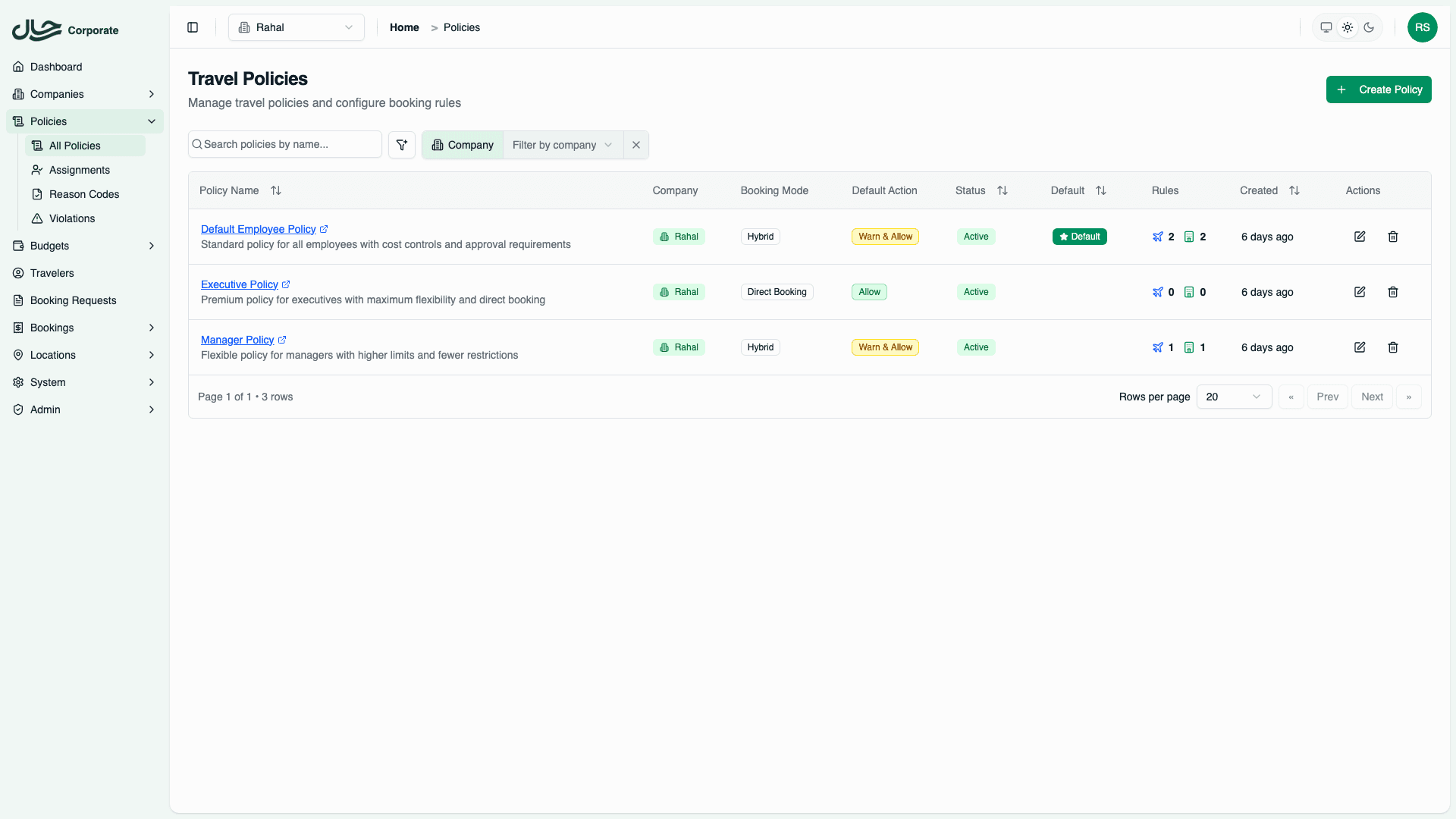
- Go to Policies in the dashboard
- Click Create Policy button
- The policy form drawer opens
Step 2: Basic Information
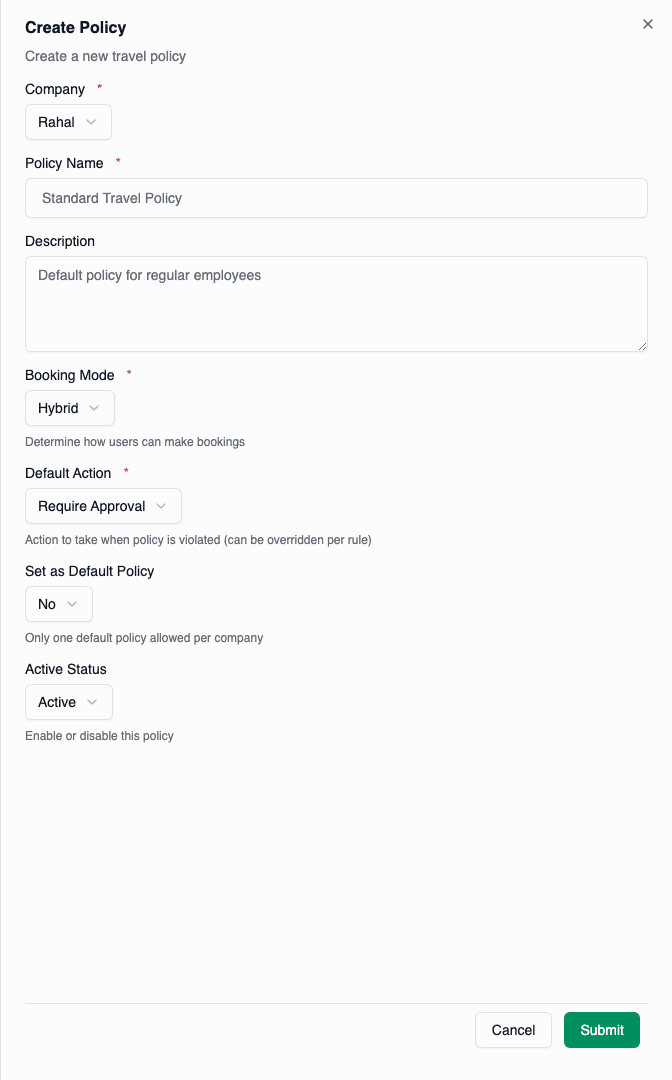
Company
If you manage multiple companies, select which company this policy belongs to.
Policy Name
Enter a descriptive name:
- ✅ "Standard Employee Travel Policy"
- ✅ "Executive Travel Policy"
- ✅ "Contractor Limited Travel"
- ❌ "Policy 1" (not descriptive)
Description
Optional but recommended. Explain:
- Who this policy is for
- Key restrictions or allowances
- When it should be used
Step 3: Booking Mode
Choose how users can book travel:
| Mode | When to Use |
|---|---|
| Direct Booking | Trust employees to follow policy |
| Request Only | All travel needs approval |
| Hybrid | Approve only out-of-policy bookings |
Recommendation: Start with Hybrid. It balances control with convenience.
Step 4: Default Action
Choose what happens when a booking violates policy rules:
| Action | When to Use |
|---|---|
| Allow | Track violations but don't restrict |
| Warn and Allow | Inform employees but let them proceed |
| Require Approval | Review violations before booking completes |
| Block | Prevent non-compliant bookings entirely |
Recommendation: Start with Require Approval. You can always loosen restrictions later.
Step 5: Default Policy Setting
Toggle Set as Default Policy if this should be the fallback for users without specific assignments.
Only one policy per company can be the default. Setting this will unset any existing default.
Step 6: Active Status
- Active: Policy can be assigned and will be enforced
- Inactive: Policy exists but won't be used
Leave as Active unless you're drafting a policy for later.
Step 7: Save the Policy
Click Create Policy to save.
You'll be redirected to the policy detail page where you can:
- Add flight rules
- Add hotel rules
- Manage assignments
Next Steps
After creating the policy:
- Add flight rules to set flight restrictions
- Add hotel rules to set hotel restrictions
- Assign the policy to roles or users
Common Patterns
Standard Employee Policy
Name: Standard Travel Policy
Mode: Hybrid
Default Action: Require Approval
Is Default: Yes

Flight Rules:
- All domestic: Economy, $400
- All international: Economy/Premium, $800

Hotel Rules:
- All hotels: 3-4 stars, $150/night
Executive Policy
Name: Executive Travel Policy
Mode: Direct Booking
Default Action: Warn and Allow
Is Default: No

Flight Rules:
- All flights: Economy/Premium/Business, $2,000
  Duration tiers: 8+ hours → Business allowed

Hotel Rules:
- All hotels: 4-5 stars, $300/night
Strict Budget Policy
Name: Contractor Travel Policy
Mode: Request Only
Default Action: Block
Is Default: No

Flight Rules:
- All flights: Economy only, $300
- First Class: BLOCK (override)

Hotel Rules:
- All hotels: 3 stars only, $100/night