

Policy Assignments
Assign policies to roles and individual users
Policy Assignments
After creating a policy, you need to assign it to users. This guide covers the different assignment methods.
Assignment Hierarchy
Policies are assigned at three levels:
1. User-Specific Override (highest priority)
2. Role-Based Assignment
3. Company Default (lowest priority)
The system uses the first applicable assignment found.
Accessing Assignments
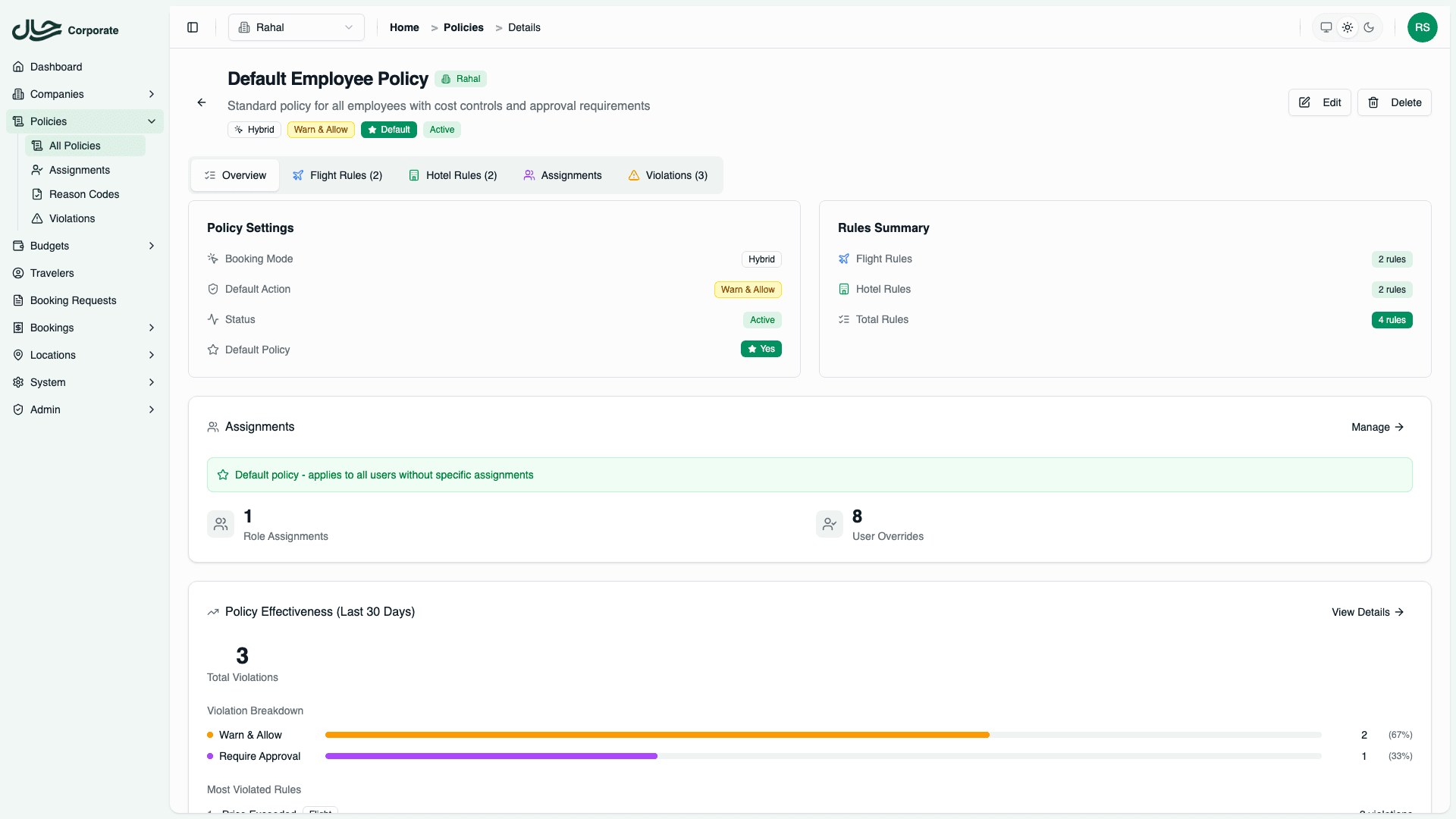
From a Policy
- Open a policy
- Scroll down to the Policy Assignments section in the Overview tab
- View and manage assignments for this policy
From the Assignments Page
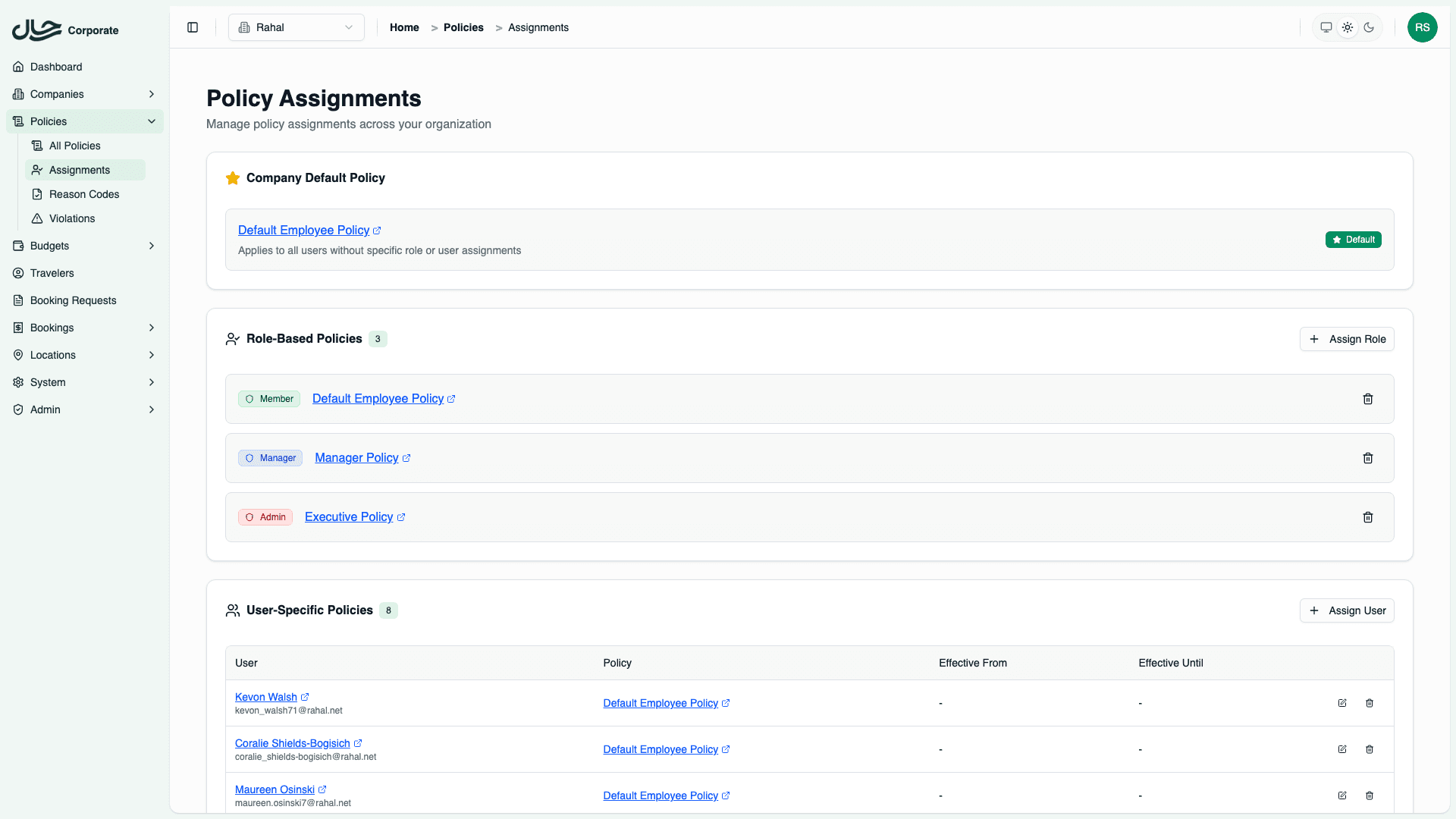
- Go to Policies → Assignments
- View all assignments across the company
- Manage role and user assignments
Setting the Default Policy
Every company needs a default policy as a fallback.
- Go to Policies
- Open the policy you want as default
- Click Edit
- Toggle Set as Default Policy to Yes
- Click Save
Only one policy can be the default. Setting a new default unsets the previous one.
Assigning to Roles
Role assignments apply the policy to all users with that role.
Create a Role Assignment
- Open the policy and scroll to Policy Assignments
- In the Role Assignments section, click Assign Role
- Select the role (Member, Manager, or Admin)
- Click Assign
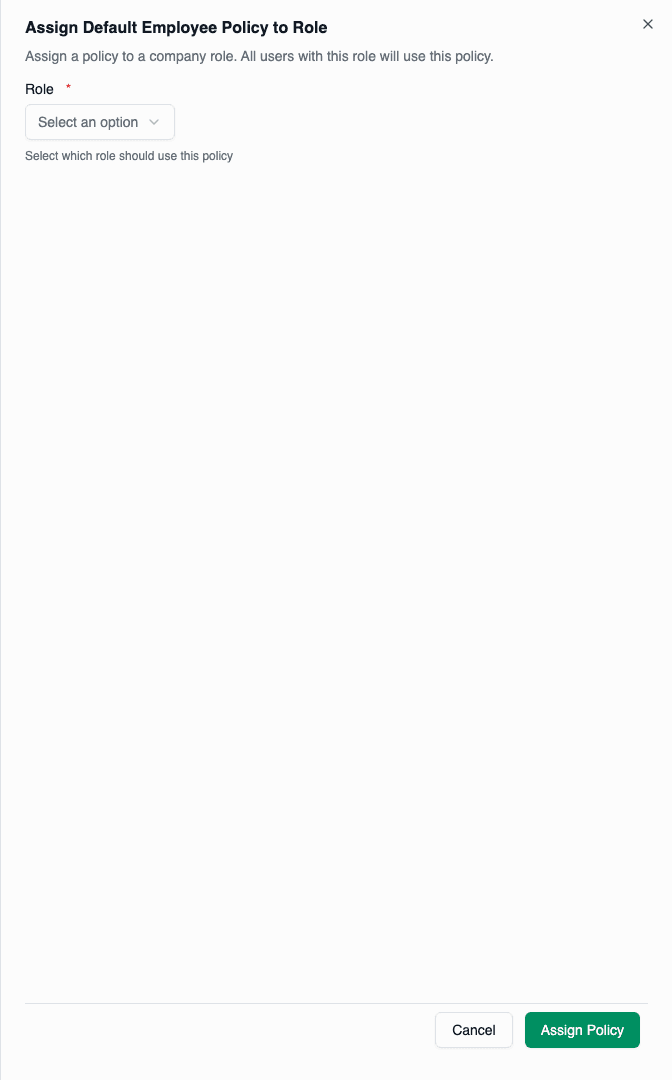
The policy now applies to all users with that role.
Remove a Role Assignment
- Find the role in the assignments list
- Click Remove
- Confirm the removal
Removing a role assignment immediately affects all users with that role. They'll fall back to the company default policy.
Assigning to Users
User assignments override role assignments for specific individuals.
Create a User Assignment
- Open the policy and scroll to Policy Assignments
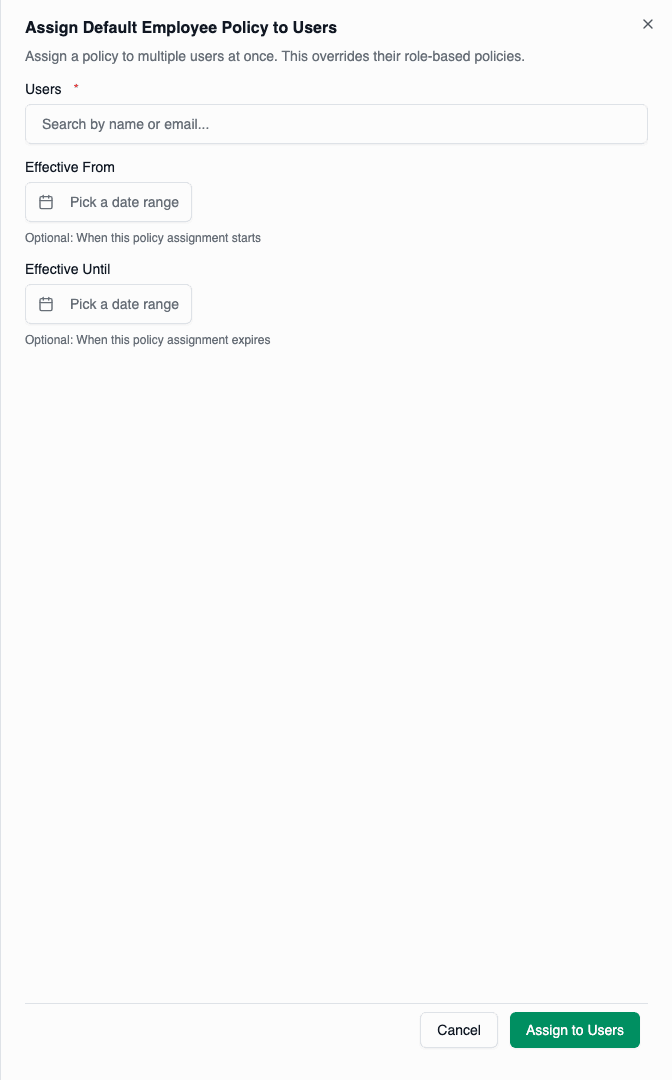
- In the User Overrides section, click Assign User
- Search and select the user
- Optionally set time bounds:
- Effective From: When the assignment starts
- Effective Until: When the assignment ends
- Click Assign
Time-Bound Assignments
Use effective dates for temporary policies:
Example scenarios:
- Executive traveling for a specific project
- Temporary upgrade during trial period
- Scheduled policy change
How it works:
- Before Effective From: Assignment not active, user uses role/default
- Between dates: Assignment active
- After Effective Until: Assignment expires, user uses role/default
Edit a User Assignment
- Find the user in the assignments table
- Click Edit
- Modify the effective dates
- Click Save
Remove a User Assignment
- Find the user in the assignments table
- Click Remove
- Confirm the removal
Bulk User Assignment
Assign a policy to multiple users at once:
- Click Assign Users (plural)
- Search and select multiple users
- Set optional effective dates (applies to all)
- Click Assign
Policy Preview
Check which policy applies to a specific user:
- Go to Policies → Assignments
- Click Preview Policy
- Select a user
- See:
- Which policy applies
- Assignment source (User/Role/Default)
- Assignment details
This helps verify your configuration is correct.
Common Patterns
Standard Role-Based Setup
Default Policy: Standard Travel (for unassigned users)

Role Assignments:
- Member → Standard Travel Policy
- Manager → Manager Travel Policy
- Admin → Executive Travel Policy
Executive Override
Role Assignments:
- All roles → Standard Travel Policy

User Overrides:
- CEO → Executive Policy (permanent)
- CFO → Executive Policy (permanent)
- Project Lead → Enhanced Policy (until project ends)
Temporary Upgrade
Role Assignments:
- Member → Standard Travel

User Override:
- John Smith → Executive Policy
  - Effective From: 2024-01-15
  - Effective Until: 2024-03-15
Best Practices
- Set a sensible default - Most users should be covered
- Use role-based for patterns - Same policy for all users of a role
- Reserve user overrides for exceptions - Keep them minimal
- Set expiration dates - Don't leave temporary overrides indefinitely
- Review regularly - Audit assignments quarterly
- Document exceptions - Note why user overrides exist
Troubleshooting
User has wrong policy
- Check user assignments first (highest priority)
- Check role assignments
- Verify the default policy
Policy not applying
- Ensure the policy is Active
- Check effective dates on user assignments
- Verify the user is in the correct company
Can't delete policy
You cannot delete a policy that is:
- Set as company default
- Assigned to roles
- Assigned to users
Remove all assignments first, then delete.