

Monitoring Budgets
Track spending, view analytics, and manage budget health
Monitoring Budgets
Effective budget management requires ongoing monitoring. The budget detail page provides tabs for tracking spending, viewing period history, managing assignments, and reviewing violations.
Budget Detail Page
Click on any budget from the list to see detailed information. The detail page includes a header with budget metadata and a tabbed interface for different views.
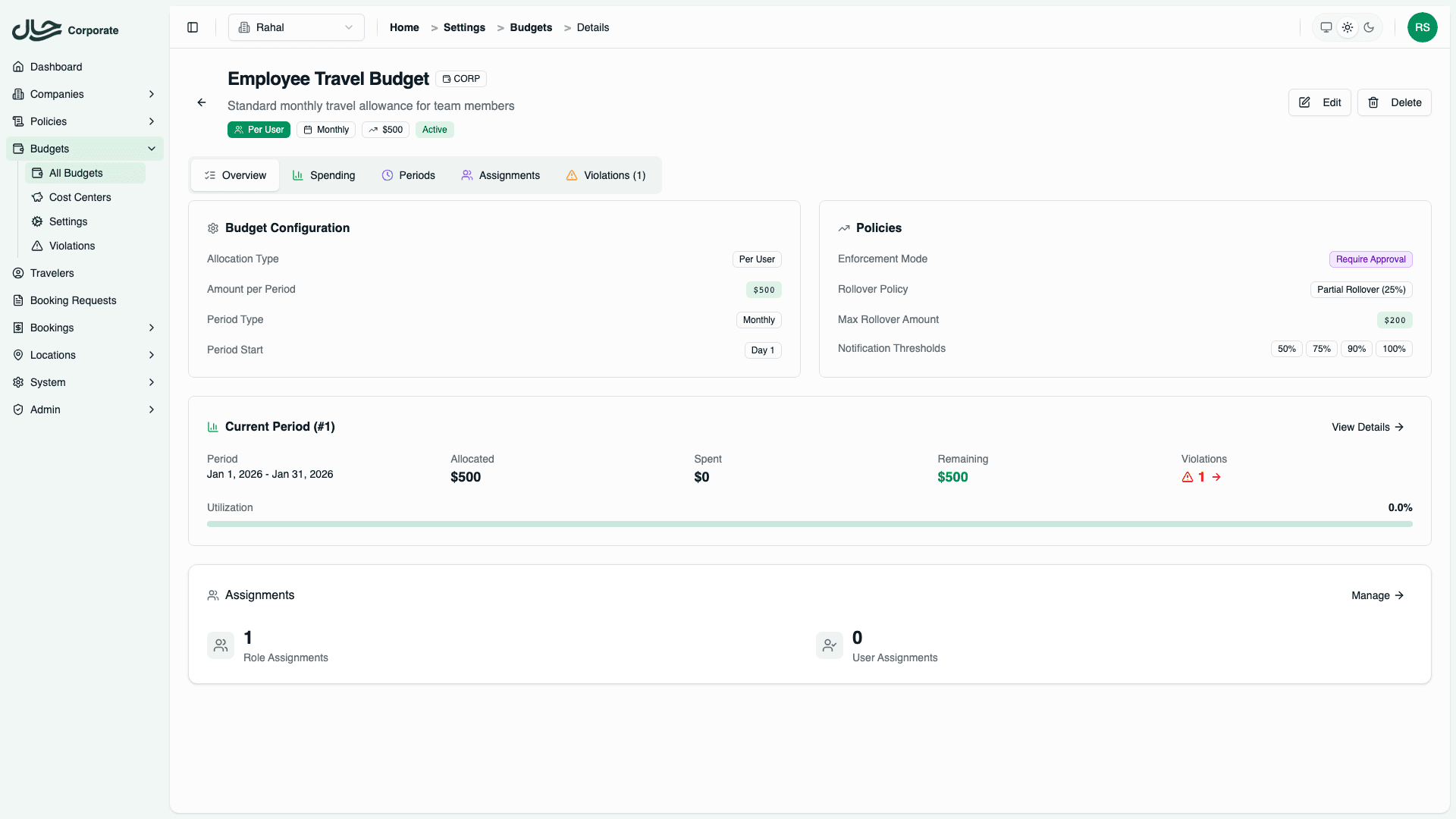
Header Information
The header shows:
- Budget name and description
- Cost center badge (if assigned)
- Allocation type - Per User or Shared Pool
- Period type - Monthly, Quarterly, or Yearly
- Amount per period with currency
- Status - Active or Inactive
Overview Tab
The Overview tab provides a summary view of the budget configuration and current status.
Budget Configuration
Shows the core settings:
| Field | Description |
|---|---|
| Allocation Type | Per User or Shared Pool |
| Amount per Period | Budget amount and currency |
| Period Type | Monthly, Quarterly, or Yearly |
| Period Start | Day (and month for yearly) when periods begin |
Policies
Shows enforcement and rollover settings:
| Field | Description |
|---|---|
| Enforcement Mode | Track Only, Warn, Require Approval, or Block |
| Rollover Policy | None, Partial (with percentage), or Full |
| Max Rollover Amount | Optional cap on rollover |
| Notification Thresholds | Percentages that trigger alerts |
Current Period Summary
A quick view of the active period showing:
- Period dates (start to end)
- Allocated amount (base + rollover)
- Spent amount
- Remaining amount
- Violations count (links to Violations tab)
- Utilization bar
Assignments Summary
A compact view of how the budget is assigned, with a link to the Assignments tab.
Spending Tab
The Spending tab provides detailed spending analytics for the current period.
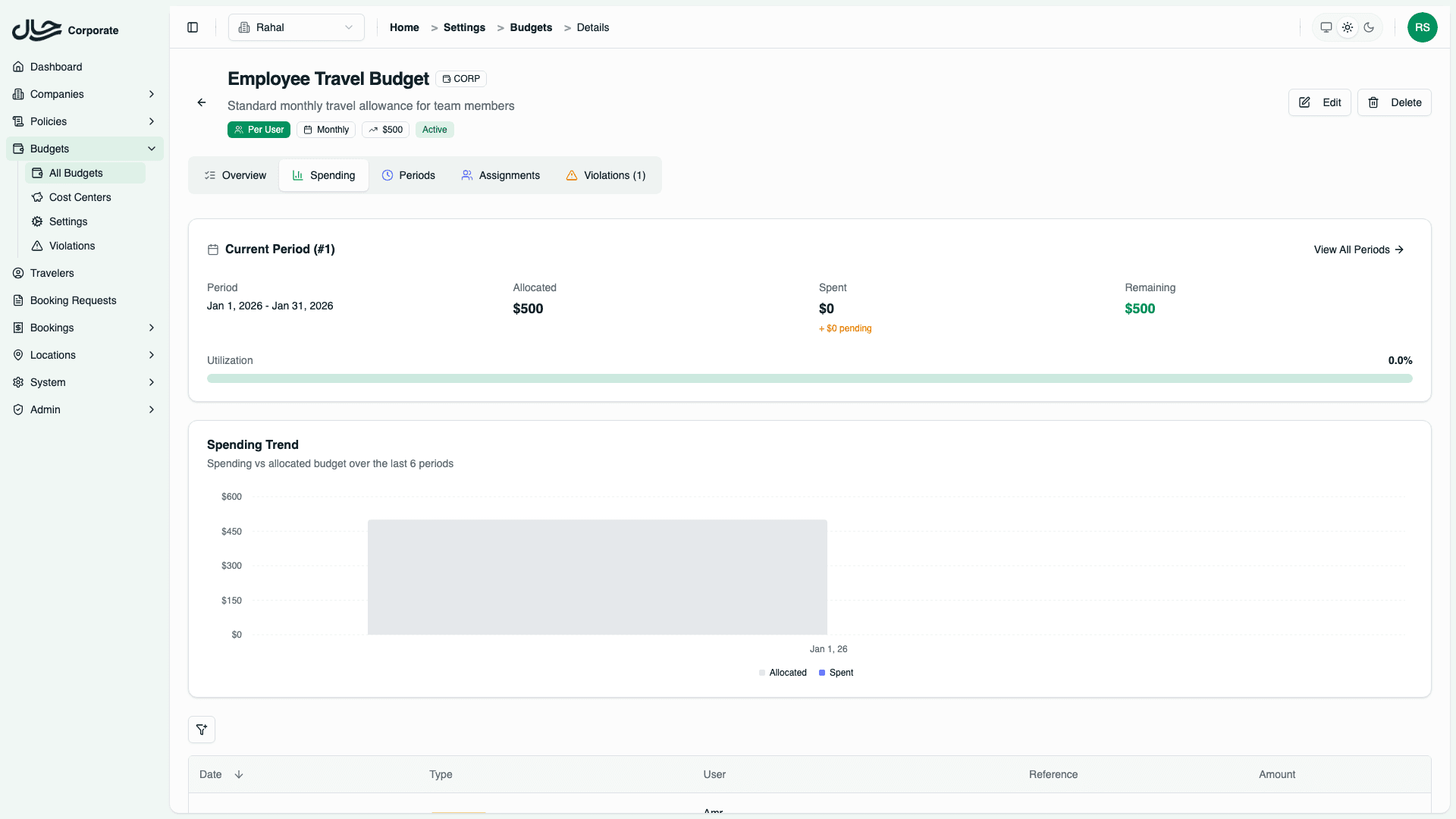
Current Period Card
Shows the active period with detailed metrics:
| Metric | Description |
|---|---|
| Period | Start and end dates |
| Allocated | Total budget including rollover |
| Spent | Confirmed transaction total |
| Remaining | Available to spend |
The utilization bar shows percentage used with visual indicators:
- Under 80% - Normal (default color)
- 80-100% - Near Limit (amber warning)
- Over 100% - Over Budget (red alert)
Rollover amounts appear below the allocated total when applicable.
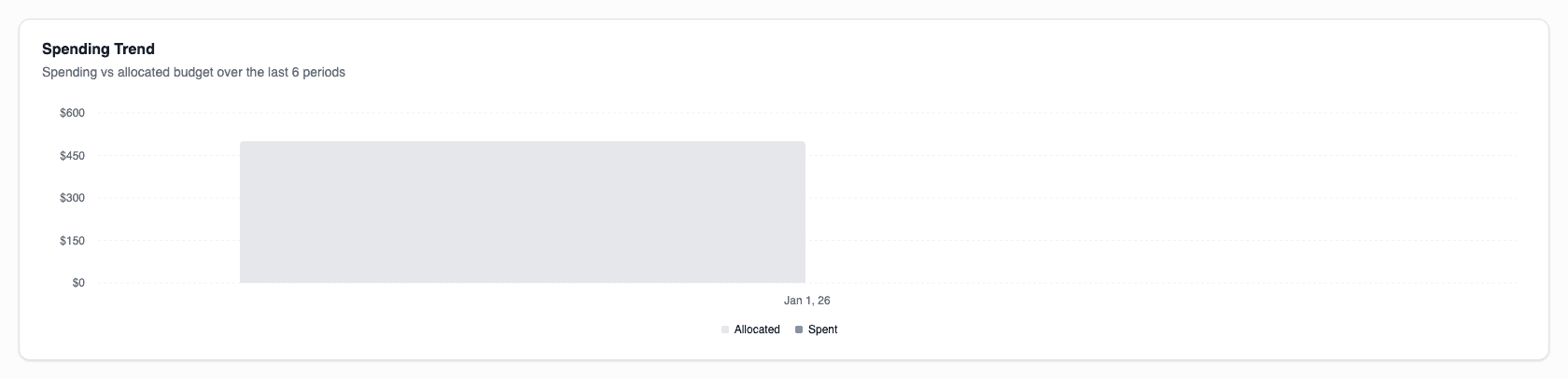
Spending Trend Chart
A bar chart showing spending vs allocated budget over the last 6 periods. This helps identify:
- Spending patterns over time
- Periods that consistently exceed or underuse budget
- Seasonal variations in travel spending
Transactions Table
Lists all transactions for the budget with filtering options.
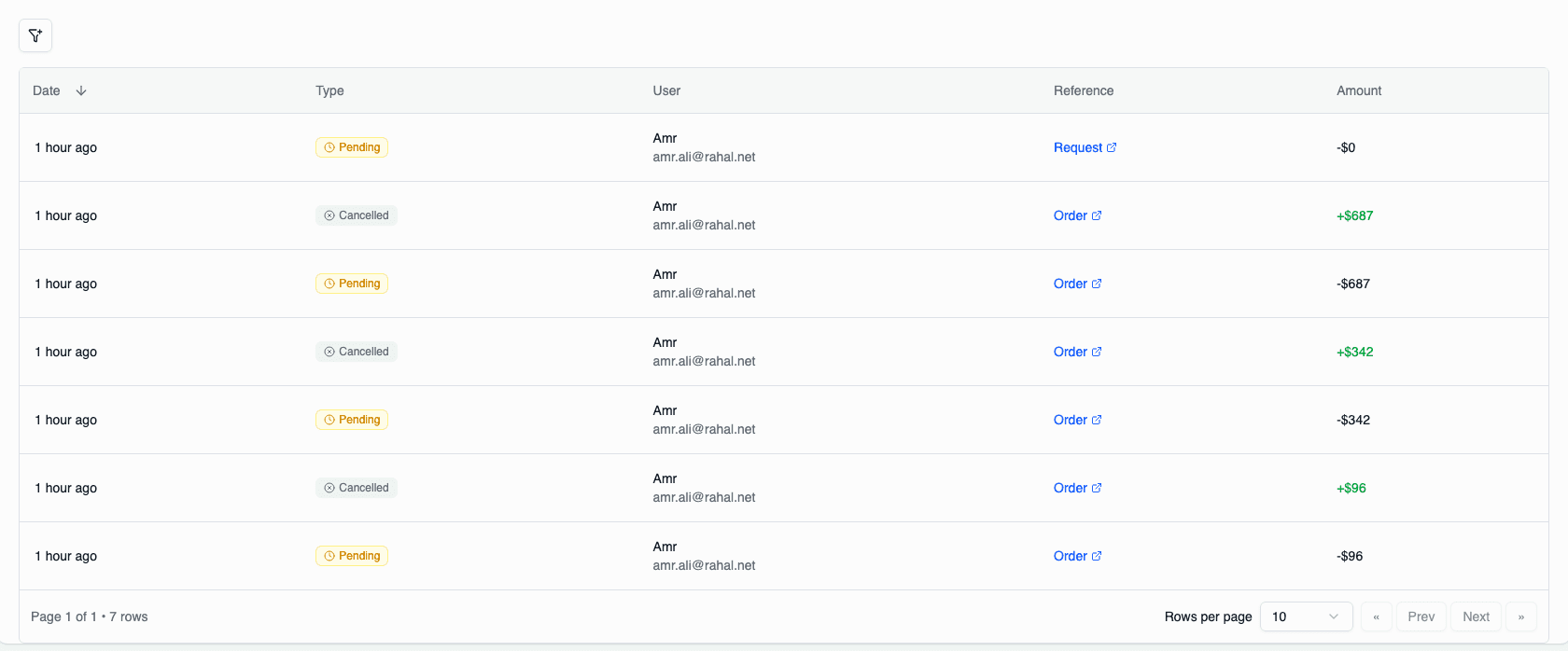
Columns:
| Column | Description |
|---|---|
| Date | When the transaction occurred |
| Type | Transaction type with icon |
| User | Who the transaction is for |
| Reference | Link to booking request or order |
| Amount | Transaction amount (+ for credits, - for debits) |
Transaction Types:
| Type | Description | Direction |
|---|---|---|
| Booking Pending | Budget reserved for booking | Debit |
| Booking Completed | Reservation confirmed | Debit |
| Booking Cancelled | Reservation released | Credit |
| Refund | Amount credited back | Credit |
| Rollover In | Rollover from previous period | Credit |
| Rollover Out | Rollover to next period | Debit |
Filters:
- Type - Filter by transaction type
- Date - Filter by date range
Periods Tab
The Periods tab shows the current period and historical period data.
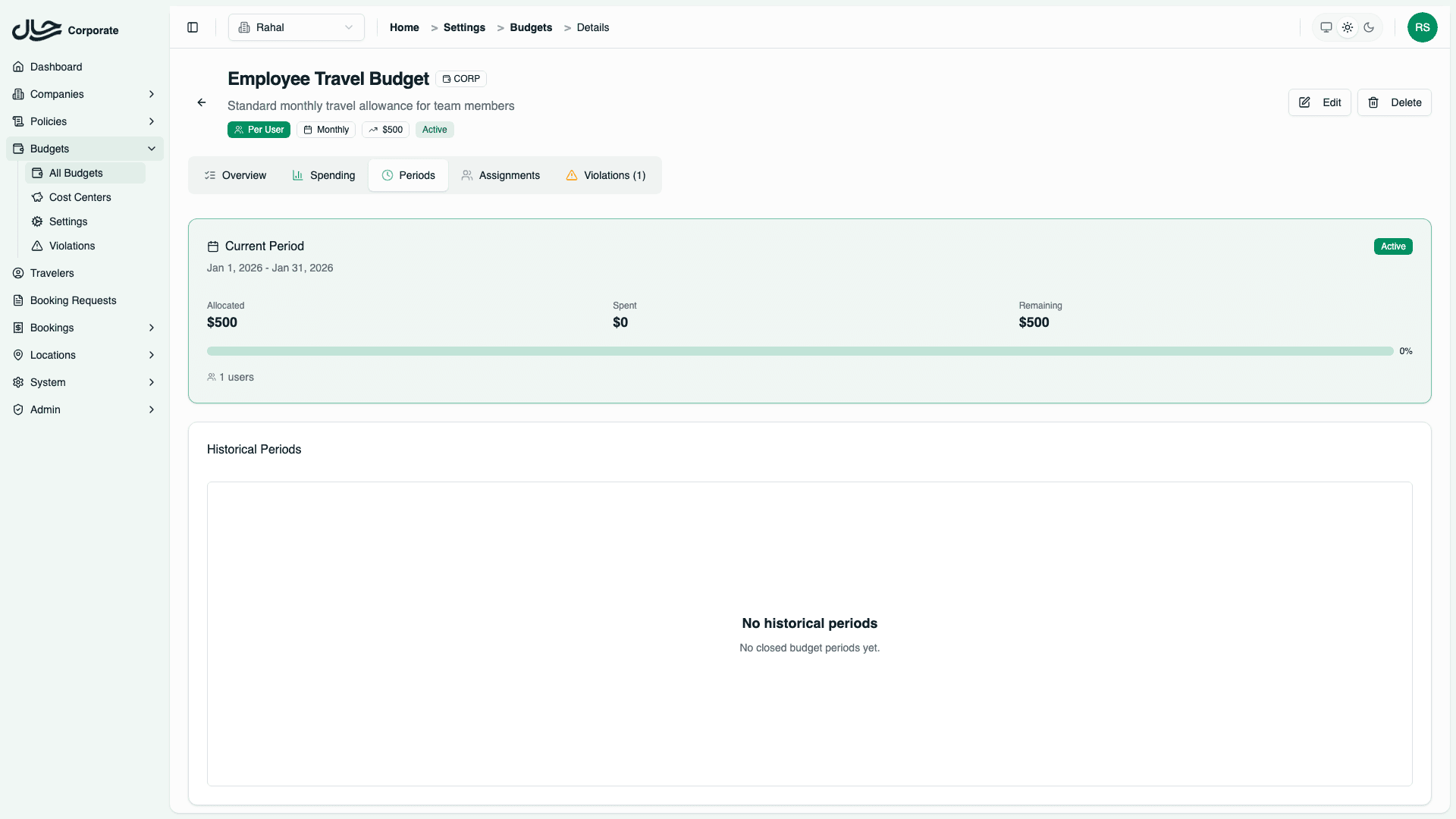
Current Period Card
Highlighted card showing the active period with:
- Period dates
- Allocated, spent, and remaining amounts
- Utilization bar
- User count (for Per User budgets)
- Rollover amount (if any)
Historical Periods Table
A table of all closed periods:
| Column | Description |
|---|---|
| Period | Month/year with date range |
| Allocated | Total budget for the period |
| Spent | Amount spent during the period |
| Utilization | Percentage with visual bar |
| Status | ACTIVE or CLOSED |
Use this to:
- Track spending patterns over time
- Verify rollover calculations
- Identify consistently over/under-budget periods
Assignments Tab
The Assignments tab shows how the budget is connected to roles and users.
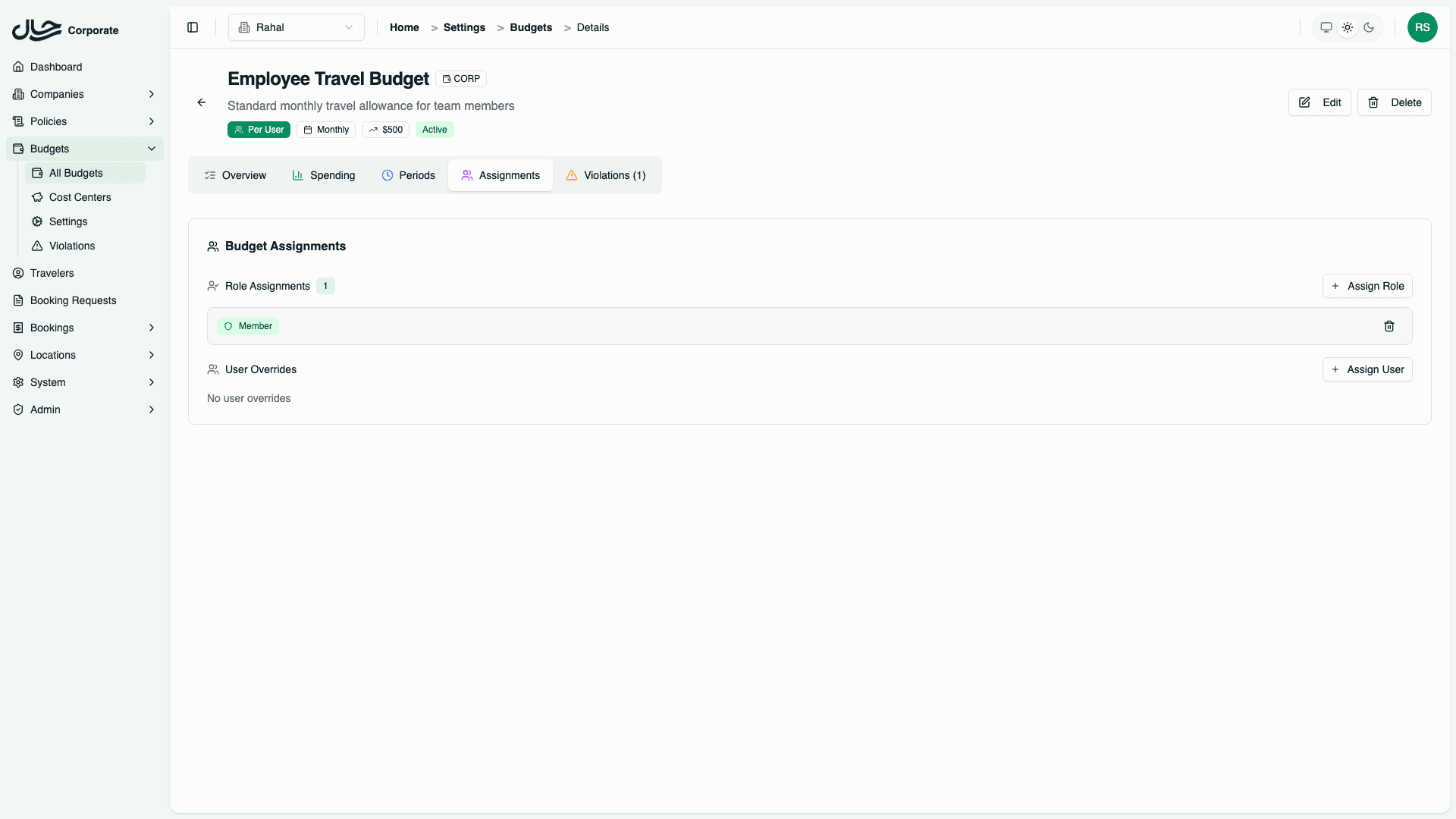
Role Assignments
Lists roles that have this budget assigned. All users with these roles will have this budget unless they have a user-level override.
User Overrides
Lists individual users assigned to this budget. User assignments override role assignments and can have effective dates.
For detailed assignment management, see Managing Assignments.
Violations Tab
The Violations tab shows all budget violations for this specific budget.
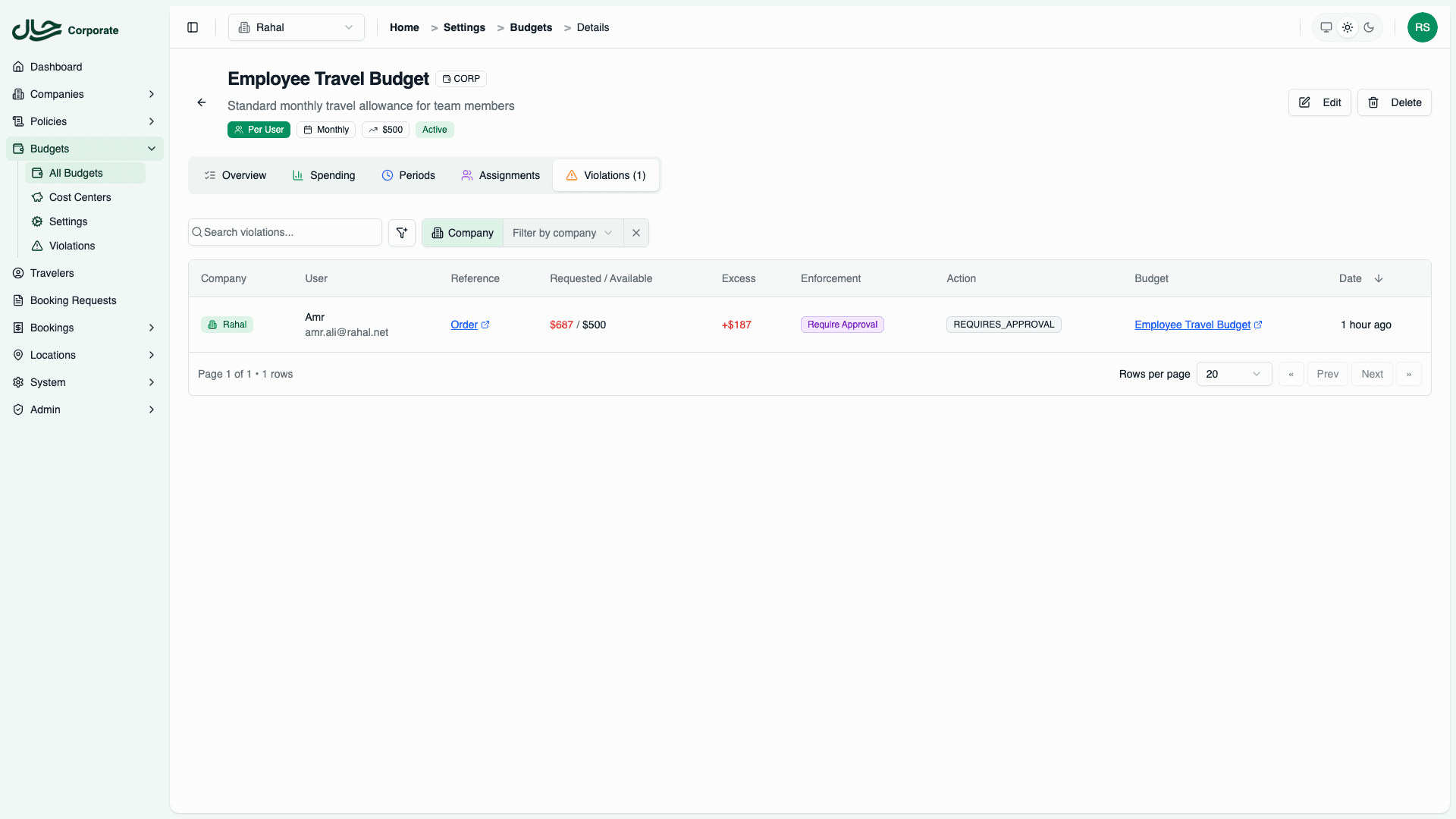
Each violation record shows:
| Field | Description |
|---|---|
| Company | Which company |
| User | Who triggered the violation |
| Reference | Link to booking request or order |
| Requested / Available | Amounts that caused the violation |
| Excess | How much over budget |
| Enforcement | What mode was in effect |
| Action | What action was taken (Allow, Warn, Require Approval, Block) |
| Date | When the violation occurred |
Budget Violations Page
For a company-wide view of all violations, go to the dedicated Violations page.
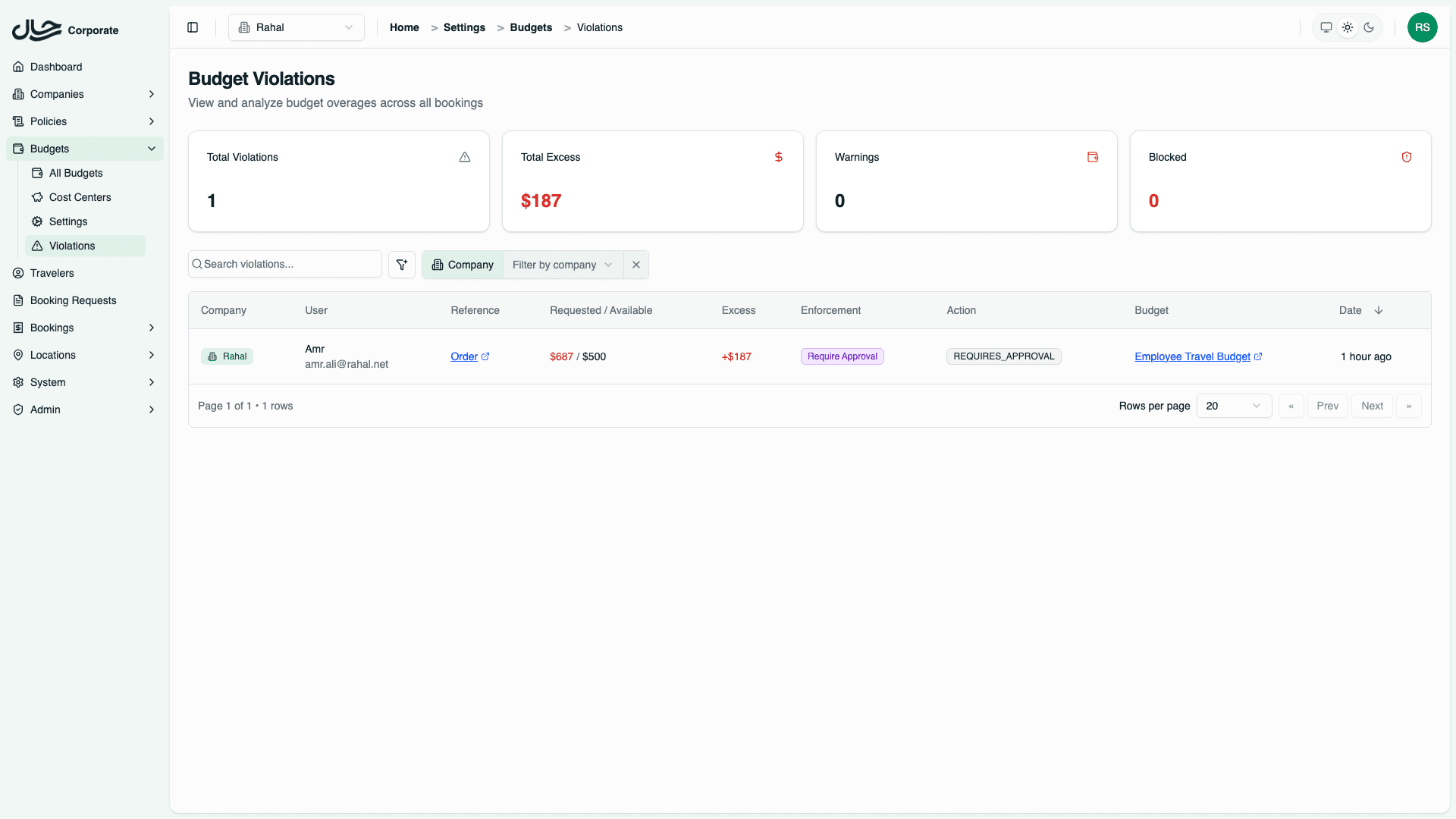
Stats Cards
Four summary cards at the top:
| Card | Description |
|---|---|
| Total Violations | Count of all violations |
| Total Excess | Sum of all excess amounts |
| Warnings | Violations that resulted in warnings |
| Blocked | Violations that blocked the booking |
Violations Table
The same table as the per-budget view, but showing all violations across all budgets. Additional filters:
- Company - Filter by company
- Enforcement Mode - Filter by enforcement setting
- Action - Filter by action taken
- Date - Filter by date range
Use the violations page to:
- Identify budgets that are too restrictive
- Find users who frequently exceed limits
- Analyze enforcement effectiveness
- Adjust budgets or enforcement modes
Notification Alerts
Alert Types
| Alert | Trigger |
|---|---|
| Threshold Warning | Utilization reaches configured threshold (e.g., 50%, 75%, 90%) |
| Budget Exceeded | Utilization exceeds 100% |
| Period Transition | New period created |
Configuring Alerts
In company settings:
- Enable Send Budget Alerts
- Set per-budget Notification Thresholds
Best Practices
Regular Reviews
| Frequency | Activity |
|---|---|
| Daily | Check critical/exceeded budgets |
| Weekly | Review violation log |
| Monthly | Full budget review, adjust as needed |
| Quarterly | Analyze trends, plan adjustments |
Proactive Monitoring
- Set notification thresholds to catch issues early
- Review violations before they accumulate
- Track users who frequently exceed limits
- Identify budgets that are too tight or too loose
Background Jobs
Two automated jobs keep budgets running smoothly:
Period Rollover Job
Runs daily to handle period transitions:
- Identifies budgets with expired active periods
- Calculates rollover based on each budget's policy
- Closes expired periods and creates new ones
- For Per User budgets, creates individual user period records
Pending Timeout Job
Runs periodically to release abandoned reservations:
- Finds pending transactions older than the configured timeout
- Releases each reservation, returning funds to available budget
- Logs the release for audit purposes
Both jobs are critical for budget health. If you notice periods not transitioning or stale pending reservations, contact your system administrator.
Related Topics
- Budget Periods - Understanding period lifecycle
- Consumption Lifecycle - Transaction flow
- Company Settings - Configure alerts
- Troubleshooting - Common issues