

Company Budget Settings
Configure company-wide budget behavior and defaults
Company Budget Settings
Company budget settings control global behavior for all budgets in your organization. These settings establish defaults and configure how budgets interact with bookings.
Accessing Budget Settings
- Navigate to Budgets
- Click the Settings tab or gear icon
- Modify settings as needed
- Click Save
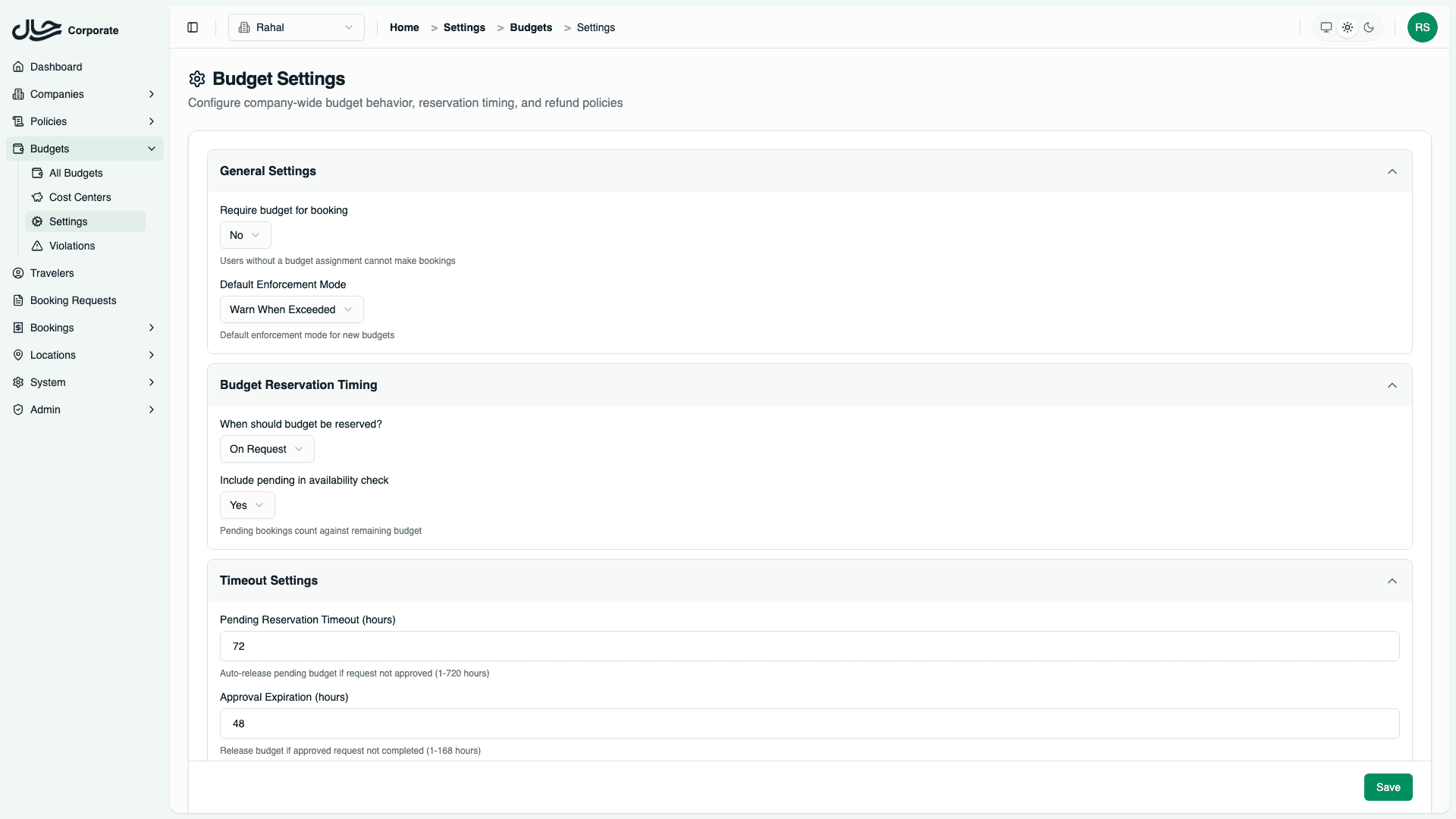
Settings Overview
| Category | Settings |
|---|---|
| Requirements | Require budget for booking |
| Defaults | Default enforcement mode |
| Reservation Timing | When to reserve budget |
| Pending Behavior | How pending transactions work |
| Refunds | How refunds credit budgets |
| Notifications | Alert settings and recipients |
Require Budget for Booking
Controls whether users must have an assigned budget to book travel.
| Setting | Behavior |
|---|---|
| No (default) | Users without budgets can book freely |
| Yes | Users without budgets cannot book |
When to Enable
- Strict budget control: Every booking must be against a budget
- Complete spending visibility: No untracked travel expenses
- Policy compliance: All travel must be pre-approved via budget
When to Keep Disabled
- Gradual rollout: Not all employees have budgets yet
- Contractors/guests: Some users shouldn't have budgets
- Flexibility: Some travel shouldn't require budget tracking
If enabled, ensure all users who need to book have budget assignments. Otherwise they'll be blocked from booking.
Default Enforcement Mode
Sets the default enforcement mode for new budgets.
| Option | Description |
|---|---|
| Track Only | Monitor spending, no restrictions |
| Warn When Exceeded | Show warning, allow booking |
| Require Approval | Route to approval when exceeded |
| Block | Prevent booking when exceeded |
How It's Used
When creating a new budget, the enforcement mode field is pre-populated with this default. Administrators can still change it per budget.
Recommendation
Start with Warn When Exceeded as the default:
- Provides visibility into over-budget bookings
- Doesn't block users unexpectedly
- Can be tightened per-budget as needed
Budget Reservation Timing
Controls when budget is reserved during the booking process.
| Option | When Budget Reserved | Trade-off |
|---|---|---|
| On Request | When booking request created | Prevents concurrent overspending |
| On Approval | When request approved | More accurate but concurrent risk |
| On Confirmation | When payment confirmed | Most flexible, highest risk |
On Request (Recommended)
| Stage | Budget State |
|---|---|
| User Starts Booking | Budget reserved immediately |
| Approval Wait | Budget locked (pending) |
| Approved | Still pending |
| Payment Confirmed | Pending → Spent |
Pros: Prevents two users from using the same budget; most accurate availability during concurrent bookings; safe for shared pool budgets
Cons: Budget locked during approval wait; abandoned bookings hold budget until timeout
On Approval
| Stage | Budget State |
|---|---|
| User Starts Booking | No reservation |
| Approval Wait | Budget still free |
| Approved | Budget reserved |
| Payment Confirmed | Pending → Spent |
Pros: Budget only locked when likely to proceed; less impact from abandoned bookings
Cons: Multiple requests may exceed budget simultaneously; approval decisions based on stale availability
On Confirmation
| Stage | Budget State |
|---|---|
| User Starts Booking | No reservation |
| Approval | No reservation |
| Payment Confirmed | Budget spent immediately |
Pros: Maximum flexibility; no pending reservations
Cons: Highest overspending risk; budget availability inaccurate during booking
Pending Reservation Settings
Include Pending in Availability
Controls whether pending reservations count against available budget.
| Setting | Available = | Description |
|---|---|---|
| Yes (default) | Total - Spent - Pending | Accurate real-time balance |
| No | Total - Spent | Optimistic, may overspend |
Example:
Total: $5,000
Spent: $3,000
Pending: $500

Include Pending = Yes → Available: $1,500
Include Pending = No  → Available: $2,000
Keep this enabled (Yes) for accurate budget enforcement. Only disable if you prefer optimistic availability.
Pending Reservation Timeout
How long pending reservations remain before automatic release.
| Setting | Default | Range |
|---|---|---|
| Timeout Hours | 72 | 1-720 (1 hour to 30 days) |
What happens:
- A background job runs periodically
- Reservations older than the timeout are released
- Released amount returns to available budget
Choosing a timeout:
| Value | Use Case |
|---|---|
| 24 hours | Fast turnover, quick decisions |
| 72 hours (default) | Balance between holding and releasing |
| 168 hours (1 week) | Complex approval workflows |
Approval Expiration
How long approved requests remain valid before budget is released.
| Setting | Default | Range |
|---|---|---|
| Expiration Hours | 48 | 1-168 (7 days max) |
What happens:
- After approval, user has this long to complete payment
- If not completed, budget reservation is released
- User would need to re-request
Refund Settings
Credit Refunds to Budget
Whether refunds add back to budget.
| Setting | Behavior |
|---|---|
| Yes (default) | Refunds increase available budget |
| No | Refunds don't affect budget |
Enable when:
- You want accurate spending tracking
- Cancelled trips should free up budget
- Refunds are a normal occurrence
Disable when:
- Budgets are "one-way" (spend only)
- Finance handles refunds separately
- Refunds shouldn't increase available budget
Refund Credit Period
Which period receives the refund credit.
| Option | Behavior |
|---|---|
| Current Period | Credit to active period |
| Original Period | Credit to booking's period |
Current Period:
Booking: January (Period 1, closed)
Refund: March (Period 3, active)
Credit goes to: Period 3 ← User gets more budget now
Original Period:
Booking: January (Period 1, closed)
Refund: March (Period 3, active)
Credit goes to: Period 1 ← Accurate history, no impact on current
Recommendation: Use Current Period for practical budget availability. Use Original Period for accurate historical reporting.
Notification Settings
Send Budget Alerts
Whether to send notifications for budget events.
| Events | Description |
|---|---|
| Threshold reached | When 50%, 75%, 90%, 100% used |
| Budget exceeded | When spending goes over |
| Period transition | When new period starts |
Alert Recipients
Who receives budget alerts.
| Recipient Type | How to Add |
|---|---|
| Admin emails | Enter email addresses |
| Role-based | Finance admins, budget owners |
Example configuration:
Alert Recipients:
- finance@company.com
- travel.admin@company.com
- budget.owners@company.com
Default Values
When settings haven't been configured, these defaults apply:
| Setting | Default |
|---|---|
| Require Budget for Booking | No |
| Default Enforcement Mode | Warn When Exceeded |
| Reserve Budget At | On Request |
| Include Pending in Availability | Yes |
| Pending Reservation Timeout | 72 hours |
| Approval Expiration | 48 hours |
| Credit Refunds to Budget | Yes |
| Refund Credit Period | Current Period |
| Send Budget Alerts | Yes |
| Alert Recipients | (empty) |
Saving Settings
After modifying settings:
- Review changes in the form
- Click Save or Update Settings
- Changes take effect immediately
- New budgets will use new defaults
- Existing budgets retain their settings
Company settings affect global behavior and new budget defaults. Existing budgets keep their individual settings.
Best Practices
Start Conservative
Begin with defaults that are safe:
- Require Budget: No (don't block users unexpectedly)
- Enforcement: Warn (visibility without blocking)
- Reservation: On Request (prevent overspending)
- Include Pending: Yes (accurate availability)
Enable Notifications
Set up alert recipients early:
- Finance team for budget oversight
- Department managers for their budgets
- IT/admin for technical issues
Review Timeout Values
Default 72-hour timeout works for most:
- Shorter (24-48 hours) for fast-paced environments
- Longer (168+ hours) for complex approval chains or international bookings
Match Refund Behavior to Needs
Consider your finance processes:
- Real-time budget management → Current Period
- Accurate historical reporting → Original Period
Settings Interaction Matrix
Understanding how settings work together:
| If you want... | Configure... |
|---|---|
| Maximum budget accuracy | ON_REQUEST + Include Pending: Yes |
| Flexible booking with tracking | ON_CONFIRMATION + Include Pending: No |
| All travel budget-controlled | Require Budget: Yes + ensure all roles have budgets |
| Refunds available immediately | Credit Refunds: Yes + Current Period |
Related Topics
- Enforcement Modes - How enforcement works
- Consumption Lifecycle - Reservation timing
- Monitoring - View alerts and violations