

Budget Assignments
Assign budgets to roles and individual users
Budget Assignments
After creating a budget, you need to assign it to users so they can book travel against it. Assignments can be made at the role level (for bulk application) or user level (for individual overrides).
Assignment Types
| Type | Scope | Priority | Time-Bounded |
|---|---|---|---|
| Role Assignment | All users with that role | Lower | No |
| User Assignment | Specific individual | Higher (override) | Optional |
Role Assignments
Role assignments apply a budget to all users with a specific company role.
Benefits of Role Assignments
- Bulk application: One assignment covers many users
- Automatic inclusion: New users with the role get the budget automatically
- Simple management: Change the assignment to affect all role members
- Role-based policy: Clear spending limits by organizational level
Creating a Role Assignment
- Navigate to Budgets → select the budget
- Go to the Assignments section
- Click Assign to Role
- Select a role from the dropdown
- Click Assign
Example: Sales Team Budget
Scenario: All salespeople should have a $3,000/month travel budget.
Steps:
- Create budget "Sales Travel" ($3,000/month)
- Assign to role "Sales Representative"
- All 15 sales reps now have this budget
Result:
| User | Role | Budget |
|---|---|---|
| Alice | Sales Representative | Sales Travel ($3,000) |
| Bob | Sales Representative | Sales Travel ($3,000) |
| Carol | Sales Representative | Sales Travel ($3,000) |
| ... | ... | ... |
One Budget Per Role
Each role can only have one budget assignment:
Role: Sales Representative
Budget: Sales Travel ✓

Role: Sales Representative
Budget: Premium Travel ✗ (would replace Sales Travel)
To change a role's budget, the old assignment is replaced by the new one.
Viewing Role Assignments
On the budget detail page, the Assignments section shows:
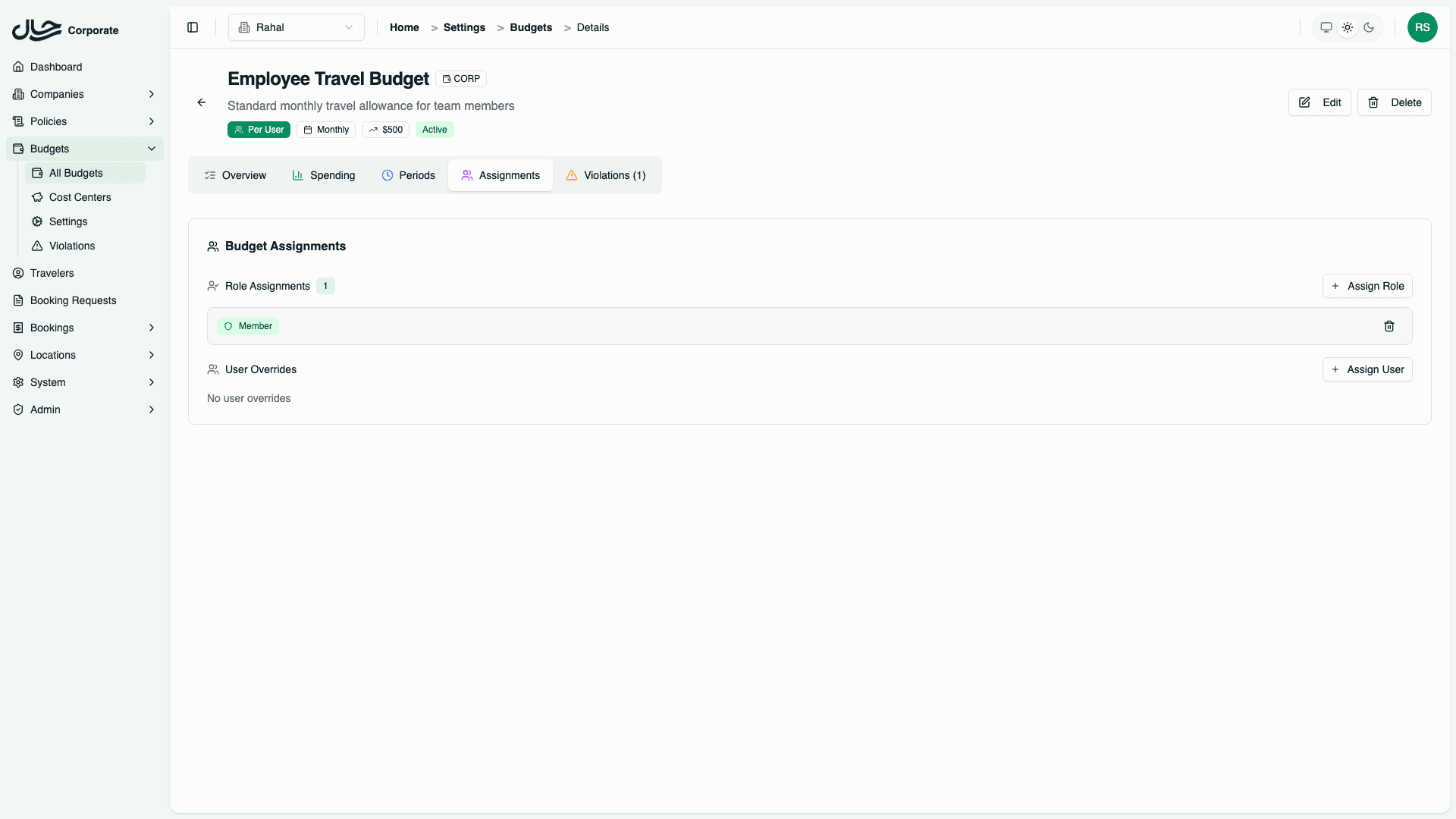
| Role | Users | Assigned |
|---|---|---|
| Sales Representative | 15 | Jan 15, 2024 |
| Marketing Manager | 4 | Jan 15, 2024 |
Click a role to see which users have that role.
Removing a Role Assignment
- Navigate to the budget's Assignments section
- Find the role assignment
- Click the remove/delete icon
- Confirm removal
Removing a role assignment immediately removes budget access for all users with that role (unless they have a user-level override).
User Assignments
User assignments apply a budget to a specific individual user, overriding any role-level assignment.
Benefits of User Assignments
- Individual overrides: Different budget for specific users
- Time-bounded: Can have start and end dates
- Exception handling: Handle special cases without new roles
- Temporary changes: Project-based or seasonal budgets
Creating a User Assignment
- Navigate to Budgets → select the budget
- Go to the Assignments section
- Click Assign to User
- Select or search for a user
- Optionally set Effective From and Effective Until dates
- Click Assign
Time-Bounded Assignments
User assignments can have optional date ranges:
| Field | Purpose | If Not Set |
|---|---|---|
| Effective From | When assignment starts | Immediately effective |
| Effective Until | When assignment ends | Never expires |
Example: Temporary Budget Increase
User: Alice
Budget: Project Lead Budget ($10,000/month)
Effective From: January 1, 2024
Effective Until: March 31, 2024| Date | Alice's Effective Budget |
|---|---|
| Dec 2023 | Sales Travel (via role) |
| Jan-Mar 2024 | Project Lead Budget (user override) |
| Apr 2024+ | Sales Travel (role, override expired) |
One Budget Per User
Each user can only have one direct budget assignment:
User: Alice
Budget: Project Lead Budget ✓

User: Alice
Budget: VIP Travel ✗ (would replace Project Lead)
The user still has their role's budget as a fallback when the user assignment expires or is removed.
Viewing User Assignments
The User Budget Assignments table shows all individual assignments:
| User | Budget | Effective From | Effective Until | |
|---|---|---|---|---|
| Alice | alice@company.com | Project Lead | Jan 1, 2024 | Mar 31, 2024 |
| Bob | bob@company.com | Executive Travel | - | - |
| Carol | carol@company.com | Reduced Budget | Dec 1, 2023 | Jan 31, 2024 |
Editing a User Assignment
- Click on the user assignment row
- Modify dates or budget selection
- Click Save
Removing a User Assignment
- Find the user assignment
- Click the remove/delete icon
- Confirm removal
The user falls back to their role's budget (if any).
Resolution Order
When a user books travel, the system finds their budget using this priority:
| Priority | Source | Check |
|---|---|---|
| 1 (Highest) | User Assignment | Active and within date range |
| 2 | Role Assignment | User's role has budget |
| 3 (Lowest) | None | No budget applies |
For detailed information on how resolution works, see Budget Resolution.
Example Resolution Scenarios
Scenario 1: User with Both
- Alice has user assignment to "VIP Budget"
- Alice's role has "Standard Budget"
- Result: Alice uses VIP Budget
Scenario 2: Expired User Assignment
- Bob's user assignment expired yesterday
- Bob's role has "Standard Budget"
- Result: Bob uses Standard Budget
Scenario 3: Role Assignment Only
- Carol has no user assignment
- Carol's role has "Standard Budget"
- Result: Carol uses Standard Budget
Scenario 4: No Assignment
- Dave has no user assignment
- Dave's role has no budget
- Result: Dave has no budget (unrestricted)
Assignment Strategies
Strategy 1: Role-Based with Exceptions
Most common approach:
- Create budgets for each spending tier
- Assign to roles (Member, Manager, Executive)
- Create user overrides for special cases
Roles:
- Member → Basic Budget ($2,000/month)
- Manager → Manager Budget ($5,000/month)
- Executive → Executive Budget ($15,000/month)

Overrides:
- Alice (Manager) → Project Lead Budget ($10,000) [temporary]
- Bob (Member) → Probation Budget ($500) [temporary]
Strategy 2: Project-Based Pools
For project budgeting:
- Create shared pool budgets per project
- Assign to users working on each project
- Use time bounds for project duration
Budgets:
- Project Alpha Travel (Shared Pool, $50,000)
- Project Beta Travel (Shared Pool, $30,000)

User Assignments:
- Team Alpha members → Project Alpha Travel (effective: project dates)
- Team Beta members → Project Beta Travel (effective: project dates)
Strategy 3: Department Defaults
Simple department-level control:
- Create one budget per department
- Create roles matching departments
- Assign budget to role
Budgets:
- Marketing Travel ($50,000/quarter, Shared Pool)
- Engineering Travel ($30,000/quarter, Shared Pool)

Role Assignments:
- Marketing role → Marketing Travel
- Engineering role → Engineering Travel
Bulk Assignment Operations
Assigning to Multiple Users
Currently, user assignments are created one at a time. For bulk assignment:
- Consider role assignment: If users share a role, assign to the role
- Create assignments sequentially: Add each user assignment individually
- Use import (if available): Some versions support CSV import
Viewing All Assignments
To see all assignments across budgets:
- Navigate to Budgets
- View the budget list
- Each budget shows assignment count
- Click to see assignment details
Managing Expired Assignments
User assignments with past Effective Until dates:
- Are still visible in assignment list
- Show as "Expired" or past date
- No longer affect user's budget resolution
- Can be deleted for cleanup
Cleanup Recommendations
Periodically review expired assignments:
- Navigate to budget assignments
- Filter or sort by Effective Until
- Delete assignments that expired long ago
- Keep recent ones for audit trail
Previewing User Budgets
To verify a user's effective budget:
- Navigate to the user's profile or company user detail
- Find the "Budget" or "Budget Preview" section
- See their resolved budget with source indicated
User: alice@company.com

Budget Resolution:
  Source: USER (override)
  Budget: Project Lead Budget
  Amount: $10,000/month
  Effective: Jan 1 - Mar 31, 2024

Current Period:
  Period: February 2024
  Allocated: $10,000
  Spent: $3,200
  Remaining: $6,800
This confirms the assignment is working correctly.
Common Issues
"User already has a budget assignment"
Each user can only have one direct assignment. To change it:
- Remove the existing assignment
- Create the new assignment
Or edit the existing assignment to change the budget.
"Role already has a budget assignment"
Each role can only have one budget. The new assignment will replace the old one.
Assignment not taking effect
Check:
- Is the assignment within its date range?
- Is the budget active (not deleted/inactive)?
- Is there a higher-priority user assignment?
Related Topics
- Budget Resolution - How resolution works
- Creating Budgets - Create budgets first
- Roles and Permissions - Understanding company roles