

Creating Budgets
Step-by-step guide to creating and configuring travel budgets
Creating Budgets
This guide walks you through creating a budget from start to finish. Budgets define spending limits, periods, and enforcement rules for your company's travel expenses.
Prerequisites
Before creating a budget:
- ✅ At least one cost center exists
- ✅ You understand allocation types (Per User vs Shared Pool)
- ✅ You've decided on a period type (Monthly, Quarterly, Yearly)
Step 1: Navigate to Budgets
- Go to Budgets in the main navigation
- Ensure you're on the Budgets tab
- Click Create Budget
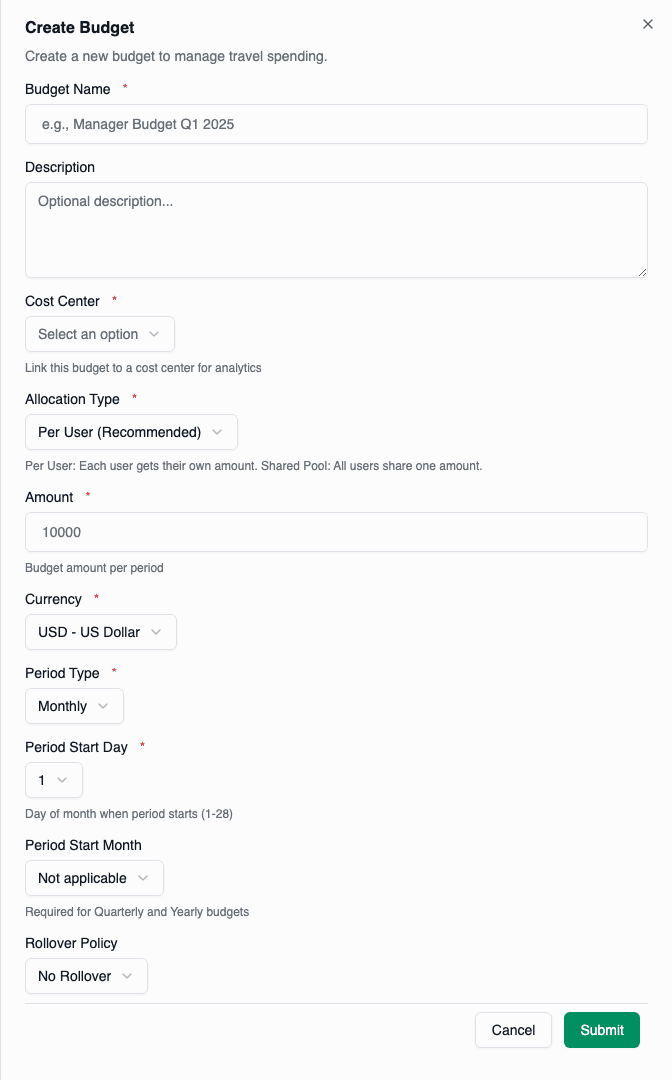
Step 2: Basic Information
Name
Choose a clear, descriptive name:
| Good Names | Why |
|---|---|
| "Marketing Team Q1 Travel" | Identifies team and time period |
| "Enterprise Sales Budget" | Clear department/role association |
| "Project Alpha Travel Fund" | Specific project identification |
| Less Clear Names | Why to Avoid |
|---|---|
| "Budget 1" | Not descriptive |
| "Travel" | Too generic |
| "John's Budget" | Not sustainable |
Description (Optional)
Add context that helps future administrators:
Monthly travel budget for the digital marketing team.
Covers conferences, client meetings, and agency visits.
Owner: Sarah Chen (Marketing Director)
Cost Center
Select the cost center this budget belongs to. This determines:
- Financial categorization
- Reporting grouping
- Organizational ownership
Step 3: Allocation Type
Choose how the budget amount is distributed:
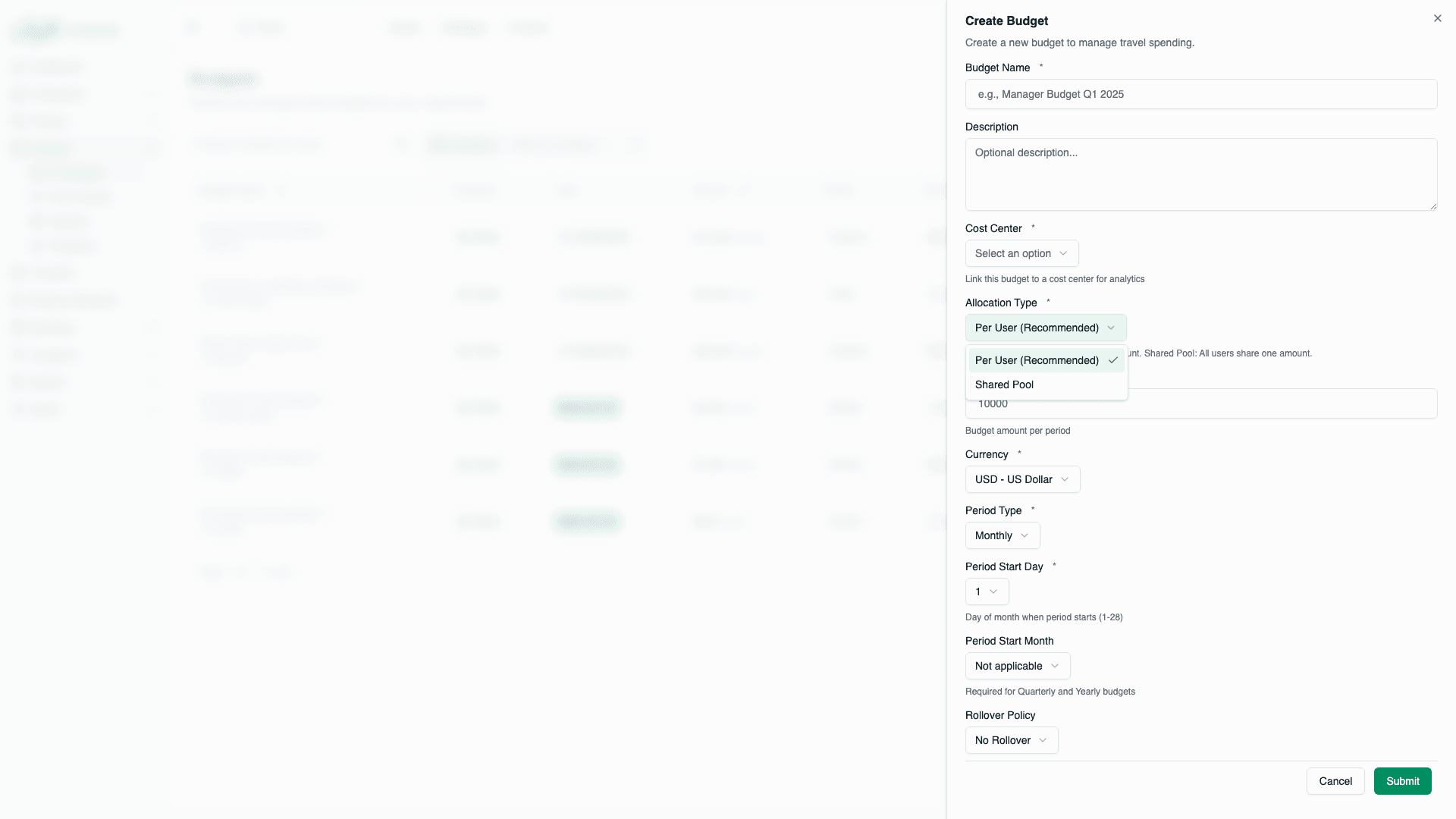
Per User
Each assigned user gets their own individual allocation.
Budget: $5,000/month (Per User)
Assigned to: 3 users

Result:
- User A: $5,000/month
- User B: $5,000/month
- User C: $5,000/month
Choose Per User when:
- Each person should have their own spending limit
- You want to prevent one person consuming the team's budget
- Individual accountability is important
Shared Pool
All assigned users share one pool of funds.
Budget: $15,000/month (Shared Pool)
Assigned to: 3 users

Result:
- Shared pool: $15,000/month
- Any user can spend from it
- First-come-first-served
Choose Shared Pool when:
- Team/project has a collective budget
- Spending varies by person each period
- Flexibility is more important than individual limits
Step 4: Amount and Currency
Amount
Enter the budget amount per period:
| Period Type | Amount Field | Example |
|---|---|---|
| Monthly | Per month | $5,000/month |
| Quarterly | Per quarter | $15,000/quarter |
| Yearly | Per year | $60,000/year |
Currency
Select the currency for this budget:
- USD - US Dollar
- EUR - Euro
- GBP - British Pound
- AED - UAE Dirham
- SAR - Saudi Riyal
- IQD - Iraqi Dinar
When users book in a different currency, the system converts the booking amount to the budget currency using configured exchange rates.
Step 5: Period Configuration
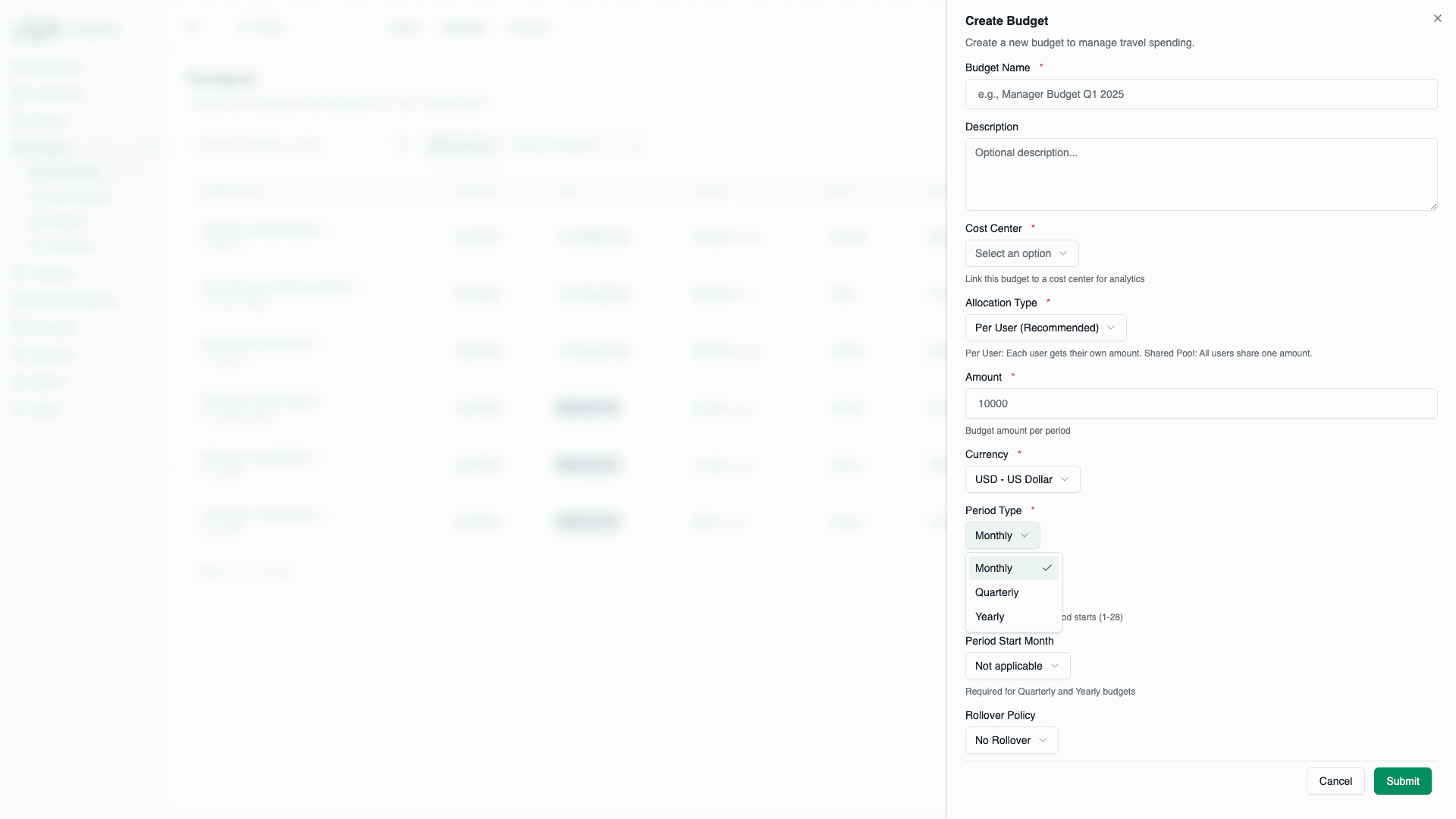
Period Type
| Type | Duration | Reset Frequency |
|---|---|---|
| Monthly | 1 month | Every month |
| Quarterly | 3 months | 4 times per year |
| Yearly | 12 months | Once per year |
Period Start Day
Which day of the month does the period start?
- Day 1: Period runs 1st to last day (Jan 1-31, Feb 1-28)
- Day 15: Period runs 15th to 14th of next month
- Range: 1-28 to avoid issues with short months
Period Start Month (Quarterly/Yearly only)
Which month begins the period?
Quarterly Examples:
- January start: Q1 (Jan-Mar), Q2 (Apr-Jun), Q3 (Jul-Sep), Q4 (Oct-Dec)
- April start (Fiscal year): Q1 (Apr-Jun), Q2 (Jul-Sep), Q3 (Oct-Dec), Q4 (Jan-Mar)
Yearly Examples:
- January start: Calendar year (Jan 1 - Dec 31)
- April start: Fiscal year (Apr 1 - Mar 31)
Step 6: Rollover Settings
Rollover Policy
What happens to unused budget at period end?
| Policy | Behavior |
|---|---|
| None | Unused budget expires |
| Partial | Percentage carries forward |
| Full | All unused carries forward |
Rollover Percentage (Partial only)
If using Partial rollover, what percentage carries over?
- 25%: Conservative rollover
- 50%: Balanced approach
- 75%: Liberal rollover
- 100%: Effectively Full but allows cap
Maximum Rollover Amount (Optional)
Cap on rollover amount to prevent excessive accumulation:
| Setting | Effect |
|---|---|
| Not set | No cap, all calculated rollover applies |
| $5,000 | Maximum $5,000 rolls over, excess expires |
See Rollover Policies for detailed examples.
Step 7: Enforcement Mode
What happens when a user exceeds their budget?
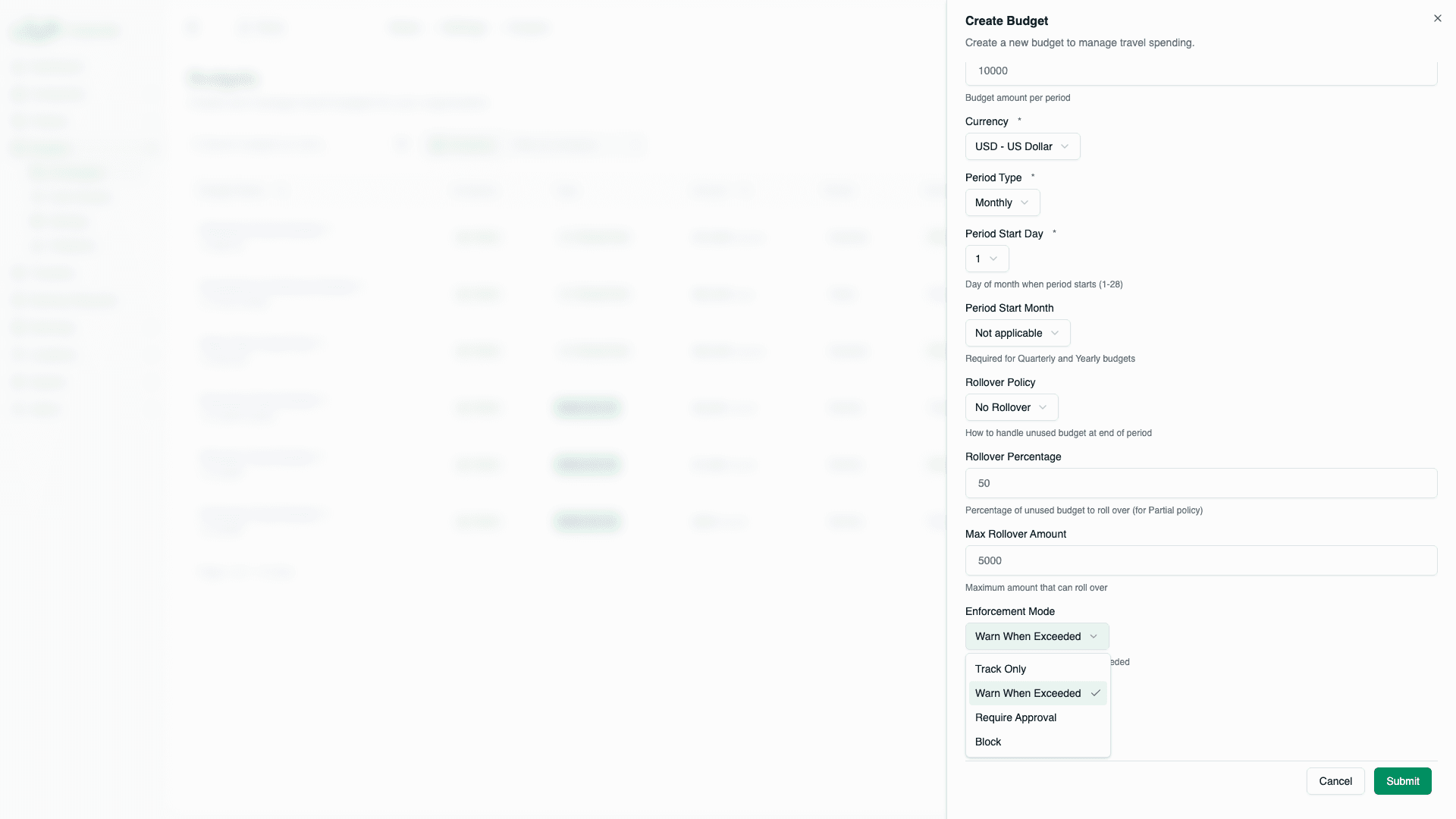
| Mode | Behavior | Booking Proceeds? |
|---|---|---|
| Track Only | No restriction, spending tracked | ✅ Yes |
| Warn When Exceeded | Warning shown | ✅ Yes (with warning) |
| Require Approval | Creates booking request | ⏳ After approval |
| Block | Prevents booking | ❌ No |
See Enforcement Modes for detailed behavior.
Step 8: Notification Thresholds (Optional)
Set percentage thresholds that trigger alerts:
| Default Thresholds | Alert When |
|---|---|
| 50% | Half budget used |
| 75% | Three-quarters used |
| 90% | Nearly depleted |
| 100% | Budget exhausted |
You can customize these thresholds or remove them entirely.
Notifications are sent to alert recipients configured in company settings.
Step 9: Review and Create
Before clicking Create:
| Section | Check |
|---|---|
| Name | Clear and descriptive? |
| Cost Center | Correct organizational unit? |
| Allocation | Per User or Shared Pool correct? |
| Amount | Right amount per period? |
| Currency | Matches your reporting needs? |
| Period | Correct start day/month? |
| Rollover | Policy matches your requirements? |
| Enforcement | Appropriate level of control? |
Click Create to save the budget.
What Happens After Creation
- Budget Created: Status = Active, soft delete flag = null
- First Period Created: The system calculates the appropriate period:
- Uses your configured start day/month
- If that date is in the future, it goes back one cycle
- Example: If today is Jan 15 and start day is 1, period is Jan 1 - Jan 31
- Ready for Assignment: Can now assign to roles or users
- Tracking Begins: Any assigned users can now book against this budget
The first period is created on-demand when the budget is first used, not necessarily at creation time. This ensures the period dates are accurate.
Example: Creating a Sales Team Budget
Let's create a budget for the sales team:
Requirements:
- Each salesperson gets $3,000/month for travel
- Unused budget can roll over up to $1,500
- Warn if they exceed, but don't block
- Sales team has 5 members
Configuration:
| Field | Value |
|---|---|
| Name | Sales Team Monthly Travel |
| Description | Individual travel budget for sales representatives |
| Cost Center | Sales (SALES-000) |
| Allocation Type | Per User |
| Amount | 3,000 |
| Currency | USD |
| Period Type | Monthly |
| Period Start Day | 1 |
| Rollover Policy | Full |
| Max Rollover | 1,500 |
| Enforcement | Warn When Exceeded |
| Thresholds | 50%, 75%, 90%, 100% |
Result:
- Each of the 5 sales reps gets $3,000/month
- They can accumulate up to $4,500 total ($3,000 + $1,500 rollover)
- If they go over, they see a warning but can still book
Next Steps
After creating a budget:
- Assign to Roles - Apply to all users with a role
- Assign to Users - Create individual overrides
- Monitor Usage - Track spending
Editing and Deleting Budgets
Editing a Budget
Most budget settings can be changed at any time:
- Name, description
- Amount, currency
- Rollover settings
- Enforcement mode
- Notification thresholds
Changes apply to future evaluations. Existing periods retain their historical data.
Avoid changing allocation type on budgets with transaction history. Create a new budget instead.
Deleting a Budget
Budgets use soft delete to preserve historical data:
- Deleted budgets have
deletedAttimestamp set - They no longer appear in active lists
- Historical periods and transactions remain for reporting
- Assignments are effectively inactive (budget won't resolve)
To permanently remove a budget's data, contact your database administrator.
Common Issues
"Cost center is required"
You must select a cost center. If none exist, create one first.
"Amount must be greater than 0"
Enter a positive number for the budget amount.
"Rollover percentage must be between 1 and 100"
If using Partial rollover, enter a percentage between 1-100.
"Budget name already exists"
Budget names should be unique within a company for clarity. Use a more specific name.
Related Topics
- Cost Centers - Organize budgets
- Assignments - Connect budgets to users
- Allocation Types - Per User vs Shared Pool
- Period Configuration - Period details