

Cost Centers
Organize your company's financial structure with hierarchical cost centers
Cost Centers
Cost centers provide a way to organize budgets according to your company's financial structure. Before creating budgets, you must set up cost centers to categorize where the money comes from.
What Are Cost Centers?
Cost centers represent organizational units that have their own budgets:
- Departments - Marketing, Sales, Engineering
- Projects - Project Alpha, Q1 Campaign
- Teams - West Coast Sales, EMEA Support
- Locations - London Office, Tokyo Branch
- Divisions - Consumer Products, Enterprise Services
Cost Center Hierarchy
Cost centers can be organized hierarchically, with parent-child relationships. For example:
- Marketing → Digital Marketing, Brand, Events
- Sales → Enterprise Sales, SMB Sales, Partners
- Engineering → Frontend, Backend, DevOps
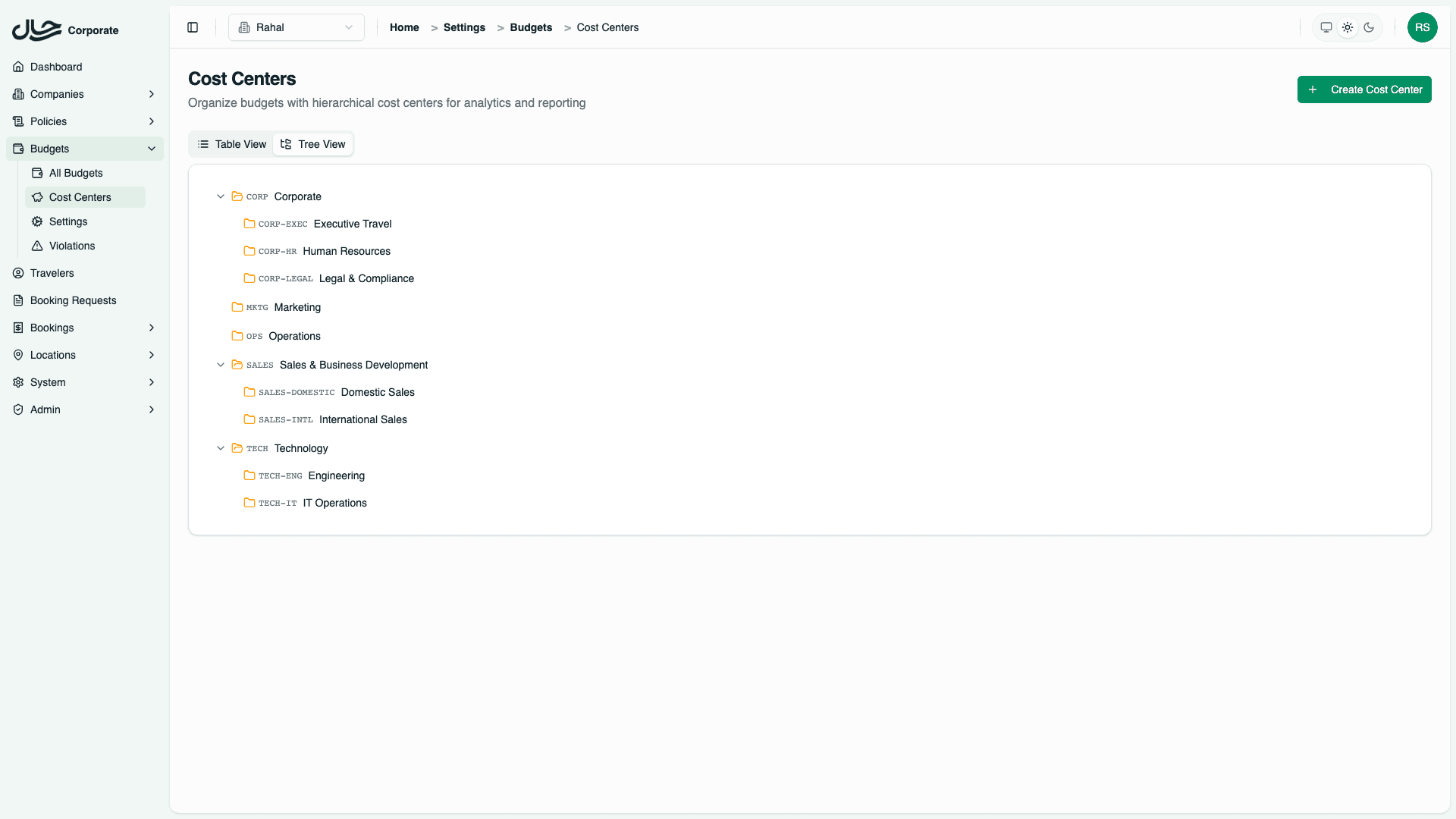
This hierarchy allows you to:
- Organize budgets logically
- Report on spending by organizational unit
- Match your company's chart of accounts
Creating a Cost Center
Step 1: Navigate to Cost Centers
- Go to Budgets in the main navigation
- Select the Cost Centers tab
- Click Create Cost Center
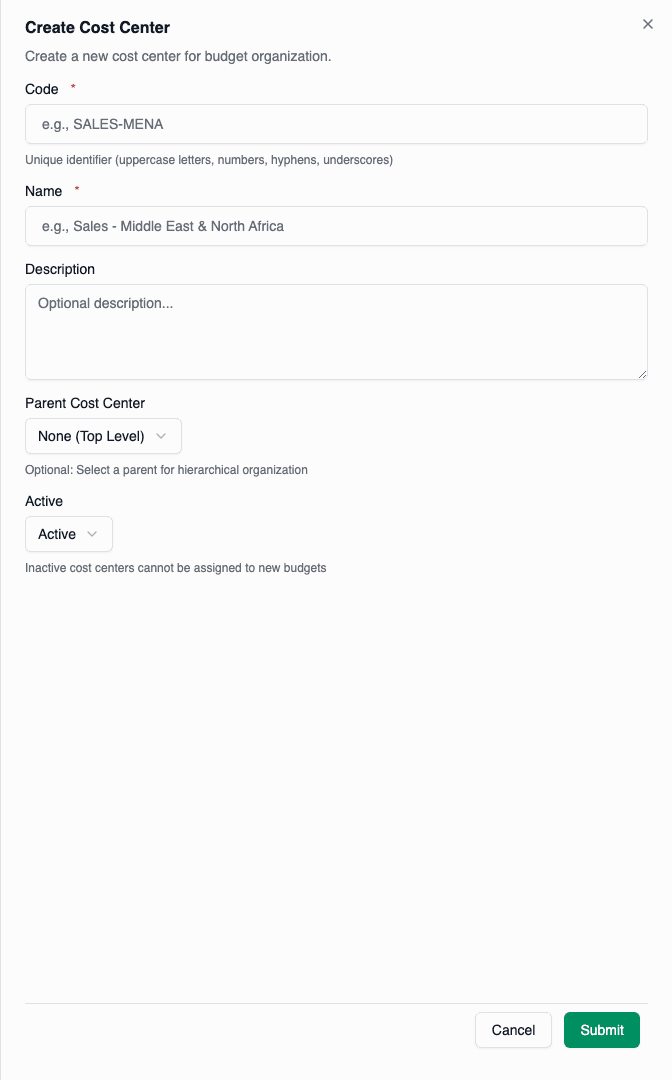
Step 2: Fill in Cost Center Details
| Field | Description | Required | Example |
|---|---|---|---|
| Code | Unique identifier (often matches accounting system) | Yes | MKT-001 |
| Name | Display name | Yes | Digital Marketing |
| Description | What this cost center is for | No | Digital advertising and SEO budget |
| Parent | Parent cost center for hierarchy | No | Marketing |
| Active | Whether this cost center is available | Yes | Yes |
Step 3: Save
Click Create to save the cost center. It's now available for budget assignment.
Cost Center Codes
The code field is important for integration with accounting systems:
- Must be unique within your company
- Should match your chart of accounts if applicable
- Used for reporting and exports
- Maximum 50 characters
Code Best Practices
| Pattern | Example | Use Case |
|---|---|---|
| Department prefix | MKT-001, MKT-002 | Group by department |
| Hierarchical | 1000.1001, 1000.1002 | Match accounting structure |
| Project-based | PROJ-ALPHA-001 | Project budgeting |
| Location-based | US-NYC-001 | Geographic organization |
Managing the Hierarchy
Adding Child Cost Centers
- Click Create Cost Center
- Select a Parent from the dropdown
- Complete the remaining fields
- Click Create
The new cost center appears nested under its parent in the tree view.
Moving Cost Centers
To change a cost center's parent:
- Click on the cost center in the list
- Click Edit
- Change the Parent dropdown
- Click Save
Moving a cost center doesn't move its budgets. Budgets remain associated with the original cost center.
Removing from Hierarchy
To make a cost center top-level:
- Edit the cost center
- Clear the Parent field
- Save
Viewing the Cost Center Tree
The cost centers page offers two views:
List View
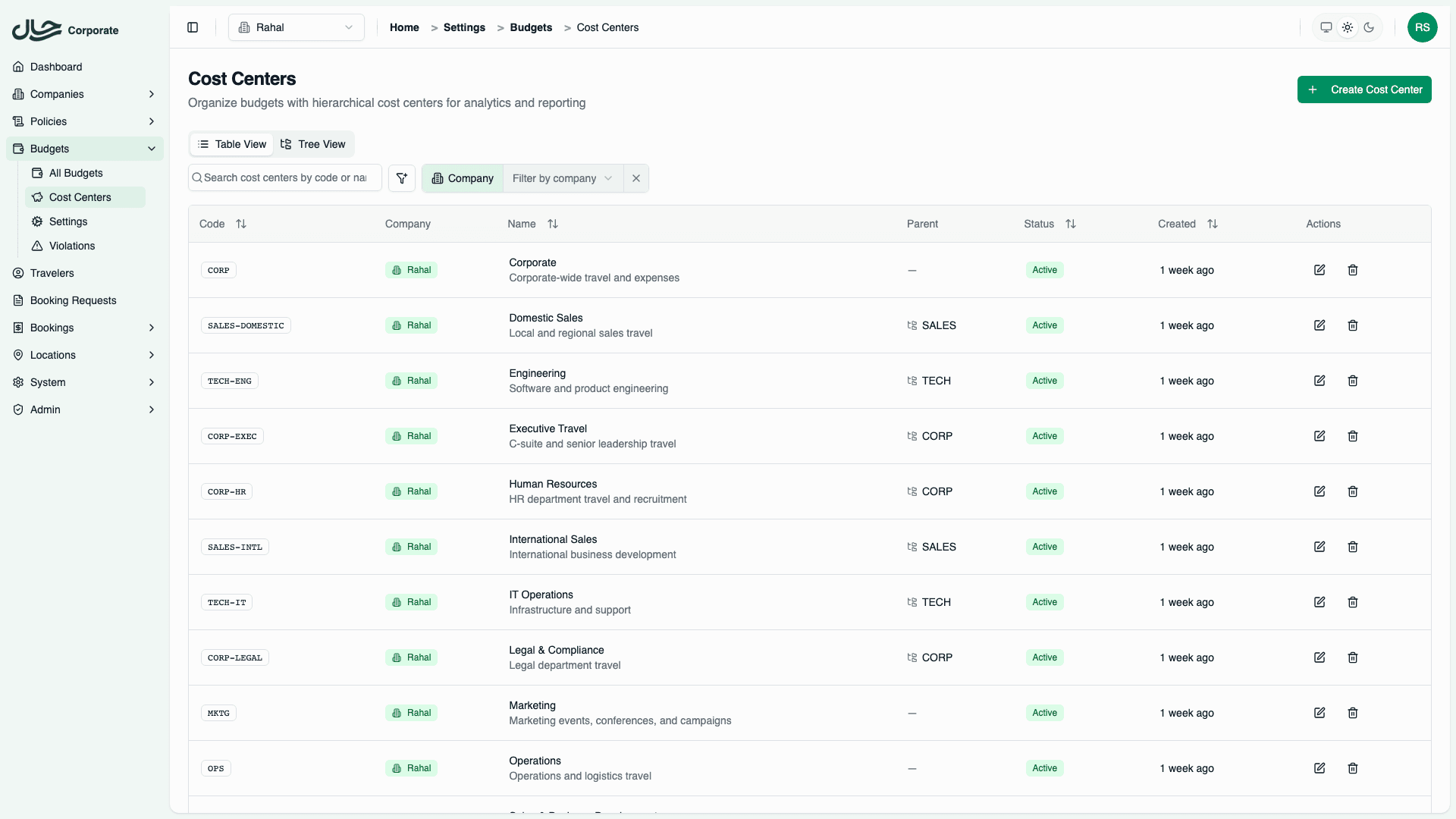
A flat table showing all cost centers with columns:
- Code
- Name
- Parent
- Status
- Budgets Count
Table View
Tree View
A hierarchical visualization showing parent-child relationships:
▼ Marketing (MKT-000)
  ├─ Digital Marketing (MKT-001)
  ├─ Brand (MKT-002)
  └─ Events (MKT-003)
▼ Sales (SALES-000)
  ├─ Enterprise (SALES-001)
  └─ SMB (SALES-002)
▼ Engineering (ENG-000)
  ├─ Frontend (ENG-001)
  ├─ Backend (ENG-002)
  └─ DevOps (ENG-003)
Click the expand/collapse icons to show or hide children.
Deactivating Cost Centers
Instead of deleting cost centers (which could break historical data), you can deactivate them:
- Edit the cost center
- Set Active to No
- Save
What Happens When Deactivated
- Cost center no longer appears in dropdowns when creating budgets
- Existing budgets under this cost center continue to function
- Historical reports still show the cost center
- Can be reactivated later
Deleting Cost Centers
Cost centers can only be deleted if they have no associated budgets. This protects historical data integrity.
To delete a cost center:
- Ensure no budgets are assigned to it
- Click the delete icon or select Delete from the menu
- Confirm the deletion
If deletion fails, you'll see which budgets are blocking deletion.
Cost Centers and Budgets
Each budget must be assigned to exactly one cost center. Cost centers can have multiple budgets, and can have child cost centers for hierarchical organization.
Example Structure
| Cost Center | Budgets |
|---|---|
| Marketing (MKT-000) | Marketing Exec Budget |
| Digital Marketing (MKT-001) | Digital Team Budget |
| Brand (MKT-002) | Brand Team Budget, Agency Travel Budget |
| Sales (SALES-000) | Sales Director Budget |
| Enterprise Sales (SALES-001) | Enterprise Reps Budget |
Reporting by Cost Center
Once budgets are organized under cost centers, you can:
- Filter transactions by cost center
- Aggregate spending across a cost center's budgets
- Export reports grouped by cost center code
- Track budget utilization by department/project
Best Practices
Match Your Chart of Accounts
If your company uses cost center codes in its accounting system, use the same codes:
Accounting System: 5100 - Marketing Department
Rahal Cost Center: Code = "5100", Name = "Marketing Department"
This makes reconciliation easier.
Start Simple
Begin with top-level cost centers (departments), then add granularity as needed:
Phase 1:
- Marketing
- Sales
- Engineering
Phase 2:
- Marketing → Digital, Brand, Events
- Sales → Enterprise, SMB, Partners
- Engineering → Frontend, Backend, DevOps
Use Consistent Naming
Establish naming conventions:
- Codes: Always uppercase, department prefix, sequential number
- Names: Title case, clear department/function name
Document Your Structure
Keep a reference document mapping:
- Cost center codes to accounting codes
- Which teams/projects belong to which cost center
- Who owns each cost center
Cost Center Constraints
Code Uniqueness
Cost center codes must be unique within a company. The system enforces this with a database constraint on (companyId, code).
Hierarchy Integrity
When setting a parent:
- Parent must exist in the same company
- Circular references are prevented (A → B → A)
- Depth is not limited, but deep hierarchies may be harder to manage
Budget Dependencies
Cost centers with associated budgets cannot be deleted:
Cost Center: Marketing (MKT-000)
├── Budgets: Marketing Q1, Marketing Q2
└── Cannot delete until budgets are removed or reassigned
Common Issues
"Cost center code already exists"
Each code must be unique. Check existing cost centers or modify your code.
"Cannot delete cost center with budgets"
Reassign or delete the associated budgets first, or simply deactivate the cost center.
"Parent cost center not found"
The selected parent may have been deleted. Clear the parent field or select a valid parent.
"Cannot set parent to self"
A cost center cannot be its own parent. Select a different parent or leave blank for top-level.
Related Topics
- Creating Budgets - Assign budgets to cost centers
- Monitoring - Report by cost center