

Managing Passports
Adding, editing, and managing passport information for travelers
Managing Passports
Passport management is a core part of traveler administration. This guide covers adding, editing, and managing passports for travelers.
Accessing Passport Management
Navigate to Traveler
- Go to Travelers in the sidebar
- Click on a traveler's name to open their detail page
- Select the Passports tab
Passport List View
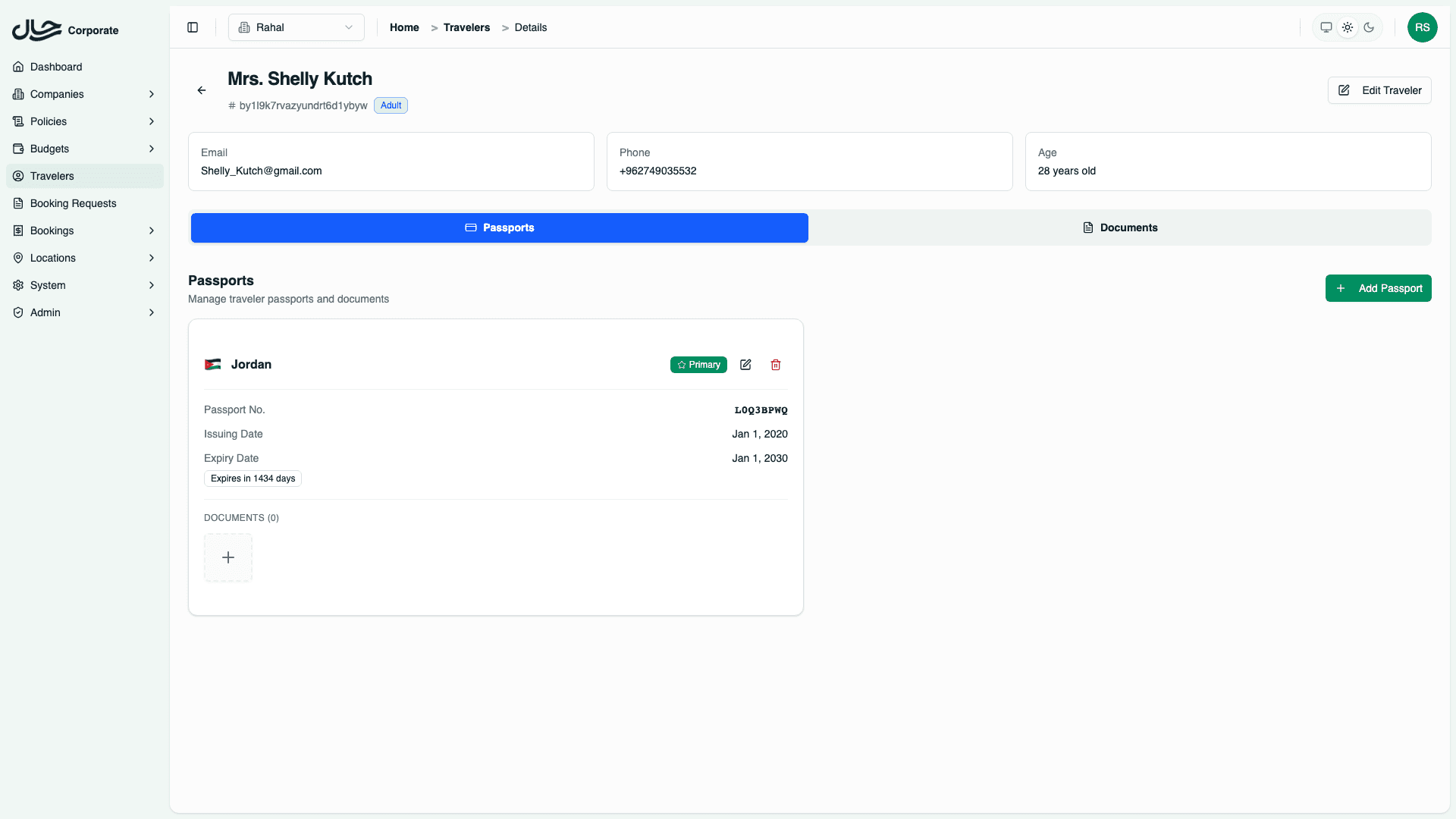
The Passports tab shows all passports for the traveler as cards. Each card displays the nationality, passport number, expiry status, and document count.
Adding a New Passport
Enter Passport Details
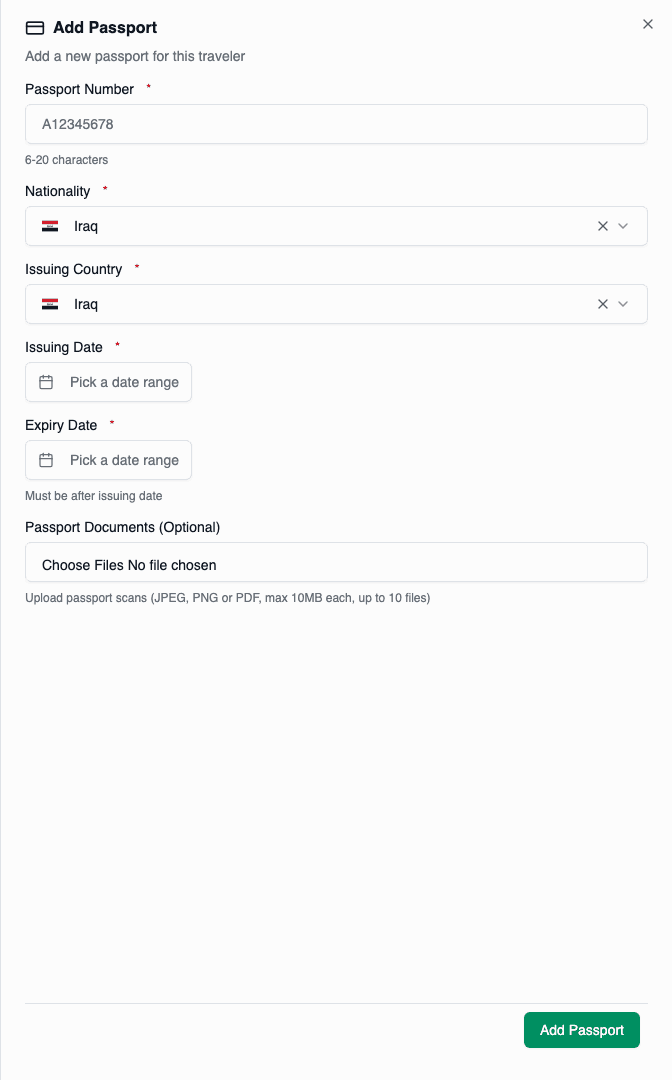
Fill in all required fields:
| Field | Description | Example |
|---|---|---|
| Passport Number | Official passport number | A12345678 |
| Nationality | Country of citizenship | United States |
| Issuing Country | Country that issued passport | United States |
| Issuing Date | Date passport was issued | Jan 15, 2020 |
| Expiry Date | Date passport expires | Jan 15, 2030 |
Upload Documents (Optional)
During creation, you can upload passport documents:
- Supported formats: JPEG, PNG, PDF
- Maximum 10 files, 10MB each
- Documents will be linked to this passport
Save Passport
Click Add Passport to save. The new passport will:
- Appear in the passport list
- Be automatically set as primary if it's the first passport
- Show expiry status based on the expiry date
Editing a Passport
Open Edit Form
On the passport card, click the Edit (pencil) icon.
Update Fields
Modify any field as needed:
- Passport number
- Nationality (if no duplicate conflict)
- Issuing country
- Issuing date
- Expiry date
Save Changes
Click Update Passport to save the changes.
Changing the nationality may fail if another passport with that nationality already exists for this traveler.
Setting Primary Passport
To change which passport is primary:
- Find the passport card you want to make primary
- Click the Star icon on the card
- Confirm the action
The previous primary passport will be demoted, and the selected passport will become primary.
When to Change Primary
- The traveler most commonly uses a different passport
- The current primary passport is expiring
- Travel requirements change
The primary passport is automatically used for new bookings. Change it to reflect the traveler's most commonly used passport.
Deleting a Passport
Initiate Delete
On the passport card, click the Delete (trash) icon.
Confirm Deletion
A confirmation dialog appears:
"Are you sure you want to delete this passport? This action cannot be undone and will also delete all associated documents."
Click Delete to confirm.
Delete Behavior
When deleting a passport:
- The passport record is permanently removed
- All documents linked to this passport are deleted
- If it was the primary passport, another passport is automatically promoted
Passport deletion is permanent. Ensure you no longer need the passport before deleting.
Nationality Uniqueness
Each traveler can only have one passport per nationality:
A traveler can have passports from different countries (e.g., US + German), but cannot have multiple passports from the same country.
If you try to add a duplicate nationality:
"A passport for United States already exists for this traveler"
Solution: Edit the existing passport instead of creating a new one.
Issuing Country vs Nationality
These fields can differ:
| Scenario | Nationality | Issuing Country |
|---|---|---|
| Normal passport | United States | United States |
| Embassy-issued passport | Iraq | Jordan |
| Consulate renewal | Germany | United States |
The issuing country is only displayed on the card if it differs from nationality.
Adding Documents to Existing Passport
To add documents after passport creation:
- On the passport card, click the + button in the documents section
- Upload one or more files
- Documents are automatically categorized as "PASSPORT"
- Documents are linked to this specific passport
Best Practices
- Verify Numbers — Double-check passport numbers for accuracy
- Accurate Dates — Ensure issuing and expiry dates are correct
- Upload Scans — Attach document scans for reference
- Monitor Expiry — Regularly review expiring passports
- Keep Primary Current — Ensure the primary passport is the most used
- Clean Up Expired — Consider removing very old expired passports