

Search & Filters
Finding travelers using search functionality and table filters
Search & Filters
The traveler list includes search and filtering tools to quickly find specific travelers across your organization.
Global Search
The search box at the top of the traveler list searches across multiple fields:
| Searchable Field | Example |
|---|---|
| First name | "John" |
| Last name | "Smith" |
| Full name | "John Smith" |
| Email address | "john@example.com" |
| Phone number | "+964771234567" |
| Passport number | "A12345678" |
Search Tips
- Partial matches: "Joh" will find "John", "Johnny", etc.
- Case insensitive: "SMITH" finds "Smith" and "smith"
- Multiple terms: Space-separated terms search together
Start typing and results update automatically. No need to press Enter.
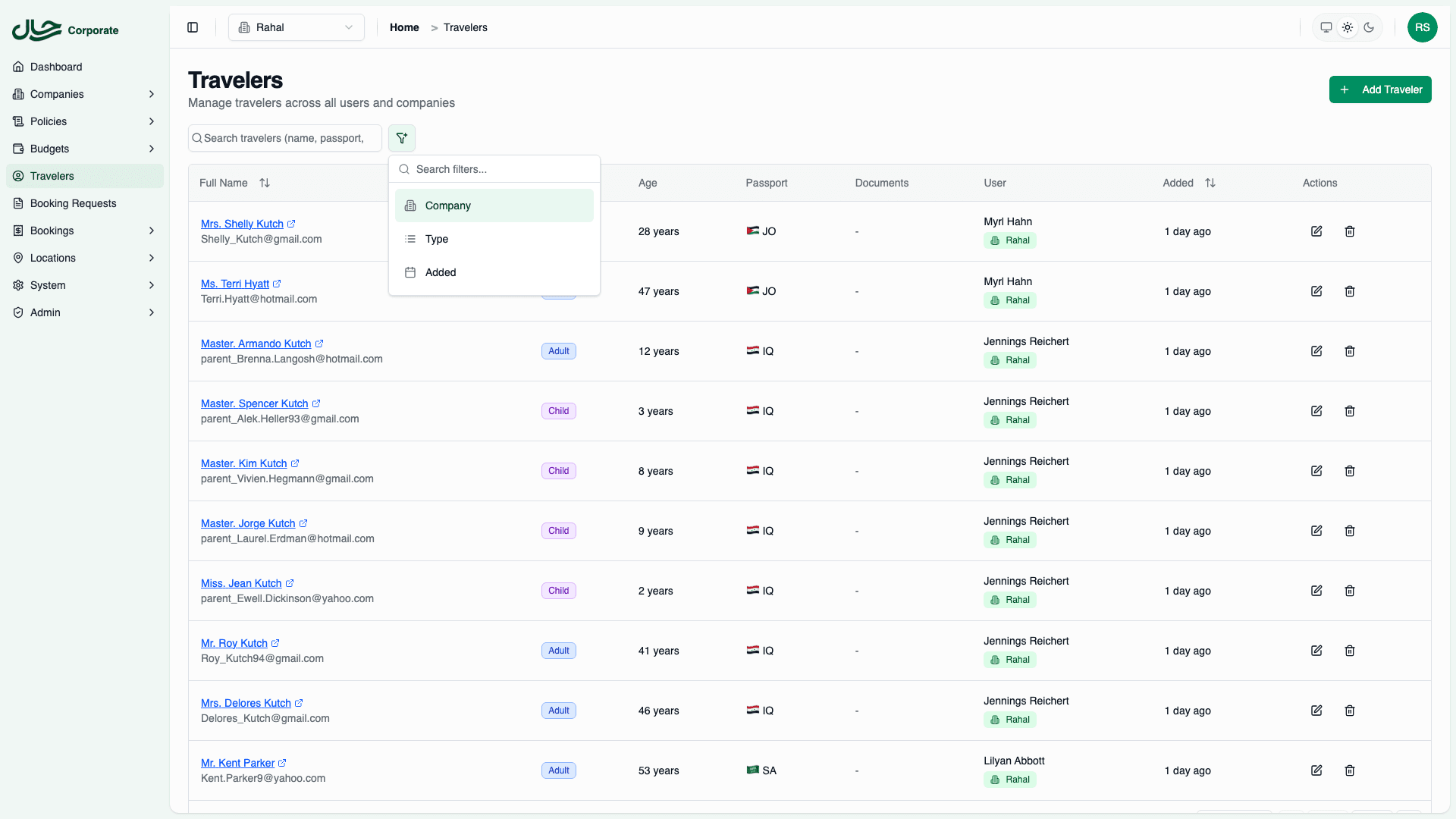
Filter Options
Click the filter button to reveal available filters:
Company Filter
Filter travelers by company:
- Available when you have access to multiple companies
- Shows all companies you can manage
- Select one company to filter
Traveler Type Filter
Filter by age classification:
| Option | Description |
|---|---|
| Adult (ADT) | Travelers 12 years and older |
| Child (CHD) | Travelers 2-11 years old |
| Infant (INF) | Travelers under 2 years |
Date Range Filter
Filter by creation date:
- Select a date range
- Find travelers added within a specific period
- Useful for auditing recent additions
Sorting Options
Click column headers to sort the table:
| Sortable Column | Description |
|---|---|
| Full Name | Alphabetical by name |
| Added | By creation date |
Sort Direction
- Click once for ascending (A-Z, oldest first)
- Click again for descending (Z-A, newest first)
- Arrow indicator shows current sort direction
Combining Search and Filters
Search and filters work together:
For example, to find all adult travelers from Acme Corp added in January 2024, set the Company filter to "Acme Corp", Traveler Type to "Adult", Date Range to January 2024, and optionally add a search term like "engineering".
All conditions are AND-ed together.
URL Persistence
Filter and search settings are saved in the URL:
- Shareable: Copy the URL to share the filtered view
- Bookmarkable: Bookmark specific filtered views
- Persistent: Filters persist when navigating away and back
Filter parameters are encoded in the URL (e.g., companyId, travelerType, search).
Pagination
The table uses pagination for large result sets:
- Default: 10 rows per page
- Navigation: Previous/Next buttons at bottom
- Total count: Shows total matching travelers
- Page info: "Showing 1-10 of 150"
Empty States
When no results match your criteria, the table displays a message indicating no travelers were found with suggestions to adjust your search or filters.
Troubleshooting No Results
- Clear search: Remove search text
- Reset filters: Clear all filter selections
- Broaden criteria: Use less restrictive filters
- Check permissions: Ensure you have access to the company
Table Columns
The traveler table displays:
| Column | Content |
|---|---|
| Full Name | Linked name with email below |
| Type | Adult/Child/Infant badge |
| Age | Current age in years |
| Passport | Primary passport nationality |
| Documents | Document count badge |
| User | Owner name and company badges |
| Added | Relative date (e.g., "2 days ago") |
| Actions | Edit and Delete buttons |
Row Actions
Each row has action buttons:
View Details
Click the traveler name (link) to open the detail page in a new tab.
Edit
Click the Edit (pencil) icon to:
- Open the edit drawer
- Modify traveler information
- Save changes
Delete
Click the Delete (trash) icon to:
- Show confirmation dialog
- Delete the traveler (if not in pending bookings)
Travelers with pending booking requests cannot be deleted. Complete or cancel the bookings first.
Keyboard Navigation
| Key | Action |
|---|---|
/ or Cmd+K | Focus search box |
Escape | Clear search |
Tab | Navigate between elements |
Enter | Select focused item |
Best Practices
- Use Search First — For known names or passport numbers
- Add Filters for Browsing — When exploring or auditing
- Combine for Precision — Use both for specific queries
- Bookmark Common Views — Save URLs for frequent filters
- Clear Between Tasks — Reset filters when starting new tasks