

Managing Documents
Uploading, organizing, and managing travel documents for travelers
Managing Documents
Travel documents support the booking process by providing necessary documentation like passport scans, visa copies, and residency permits. This guide covers uploading and managing documents.
Accessing Document Management
Documents can be managed from two locations:
Traveler Detail Page
- Go to Travelers → Click traveler name
- Select the Documents tab
- View all documents for this traveler

Passport Card
- Go to Travelers → Click traveler name
- Select the Passports tab
- On a passport card, view linked documents in the documents section
Document List View
The Documents tab shows all documents organized in a grid. Each document displays a thumbnail (for images) or file icon (for PDFs), the label, category badge, and upload date.
Uploading Documents
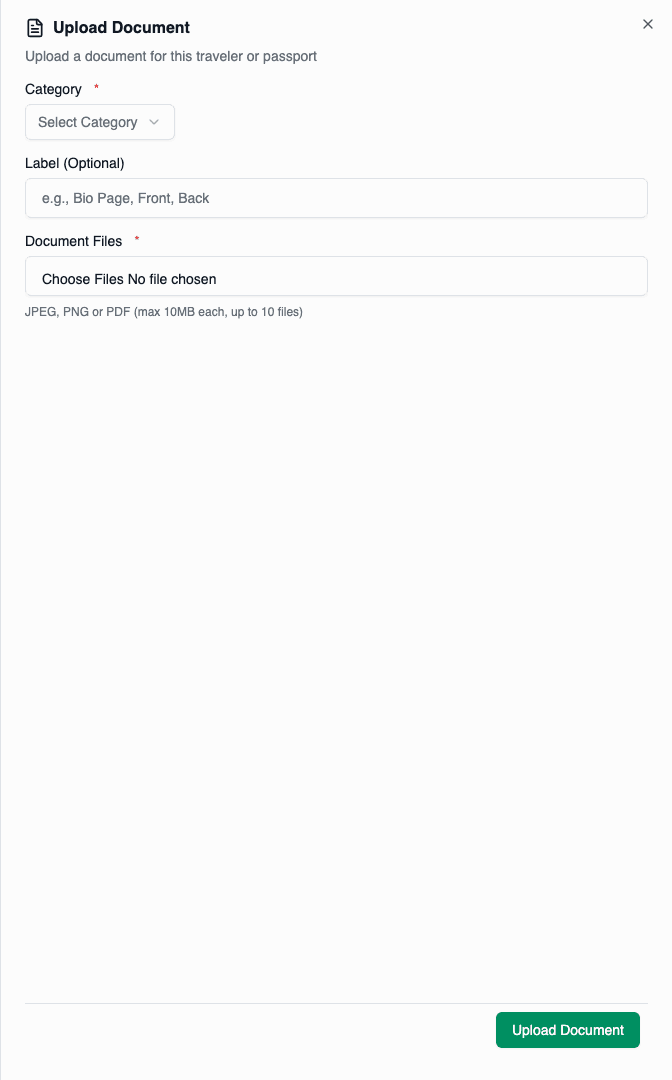
Select Category
Choose the appropriate document category:
| Category | Use For |
|---|---|
| Passport | Passport scans, bio pages |
| Visa | Visa stamps, e-visas |
| Residency | Residence permits, IDs |
| Other | Insurance, certificates |
Add Label (Optional)
Enter a descriptive label for the document:
- "US Passport Bio Page"
- "UAE Tourist Visa"
- "Work Permit 2024"
Labels help identify documents quickly. Use clear, descriptive names.
Select File
Click the file input to select your document:
- Supported formats: JPEG, PNG, PDF
- Maximum size: 10 MB per file
- Single file per upload
Link to Passport (Optional)
For passport-related documents, you can link to a specific passport:
- Select from the traveler's passports
- Linked documents appear on the passport card
- Helps organize documents by passport
Upload
Click Upload Document to save. The document will:
- Be uploaded to secure storage
- Appear in the documents list
- Show a thumbnail (for images)
Uploading from Passport Card
To add documents directly to a passport:
- Go to the Passports tab
- On the passport card, click the + button in the documents section
- Documents are automatically:
- Categorized as "PASSPORT"
- Linked to that passport
Viewing Documents
Document Card
Each document displays:
| Element | Description |
|---|---|
| Thumbnail | Image preview (for images) or file icon (for PDFs) |
| Label | Custom label or "Document" |
| Filename | Original filename |
| Category | Color-coded category badge |
| Date | Upload date |
| Actions | Download and delete buttons |
Preview Dialog
Click on a document card to open the preview dialog:
- Images: Full-size image viewer
- PDFs: PDF viewer (if supported) or download prompt
- Navigation: View other documents in sequence
Downloading Documents
To download a document:
- Click the Download (arrow down) icon on the document card
- Or click the download button in the preview dialog
The file will download with its original filename.
Deleting Documents
Initiate Delete
Click the Delete (trash) icon on the document card.
Confirm Deletion
A confirmation dialog appears:
"Are you sure you want to delete this document? This action cannot be undone."
Click Delete to confirm.
Document deletion is permanent. The file cannot be recovered after deletion.
Document Categories
| Category | Use For |
|---|---|
| Passport | Bio pages, photo pages, full passport scans. Can be linked to a specific passport. |
| Visa | Visa stamps, e-visas, visa letters. |
| Residency | Residence permits, national IDs, work permits. |
| Other | Travel insurance, health certificates, itineraries. |
File Requirements
Supported Formats
| Format | Extension | MIME Type |
|---|---|---|
| JPEG | .jpg, .jpeg | image/jpeg |
| PNG | .png | image/png |
| application/pdf |
Size Limits
- Maximum file size: 10 MB per file
- Recommended: Under 5 MB for faster uploads
Quality Recommendations
- Resolution: At least 300 DPI for scans
- Clarity: Text should be clearly readable
- Completeness: Include all relevant pages
Low-quality scans may not be accepted by airlines or immigration. Ensure documents are clear and legible.
Document Organization
By Passport
Link passport-related documents to specific passports:
- Keeps documents organized when traveler has multiple passports
- Documents appear on the passport card
- Easy to find the right document for each passport
By Category
Use categories to quickly find document types:
- Filter by category (future feature)
- Visual category badges for quick identification
- Consistent organization across travelers
Storage and Security
Documents are stored securely:
- Encrypted storage: All files are encrypted at rest
- Access control: Only authorized users can download
- Audit trail: All access is logged
- Expiring URLs: Download links expire after a short time
Best Practices
- Clear Labels — Use descriptive labels like "US Passport Bio Page 2024"
- High Quality — Upload clear, high-resolution scans
- Complete Documents — Include all relevant pages
- Correct Categories — Choose the appropriate category
- Link to Passport — For passport docs, link to the specific passport
- Regular Cleanup — Remove outdated documents
- Verify Before Delete — Ensure document is not needed before deleting