

Traveler Management
Manage traveler profiles, passports, and travel documents for corporate travel bookings
Traveler Management
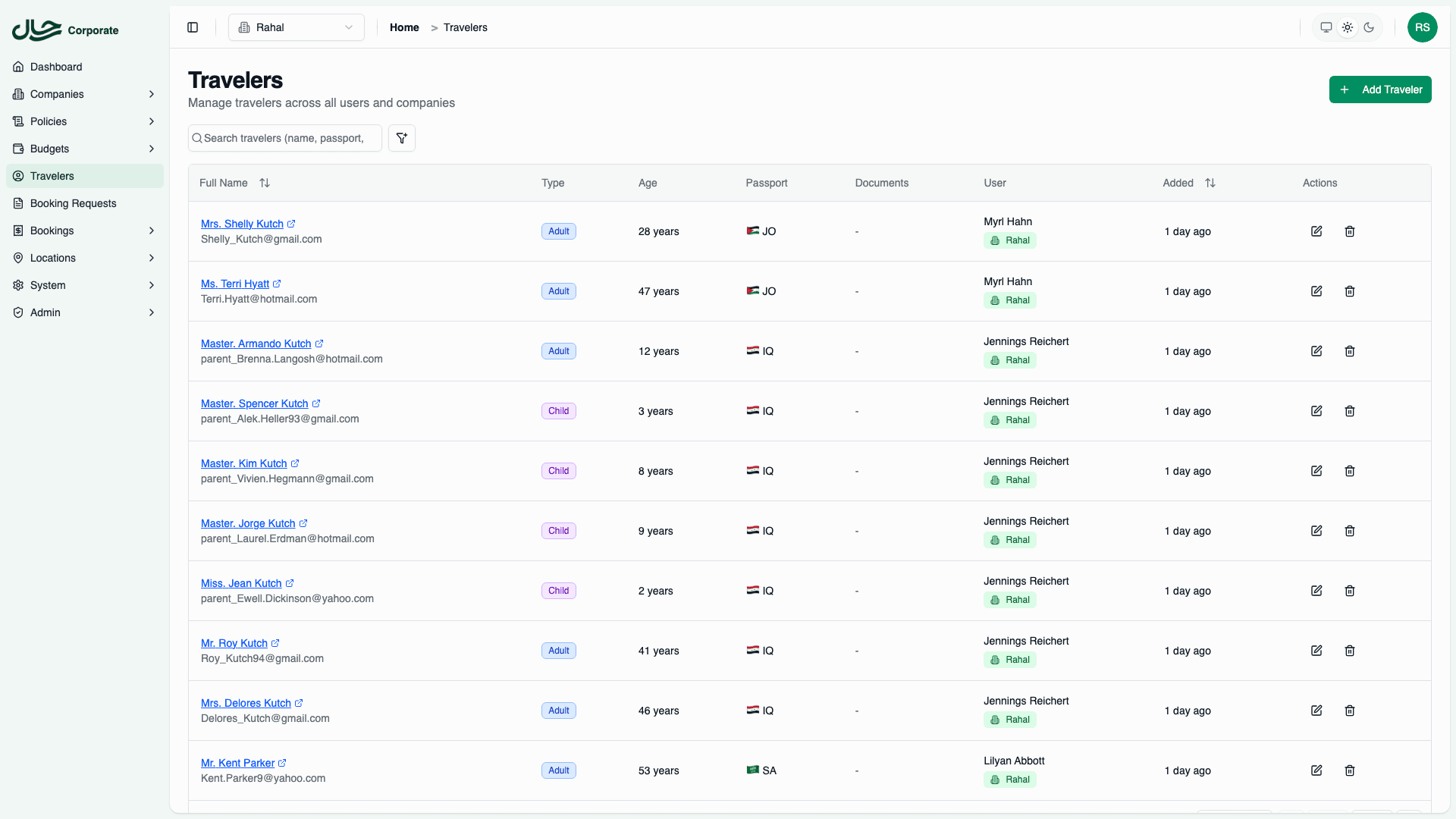
Traveler profiles are the foundation of the booking process. Each traveler stores personal information, passport details, and supporting documents required for travel bookings.
Overview
In Rahal, travelers are linked to user accounts and represent individuals who can be included in travel bookings. A single user can have multiple traveler profiles (e.g., for family members or dependents).
Key Features
Multi-Passport Support
Travelers can hold multiple passports from different countries. This is common for:
- Dual citizens
- Travelers with expired passports alongside new ones
- Business travelers with specialized travel documents
Each traveler can have only one passport per nationality. If a passport from the same country already exists, it must be updated rather than duplicated.
Primary Passport Selection
One passport is designated as primary and is automatically used for new bookings. The primary passport:
- Appears first in passport lists
- Is pre-selected during booking flows
- Should be the most commonly used travel document
Automatic Age Classification
Travelers are automatically classified based on their birth date:
| Type | Age Range | Code | Description |
|---|---|---|---|
| Adult | 12+ years | ADT | Standard adult fare |
| Child | 2-11 years | CHD | Child fare with seat |
| Infant | Under 2 years | INF | Infant fare, no seat |
Traveler type affects pricing and booking requirements. Airlines and hotels may have specific policies for children and infants.
Document Management
Supporting documents can be uploaded and organized by category:
| Category | Purpose | Examples |
|---|---|---|
| Passport | Passport-related documents | Bio page scans, photo pages |
| Visa | Entry visas and permits | Visa stamps, visa approval letters |
| Residency | Residence documentation | Residence permits, national IDs |
| Other | Additional documents | Travel insurance, health certificates |
Expiry Tracking
Passport expiry dates are actively monitored. The system alerts users when passports are expired, expiring within 60 days (critical), or within 180 days (warning) to comply with the 6-month validity requirement for most destinations.
Who Uses This Feature
Dashboard Administrators
Administrators use the dashboard to:
- Create and manage traveler profiles for company users
- Add and update passport information
- Upload and organize travel documents
- Monitor passport expiry dates
- Delete travelers (with restrictions for pending bookings)
End Users (Booking Flow)
During booking, users:
- Select travelers for flights and hotels
- View traveler passport information
- See expiry warnings for passports
- Add travelers if they have delegation access
Documentation
Concepts
Deep dive into traveler types, multi-passport support, and document categories
Admin Guide
Step-by-step guides for managing travelers, passports, and documents
User Guide
Traveler selection during booking flows
Reference
Field definitions, API reference, and technical details
Troubleshooting
Common issues and solutions
Soft Delete
When travelers, passports, or documents are deleted, they are soft deleted rather than permanently removed. This means:
- The record remains in the database with a
deletedAttimestamp - Deleted items don't appear in lists or searches
- Historical booking data remains intact
- Audit trails are preserved
Travelers with pending booking requests cannot be deleted until those requests are completed or cancelled.
Related Features
- Booking Requests — Travelers are assigned to booking requests
- User Delegation — Access travelers from delegated users
- Policies — Policies evaluate based on selected travelers
- Budgets — Budget consumption tracks by traveler