

Admin Guide
Complete guide for administrators managing travelers, passports, and documents
Admin Guide
This guide covers all administrative tasks for managing travelers, passports, and documents in the Rahal dashboard.
Quick Start
For new administrators, here's the typical workflow:
- Create Traveler — Add basic personal information
- Add Passport — Enter passport details (optional during creation)
- Upload Documents — Attach passport scans and other documents
- Ready — Traveler can now be included in bookings
Guides
Creating Travelers
Step-by-step guide to creating new traveler profiles
Managing Passports
Adding, editing, and managing passport information
Managing Documents
Uploading and organizing travel documents
Search & Filters
Finding travelers using search and filters
Dashboard Access
Traveler management is accessed from the main dashboard navigation:
- Log in to the Rahal Dashboard
- Navigate to Travelers in the sidebar
- View the traveler list with search and filters
Traveler List Overview
The traveler list displays key information at a glance:
| Column | Description |
|---|---|
| Full Name | Title + first + last name (clickable to view details) |
| Type | Adult/Child/Infant badge |
| Age | Current age in years |
| Passport | Primary passport nationality with flag |
| Documents | Count of uploaded documents |
| User | Linked user with company badges |
| Added | Relative date of creation |
| Actions | Edit and delete buttons |
Permissions Required
To manage travelers, administrators need appropriate role-based permissions. The following are typical permission requirements:
| Action | Typical Permission |
|---|---|
| View traveler list and details | Read access to travelers |
| Create new travelers | Create access to travelers |
| Edit traveler information | Update access to travelers |
| Delete travelers | Delete access to travelers |
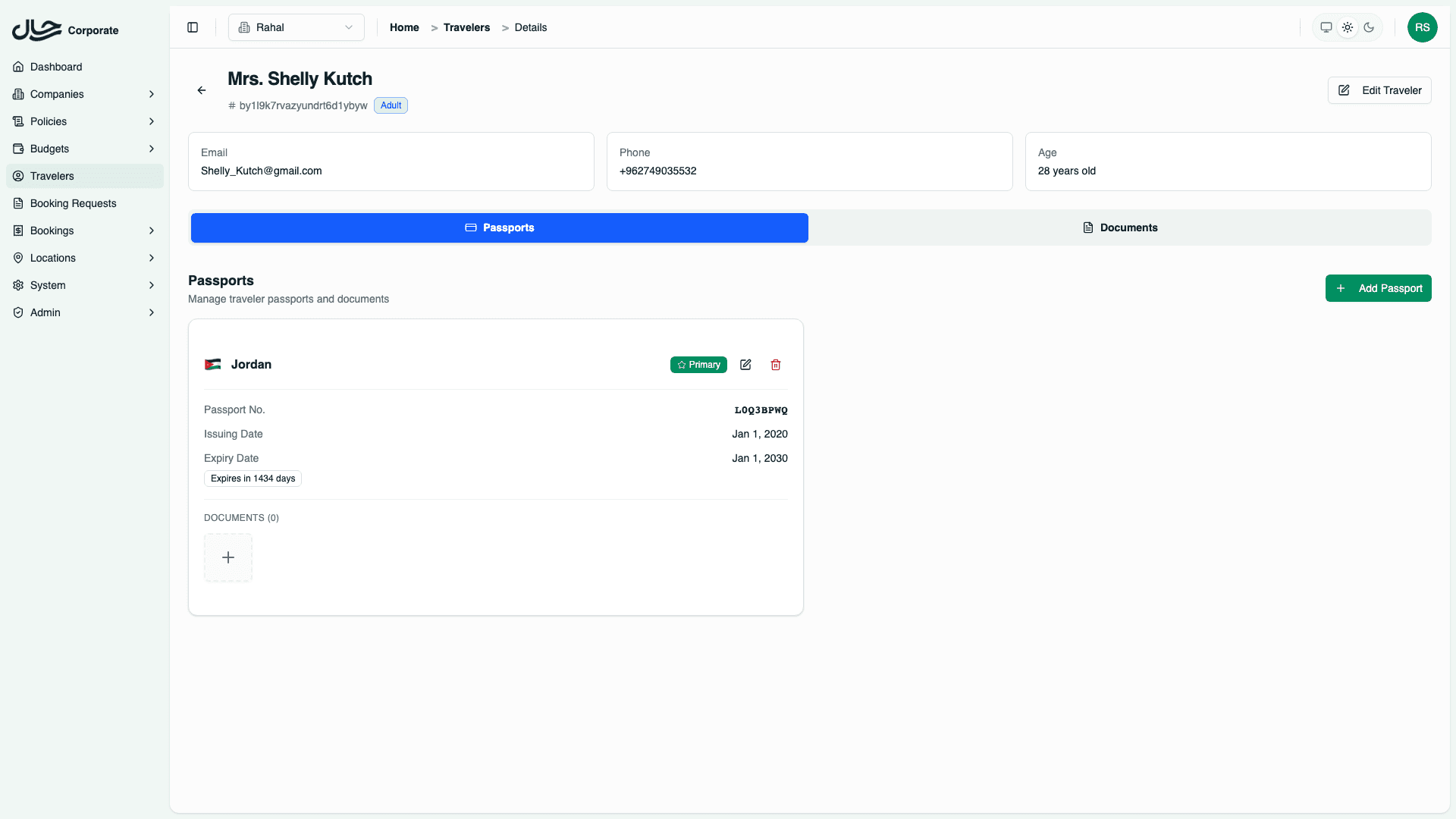
| Add/edit/delete passports | Passport management access |
| Upload/delete documents | Document management access |
Exact permission names depend on your organization's role configuration. Contact your system administrator if you're missing required access.
Key Concepts
Before managing travelers, understand these concepts:
- User Ownership — Every traveler belongs to a user account (cannot change after creation)
- Multi-Passport — Travelers can have multiple passports from different countries
- Primary Passport — One passport is marked as default for bookings
- Document Categories — Documents are organized by type (Passport, Visa, Residency, Other)
- Expiry Tracking — Passport expiry dates are monitored with visual warnings
Common Tasks
Quick Actions
| Task | Steps |
|---|---|
| Find a traveler | Use search or filters on the list page |
| Add new traveler | Click "Add Traveler" button |
| Edit traveler | Click edit icon in row actions |
| Add passport | Go to traveler detail → Passports → Add Passport |
| Upload document | Go to traveler detail → Documents → Add Document |
Bulk Operations
Currently, traveler management is performed individually. For bulk operations:
- Use the search/filter to narrow down travelers
- Process each traveler as needed
- Future: Bulk export and import capabilities (roadmap)
Related Features
- User Delegation — Grant access to another user's travelers
- Booking Requests — Travelers are assigned to booking requests
- Policies — Travel policies may affect available options per traveler