

Managing Delegations
How to update and maintain delegation relationships
Managing Delegations
This guide covers how to view, filter, and update existing delegation relationships in the Rahal Dashboard.
Viewing Delegations
Accessing the List
- Navigate to Delegations in the dashboard sidebar
- The table displays all delegations for the selected company
- Each row shows one delegation relationship
Understanding the Table
| Column | Description |
|---|---|
| Receives Access | The delegate - click the name to open their user profile in a new tab |
| Grants Access | The delegator - click the name to open their user profile. For company-wide delegations without a specific delegator, this shows "All company users". |
| Type | Badge showing "Company" or "User" to indicate the delegation type |
| Company | Company name displayed as a badge |
| Recipient Travelers | Number of travelers the delegate owns (not the delegator's count) |
| Scopes | First 2 scopes shown with badges, "+N" badge for additional scopes |
| Status | Green "Active" or gray "Inactive" badge |
| Created | Relative time format (e.g., "3 days ago") |
| Actions | Pencil icon to edit, trash icon to revoke |
Filtering
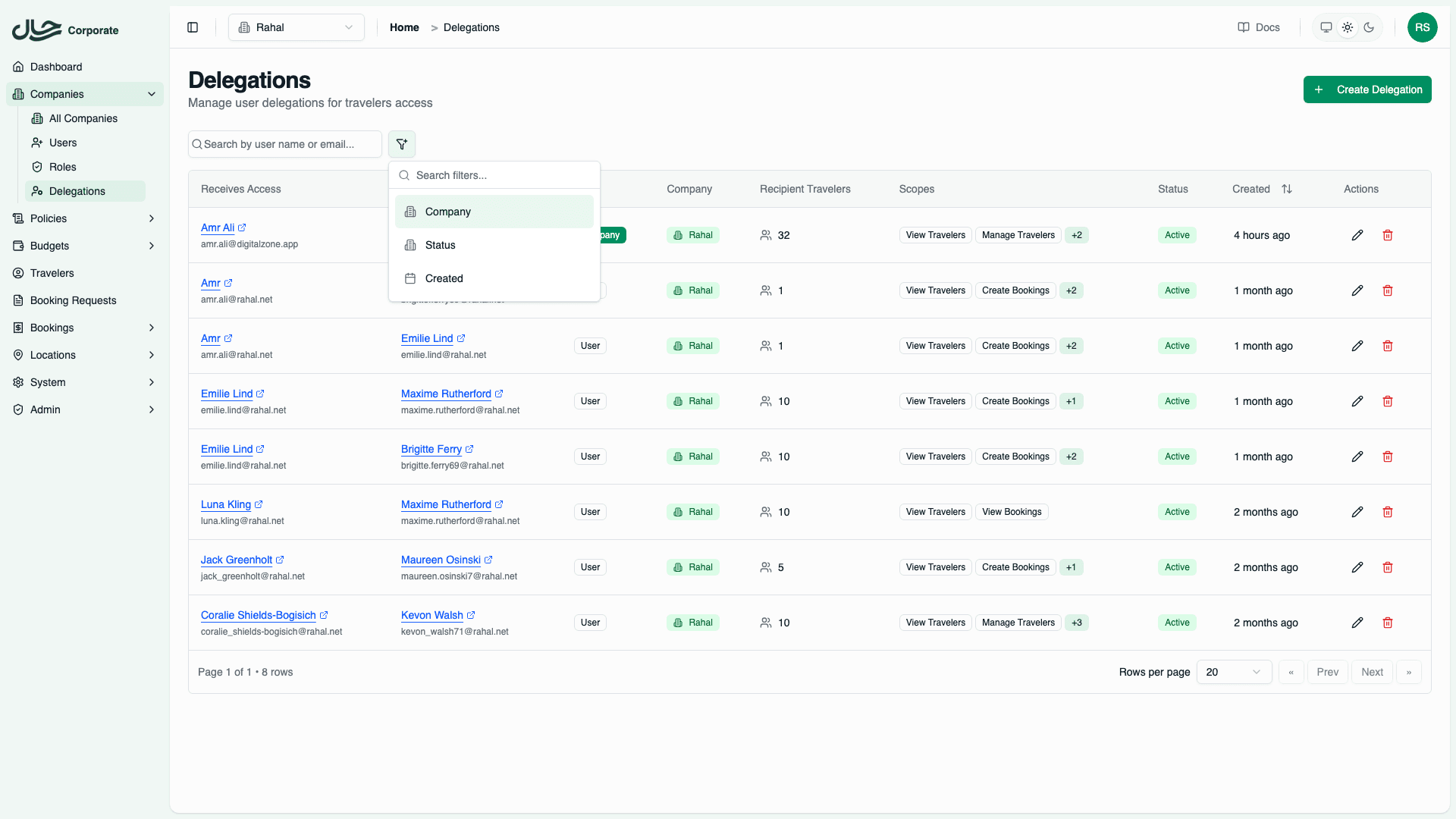
Use the toolbar to filter delegations:
By Company
If you manage multiple companies:
- Click the Company filter
- Select a company from the dropdown
- Only delegations for that company are shown
By Status
Filter by active/inactive status:
- Click the Status filter
- Toggle to show Active only, Inactive only, or All
By Date
Filter by creation date:
- Click the Created filter
- Select a date range
- Only delegations created in that range are shown
Searching
Use the search bar to find specific delegations:
- Search by delegate name or email
- Search by delegator name or email
- Search is case-insensitive
Editing a Delegation
Administrators can modify the scopes and status of an existing delegation.
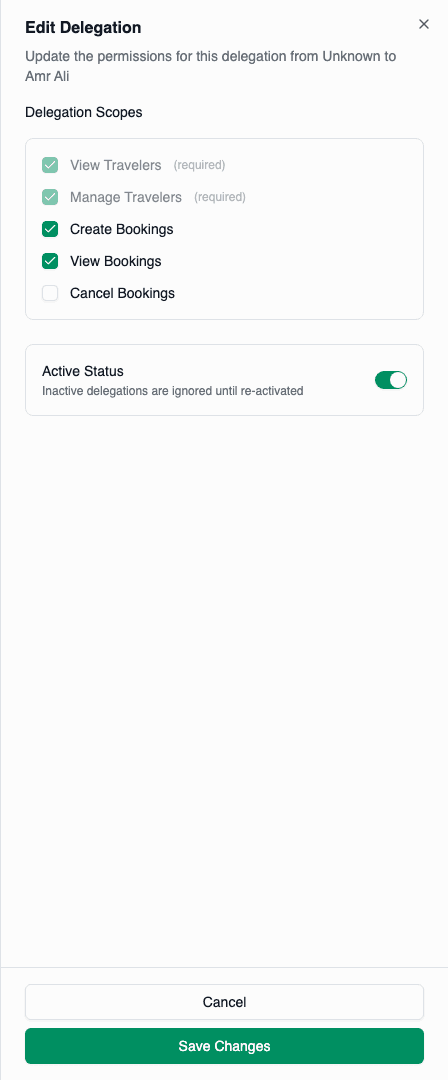
Open the Edit Drawer
- Find the delegation in the table
- Click the pencil icon in the Actions column
- The edit drawer opens on the right
Modify Scopes
Check or uncheck scopes as needed:
- View Travelers: See delegator's traveler profiles
- Manage Travelers: Edit delegator's traveler profiles
- Create Bookings: Make bookings for delegated travelers
- View Bookings: View booking history for delegated travelers
- Cancel Bookings: Cancel bookings for delegated travelers
Removing the Create Bookings scope while the delegate is mid-booking will cause their booking to fail.
Toggle Status
Switch the delegation between Active and Inactive:
- Active: Delegation is enforced; delegate can access delegator's data
- Inactive: Delegation is paused; delegate cannot access delegator's data
Save Changes
Click Save Changes to apply the updates.
Changing Delegation Status
Deactivating a Delegation
To temporarily suspend a delegation without deleting it:
- Open the edit drawer
- Toggle the status to Inactive
- Save changes
When to deactivate:
- Delegator is on extended leave
- Temporary suspension pending review
- Testing access without permanent removal
Reactivating a Delegation
To restore a deactivated delegation:
- Find the inactive delegation (filter by Status if needed)
- Open the edit drawer
- Toggle the status to Active
- Save changes
The delegate immediately regains access to the delegator's travelers.
Modifying Scopes
Adding Scopes
To grant additional permissions:
- Open the edit drawer
- Check the additional scope(s)
- Save changes
Common additions:
- Adding Cancel Bookings when delegate needs to modify travel plans
- Adding Manage Travelers when delegate should update profiles
Removing Scopes
To reduce permissions:
- Open the edit drawer
- Uncheck the scope(s) to remove
- Save changes
At least one scope must remain selected. You cannot have a delegation with no scopes.
Scope Change Effects
| Change | Immediate Effect |
|---|---|
| Add scope | Delegate immediately gains capability |
| Remove scope | Delegate immediately loses capability |
| Deactivate | All capabilities suspended |
| Reactivate | All scopes restored |
Monitoring Delegations
Regular Audits
Schedule periodic delegation reviews:
- Filter to show all delegations
- Check for delegations to departed employees
- Verify scopes are still appropriate
- Remove or update as needed
Identifying Stale Delegations
Look for signs a delegation may be outdated:
- Delegator or delegate is no longer active
- Delegation was created a long time ago
- Scopes haven't been used (check with users)
Usage Patterns
Consider requesting a usage report to identify:
- Delegations that have never been used
- Delegations with excessive scopes
- Delegations for users who have left
Bulk Management
Currently, delegations must be managed individually. For bulk updates:
- Export the delegation list (if needed for planning)
- Make changes one by one
- Or use the API for programmatic bulk updates
Audit Trail
All delegation changes are logged:
| Event | Logged Data |
|---|---|
| Delegation created | Creator, participants, initial scopes |
| Scopes modified | Old scopes, new scopes, modifier |
| Status changed | Old status, new status, modifier |
| Delegation revoked | Revoker, final state |
Access the audit log through your organization's logging system.
Related Topics
- Creating Delegations - Setting up new delegations
- Revoking Delegations - Permanently removing delegations
- Scopes Reference - Detailed scope information