

Admin Guide Overview
Managing user delegations as an administrator in Rahal
Delegation Administration
Administrators can create, manage, and revoke user delegations through the Rahal Dashboard. This guide covers all administrative tasks related to delegation management.
Required Permissions
To manage delegations, administrators need the following permissions:
| Permission | Allows |
|---|---|
| Read Delegations | View delegation list and details |
| Write Delegations | Create, update, and revoke delegations |
These permissions are typically included in the Admin and Manager predefined roles.
Accessing Delegations
Navigate to the Delegations page in the dashboard:
- Log in to the Rahal Dashboard
- Select a company from the company switcher (if applicable)
- Navigate to Delegations in the sidebar
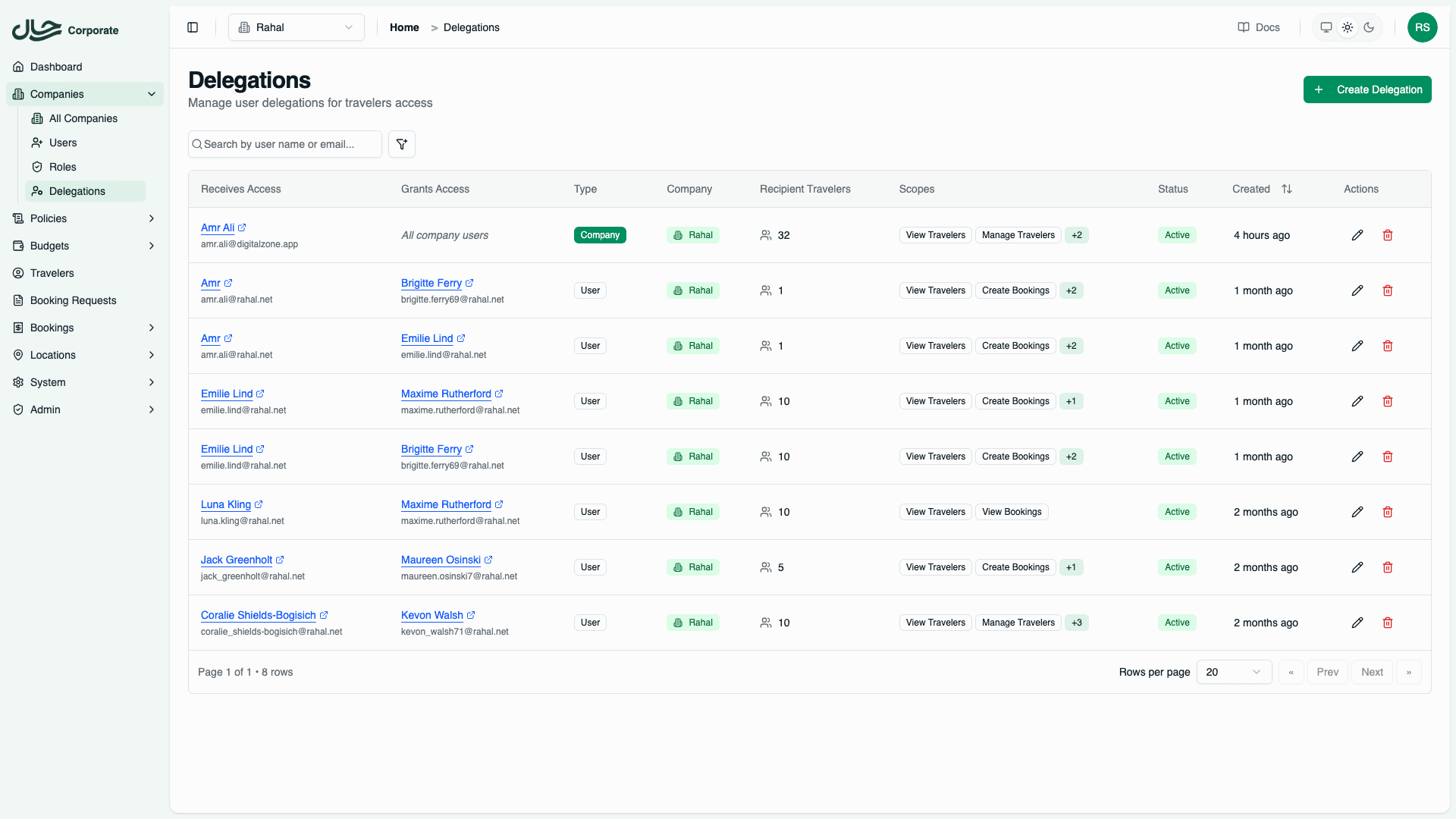
Dashboard Overview
The Delegations page displays a table of all delegations in the selected company:
| Column | Description |
|---|---|
| Receives Access | The delegate - the user who can access others' travelers. Click the name to view their user profile. |
| Grants Access | The delegator - the user whose travelers are being shared. For company-wide delegations without a specific delegator, this shows "All company users". |
| Type | Badge showing "Company" or "User" to indicate the delegation type |
| Company | The company this delegation belongs to |
| Recipient Travelers | Number of travelers the delegate owns (not the delegator's travelers) |
| Scopes | First two permission scopes shown, with "+N" for additional scopes |
| Status | Green "Active" badge or gray "Inactive" badge |
| Created | Relative time (e.g., "3 days ago") |
| Actions | Edit (pencil icon) and Revoke (trash icon) buttons |
Filtering and Searching
You can filter the delegation list by:
- Company: Filter by company (if managing multiple companies)
- Status: Show only active or inactive delegations
- Created Date: Filter by creation date range
Use the search bar to find delegations by user name or email.
Quick Actions
From the delegation table, you can:
- Create: Click "Create Delegation" to add a new delegation
- Edit: Click the pencil icon to modify scopes or status
- Revoke: Click the trash icon to permanently delete a delegation
Administration Tasks
Creating Delegations
Set up new delegation relationships between users
Managing Delegations
Update scopes and status of existing delegations
Revoking Delegations
Remove delegation access when no longer needed
Best Practices
Regular Audits
Schedule periodic reviews of delegation relationships:
- Verify delegations are still needed
- Check that scopes are appropriate
- Remove delegations for departed employees
Documentation
Keep records of why delegations were created:
- Document the business need
- Note the expected duration (if temporary)
- Record who approved the delegation
Scope Minimization
Apply the principle of least privilege:
- Start with minimal scopes
- Add scopes only when requested
- Remove scopes when no longer needed
Users can also manage their own delegations through the user app. As an administrator, you can create delegations on behalf of users who may not have access to self-service delegation.
Related Topics
- Creating Delegations - Step-by-step creation guide
- Managing Delegations - Updating existing delegations
- Revoking Delegations - Removing access