

Creating Delegations
How to create user delegation relationships as an administrator
Creating Delegations
This guide walks you through creating delegation relationships between users in the Rahal Dashboard.
Prerequisites
Before creating a delegation:
- Both users must be active members of the same company
- You must have the Write Delegations permission
- Determine which user should be the delegator (grants access) and which should be the delegate (receives access)
Creating a Delegation
Navigate to Delegations
- Open the Rahal Dashboard
- Select the appropriate company from the company switcher
- Click Delegations in the sidebar
- Click the Create Delegation button
Choose the Delegation Type
Select the type of delegation:
| Type | Description | Best For |
|---|---|---|
| User-to-User | Grants access between specific users | Executive assistants, direct reports |
| Company-wide | Grants access to all users in a company | Travel coordinators, office managers |
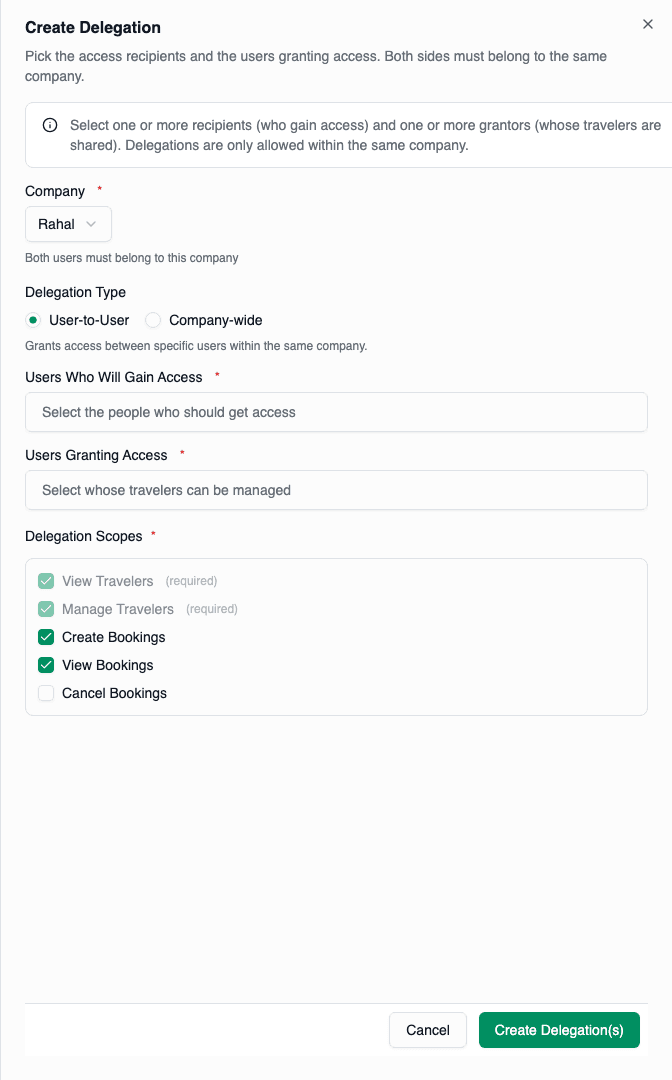
The form fields adjust based on your selection.
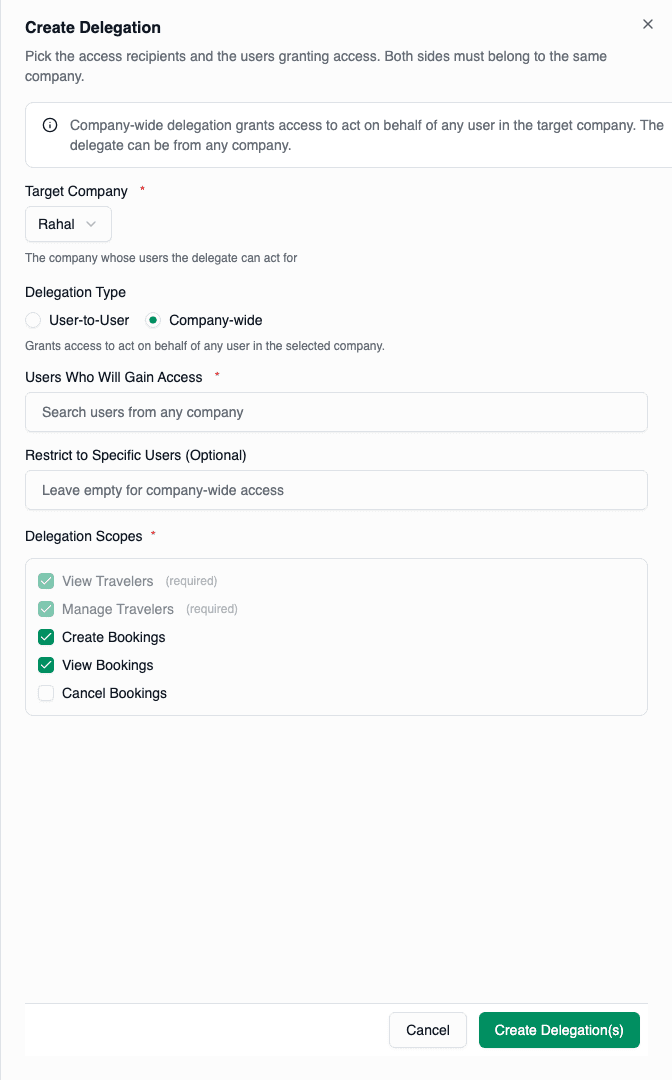
When you select Company-wide, the form changes: the company label becomes "Target Company", the delegate search expands to all users, and the delegator field becomes optional.
Select the Company
Choose the company where the delegation applies.
- For User-to-User: Both users must be active members of this company
- For Company-wide: This is the target company whose users' travelers the delegate can access
If you're already filtered to a specific company, this field may be pre-filled.
Select the Delegate (Receives Access)
In the "Users Who Will Gain Access" field:
- Start typing the user's name or email (minimum 2 characters)
- Select the user from the dropdown
- You can select multiple users to create delegations in bulk
For User-to-User delegations, the search is filtered to active users in the selected company. For Company-wide delegations, the search includes all active users across the system.
Select the Delegator (Grants Access)
For User-to-User delegations, this field is required:
- Start typing the delegator's name or email
- Select the user from the dropdown
- You can select multiple users to create delegations in bulk
For Company-wide delegations, this field is labeled "Restrict to Specific Users (Optional)":
- Leave empty to grant access to all users in the company (true company-wide access)
- Select specific users to limit the delegation to those users' travelers only
Configure Scopes
Select the permission scopes for this delegation:
| Scope | When to Include |
|---|---|
| View Travelers | Almost always - needed to see and select travelers |
| Manage Travelers | When delegate should be able to edit traveler profiles |
| Create Bookings | When delegate should be able to make bookings |
| View Bookings | When delegate should see booking history |
| Cancel Bookings | When delegate should be able to cancel bookings |
Default scopes are: View Travelers, Create Bookings, View Bookings. Note that Create Bookings automatically includes Manage Travelers.
Create the Delegation
Click Create Delegation(s) to save.
If you selected multiple users on either side, multiple delegations will be created for each combination.
Bulk Delegation Creation
The delegation form supports creating multiple delegations at once:
Scenario: One Delegator, Multiple Delegates
An executive wants to grant access to their entire assistant team.
- Select User-to-User type
- In "Users Who Will Gain Access", select all assistants
- In "Users Granting Access", select the executive
- Configure scopes
- Click Create
Result: One delegation is created for each assistant.
Scenario: Multiple Delegators, One Delegate
A travel coordinator needs access to an entire department's travelers.
- Select User-to-User type
- In "Users Who Will Gain Access", select the travel coordinator
- In "Users Granting Access", select all department members
- Configure scopes
- Click Create
Result: One delegation is created from each department member to the coordinator.
Scenario: Company-Wide Access
A travel coordinator needs access to all users in the company.
- Select Company-wide type
- Select the target company
- In "Users Who Will Gain Access", select the travel coordinator
- Leave "Restrict to Specific Users" empty for full company access
- Configure scopes
- Click Create
Result: The coordinator can search for and access any user's travelers in the company.
Scenario: Many-to-Many
Create user-to-user delegations between multiple users simultaneously.
Be careful with many-to-many creation. If you select 5 delegates and 5 delegators, you'll create 25 delegations (minus self-delegations, which are automatically skipped).
Form Fields Reference
| Field | Required | Description |
|---|---|---|
| Delegation Type | Yes | User-to-User or Company-wide |
| Company | Yes | The company context for the delegation |
| Users Who Will Gain Access | Yes | The delegate(s) - users receiving access |
| Users Granting Access | User-to-User: Yes, Company-wide: Optional | The delegator(s) - users whose travelers are shared. Empty for company-wide means access to all users. |
| Delegation Scopes | Yes | At least one scope must be selected |
Validation Rules
The system enforces these rules:
| Rule | Error Message |
|---|---|
| Delegator and delegate are the same user | "Cannot delegate to yourself" |
| Delegation already exists | "Delegation already exists" |
| User not active in company | "User not found or not active in company" |
| No scopes selected | "At least one scope is required" |
Self-Delegation Prevention
Users cannot delegate to themselves. If you try to create a delegation where the same user is both delegator and delegate:
- In single-user selection: An error is shown
- In bulk selection: The self-delegation is silently skipped
Post-Creation
After creating a delegation:
- The delegation appears in the table immediately
- It is active by default
- The delegate can immediately access the delegator's travelers
- No notification is sent automatically (consider informing users manually)
Common Scenarios
Executive Assistant Setup
Goal: Allow an assistant to book travel for an executive.
Configuration:
- Type: User-to-User
- Delegate: Executive Assistant
- Delegator: Executive
- Scopes: View Travelers, Create Bookings, View Bookings
Travel Coordinator (Company-Wide)
Goal: Allow a coordinator to book travel for anyone in the company.
Configuration:
- Type: Company-wide
- Delegate: Travel Coordinator
- Delegators: (leave empty for full company access)
- Scopes: View Travelers, Create Bookings, View Bookings, Cancel Bookings
Travel Coordinator (Department Only)
Goal: Allow a coordinator to manage travel for a specific department.
Configuration:
- Type: User-to-User
- Delegate: Travel Coordinator
- Delegators: All department members
- Scopes: View Travelers, Create Bookings, View Bookings, Cancel Bookings
HR Onboarding
Goal: Allow HR to maintain traveler profiles for new hires.
Configuration:
- Type: User-to-User
- Delegate: HR Staff
- Delegators: New employees
- Scopes: View Travelers, Manage Travelers
Manager Oversight
Goal: Allow a manager to view (but not modify) team travel.
Configuration:
- Type: User-to-User
- Delegate: Manager
- Delegators: Team members
- Scopes: View Travelers, View Bookings
Verification
After creating a delegation, verify it's working:
- Find the delegation in the table
- Confirm the status is "Active"
- Verify the scopes are correct
- Optionally, have the delegate confirm they can see the delegator's travelers
Related Topics
- Managing Delegations - Updating existing delegations
- Revoking Delegations - Removing access
- Scopes Reference - Detailed scope information