

Editing Requests
How to modify flights, hotels, travelers, and pricing on booking requests
Editing Requests
Administrators can modify booking requests before processing them. This guide covers all editing capabilities.
Editing Overview
PENDING requests can be modified in several ways:
| Item | Add | Edit | Delete |
|---|---|---|---|
| Flights | ✅ | ✅ | ✅ |
| Hotels | ✅ | ✅ | ✅ |
| Travelers | ✅ | ❌ (edit profile separately) | ✅ |
| Total Price | N/A | ✅ | N/A |
| Notes | N/A | ✅ | N/A |
Only PENDING requests can be edited. Once a request is COMPLETED or CANCELLED, no modifications are possible.
Editing Total Price
The total price can be adjusted if pricing has changed or corrections are needed.
Open the Request Detail Page
Navigate to the request you want to modify.
Click the Edit Icon
Next to the "Total Price" field in the overview card, click the edit (pencil) icon.
Enter New Values
- Price: Enter the new amount
- Currency: Adjust if needed (e.g., IQD, USD)
Save Changes
Click the checkmark to save, or the X to cancel.
Price Editing Considerations
- Price changes don't automatically update individual item prices
- Consider updating the notes to explain the price change
- Budget reservation reflects the original price (updates on completion)
Editing Request Notes
Notes can always be edited, even on non-PENDING requests (for adding processing context).
Locate the Notes Section
In the overview card, find "Request Notes" at the bottom.
Click the Edit Icon
Click the pencil icon next to the section header.
Modify the Notes
Add, update, or replace the note text. Maximum 5,000 characters.
Save Changes
Click the checkmark to save.
Notes Best Practices
- Document why changes were made
- Add processing context (e.g., "Verified with manager")
- Include rejection reasons before cancelling
- Keep notes professional and factual
Managing Flights
Adding a Flight
Go to Services Tab
Open the request and navigate to the Services tab.
Click "Add Flight"
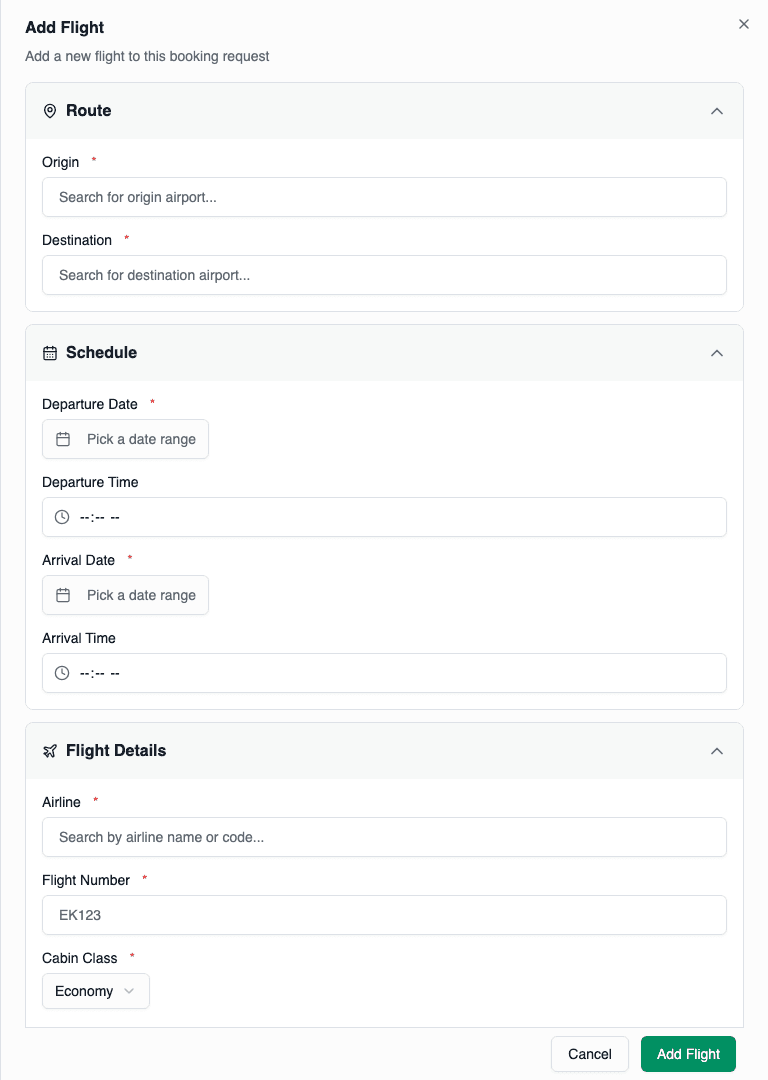
The blue "Add Flight" button opens the flight form drawer.
Fill in Flight Details
Complete all required fields:
- Origin: Airport/city code and name
- Destination: Airport/city code and name
- Departure: Date and time
- Arrival: Date and time
- Airline: Carrier name
- Flight Number: Flight identifier
- Cabin Class: Economy, Business, etc.
- Passengers: Adults, children, infants count
- Price: Individual flight price and currency
Save the Flight
Click Save to add the flight to the request.
Editing a Flight
- Find the flight card in the Services tab
- Click the edit (pencil) icon on the card
- Modify any fields in the drawer
- Click Save to apply changes
Deleting a Flight
- Find the flight card
- Click the delete (trash) icon
- Confirm the deletion in the dialog
Deleting a flight doesn't automatically update the total price. Remember to adjust the total if needed.
Managing Hotels
Adding a Hotel
Go to Services Tab
Open the request and navigate to the Services tab.
Click "Add Hotel"
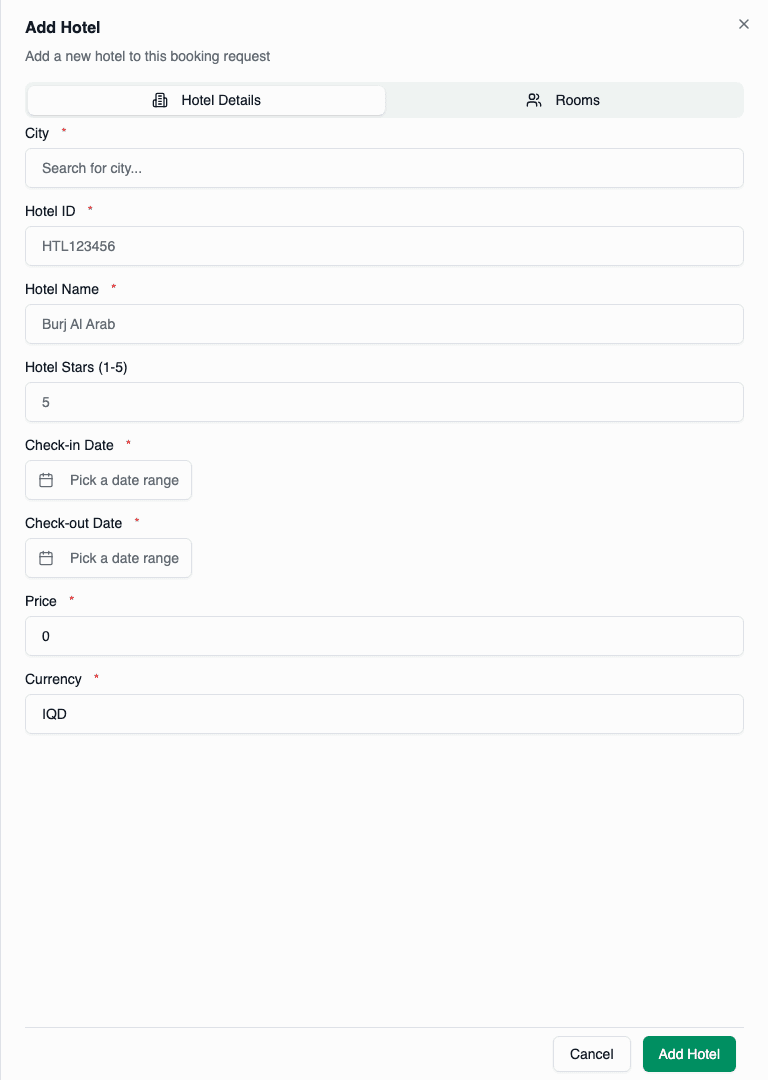
The purple "Add Hotel" button opens the hotel form drawer.
Fill in Hotel Details
Complete all required fields:
- City: City code and name
- Hotel: Hotel name and star rating
- Check-in Date: Arrival date
- Check-out Date: Departure date
- Price: Total hotel price and currency
- Rooms: Add room configurations
Configure Rooms
For each room, specify:
- Room name/type
- Board basis (RO, BB, HB, FB, AI)
- Adults count
- Children count and ages
Save the Hotel
Click Save to add the hotel to the request.
Board Basis Options
| Code | Meaning |
|---|---|
| RO | Room Only |
| BB | Bed & Breakfast |
| HB | Half Board (breakfast + dinner) |
| FB | Full Board (all meals) |
| AI | All Inclusive |
Editing a Hotel
- Find the hotel card in the Services tab
- Click the edit icon
- Modify hotel details and/or room configurations
- Click Save
Deleting a Hotel
- Find the hotel card
- Click the delete icon
- Confirm the deletion
Managing Travelers
Adding an Existing Traveler
Go to Travelers Tab
Open the request and navigate to the Travelers tab.
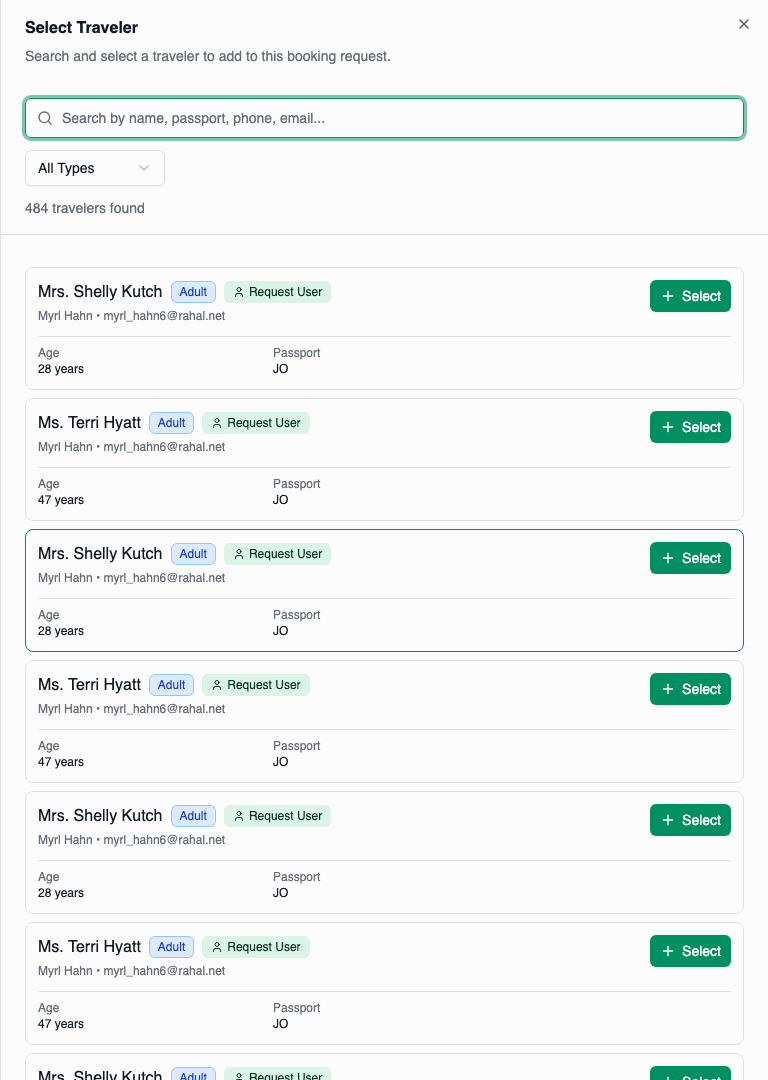
Click "Select Traveler"
Opens a drawer showing available travelers.
Search and Select
- Use search to find travelers by name
- Click on a traveler to select them
- Already-assigned travelers are marked
Confirm Selection
The traveler is added to the request.
Creating a New Traveler
Click "Add New Traveler"
This opens the traveler creation drawer.
Fill in Traveler Profile
Complete traveler details:
- Title, first name, last name
- Birth date
- Contact information
- Passport details
Save and Add
The new traveler is created and automatically added to the request.
Removing a Traveler
- Find the traveler in the Travelers tab
- Click the remove (trash) icon
- Confirm the removal
Removing a traveler from a request doesn't delete the traveler profile. They can be added again or used in other requests.
Filtering Travelers
For requests with many travelers:
- Use the search box to filter by name, phone, passport, or email
- Use the type filter to show only Adults, Children, or Infants
Editing Constraints
What Can't Be Edited
| Item | Reason |
|---|---|
| Request ID | System-generated, immutable |
| Company | Set at creation |
| Requested By | Original requester |
| Created Date | Historical record |
| Status | Use Complete/Cancel actions |
After Processing
Once a request is COMPLETED or CANCELLED:
- Only notes can be updated (for documentation purposes)
- All other fields are locked
- Action buttons are hidden
Multi-Item Editing
When editing requests with multiple items:
- Review all items first before making changes
- Update total price after adding/removing items
- Verify traveler count matches service capacity
- Add notes explaining significant modifications
Validation Rules
The system enforces certain validations:
| Rule | Enforcement |
|---|---|
| At least one service | Cannot delete all flights AND hotels |
| Price must be positive | Cannot set negative prices |
| Dates must be logical | Departure before arrival, check-in before check-out |
| Required fields | Must complete all required fields in forms |
Undo Changes
There's no undo functionality for modifications. If you make an error:
- For item edits: Edit again to correct
- For deletions: Re-add the item manually
- For price changes: Edit price again
- For notes: Edit notes to correct
Be careful when deleting items. The original item data cannot be recovered automatically—you'll need to re-enter it.