

Viewing Requests
How to navigate, filter, search, and view booking request details
Viewing Requests
This guide covers how to find, filter, and examine booking requests in the admin dashboard.
Accessing Booking Requests
Navigate to Booking Requests in the sidebar. This opens the main requests list showing all requests across companies (or your specific company if access is restricted).
List View
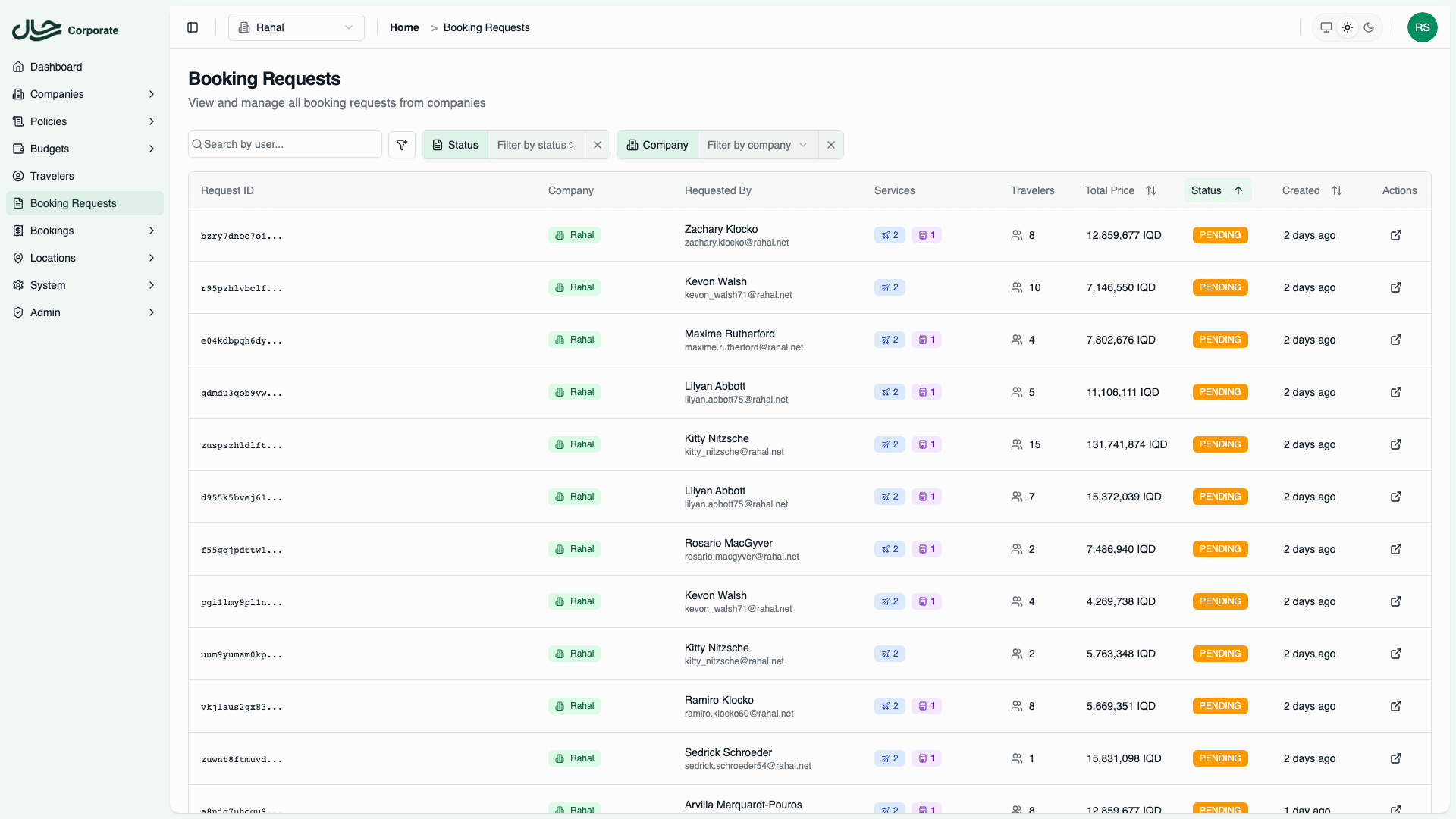
Columns
The request list displays the following information:
| Column | Description |
|---|---|
| Request ID | Unique identifier (first 12 characters shown) |
| Company | Company name with badge |
| Requested By | User name (primary) and email (secondary) |
| Services | Visual badges with counts: ✈️ Flights, 🏨 Hotels |
| Travelers | Icon with traveler count |
| Total Price | Formatted currency amount |
| Status | Request status (PENDING, COMPLETED, or CANCELLED) |
| Created | Relative time (e.g., "2 days ago") |
| Actions | Quick action buttons |
Filtering Requests
Use the toolbar filters to narrow down the request list.
Available Filters
| Filter | Type | Options |
|---|---|---|
| Status | Multi-select | Pending, Completed, Cancelled |
| Company | Select | List of companies (if multi-company access) |
| Service Type | Multi-select | Flights, Hotels |
| Travelers | Number range | Min/max traveler count |
| Price Range | Number range | Min/max price |
| Created | Date range | Start and end dates |
Filter Examples
Find pending flight requests:
- Status: PENDING
- Service Type: Flights
Find high-value requests from last week:
- Price Range: Min 5,000
- Created: Last 7 days
Find requests with multiple travelers:
- Travelers: Min 3
Clearing Filters
Click Clear filters in the filter bar to reset all filters and show all requests.
Searching Requests
Use the global search bar to find requests by:
- User name
- User email
- Request ID (partial match)
The search looks at the requesting user's information. To find requests containing specific flights or hotels, use the filters instead.
Sorting Requests
Click column headers to sort:
| Column | Sort Options |
|---|---|
| Total Price | Low to high, high to low |
| Status | Alphabetical |
| Created | Oldest first, newest first |
Default sort is by Created (newest first).
Opening Request Details
Click any row in the list to open the request detail page. Alternatively, click the external link icon in the Actions column to open in a new tab.
Detail Page Layout
The detail page has several sections:
Header
- Back button to return to list
- Request ID (full)
- Status badge
- Action buttons (for PENDING requests):
- Mark Complete
- Cancel Request
Overview Card
| Field | Description |
|---|---|
| Company | Company name and slug |
| Requested By | User name and email |
| Total Price | Amount with currency (editable for PENDING) |
| Created | Formatted date |
| Service Summary | Badges showing flight/hotel/traveler counts |
| Request Notes | User-provided notes (editable) |
Services Tab
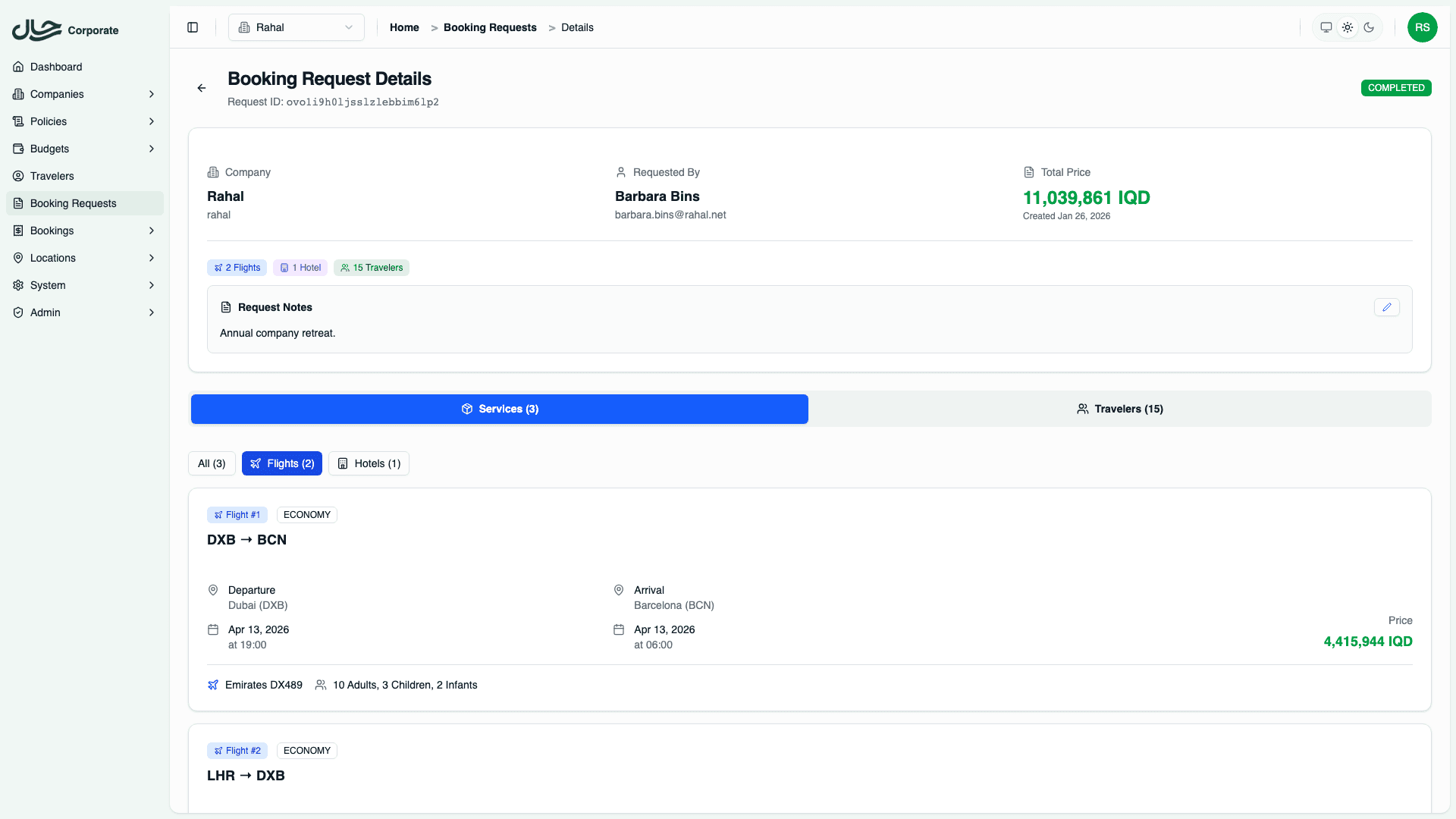
Contains two sections:
Filter Buttons:
- All (shows everything)
- Flights (count)
- Hotels (count)
Flight Cards:
- Route with airport codes
- Departure and arrival dates/times
- Airline and flight number
- Cabin class
- Traveler count by type (adults/children/infants)
- Price
Hotel Cards:
- Hotel name and star rating
- City/location
- Check-in and check-out dates
- Number of nights
- Room details with:
- Room name
- Board basis
- Occupancy (adults/children)
- Children ages
Travelers Tab
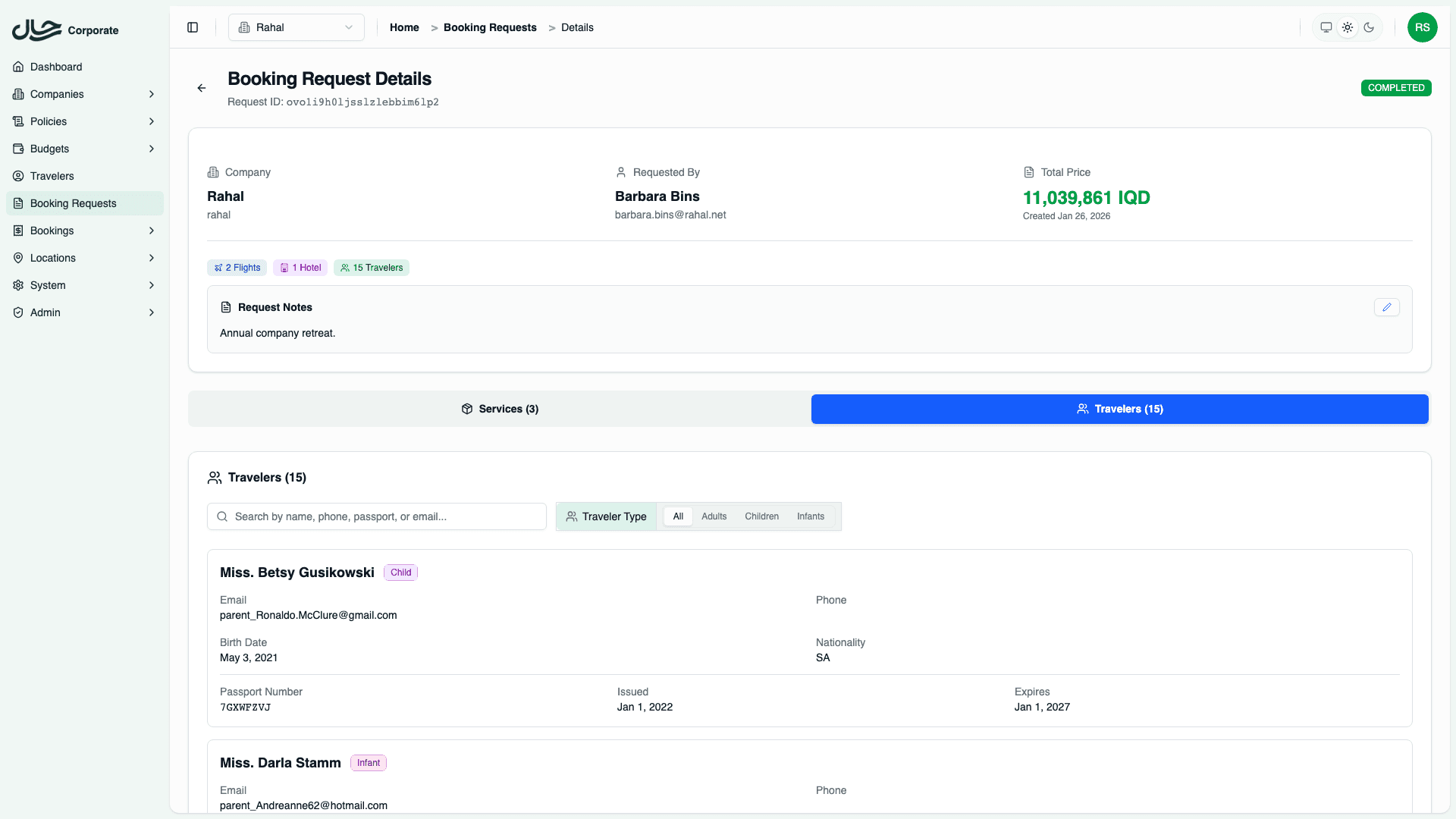
Header:
- Traveler count
- Add Traveler buttons (for PENDING requests)
Search and Filter:
- Search by name, phone, passport, email
- Filter by traveler type (All/Adults/Children/Infants)
Traveler Cards: Each traveler shows:
- Full name with title
- Traveler type badge (ADT/CHD/INF)
- Email address
- Phone number
- Birth date
- Nationality
- Passport details:
- Number
- Issue date
- Expiry date
Viewing Multiple Requests
You can open multiple request detail pages in separate browser tabs:
- Hold Ctrl/Cmd and click the external link icon
- Or use the external link icon which opens in a new tab by default
This is useful for comparing requests or processing multiple at once.
Pagination
The request list is paginated (default 20 per page):
- Navigate using page controls at the bottom
- Page state is preserved in the URL
- Filter and sort settings persist across pages
URL Persistence
All view state is preserved in the URL:
- Current page
- Sort column and direction
- Active filters
- Search term
This means you can:
- Bookmark specific views
- Share filtered views with colleagues
- Return to the same state after refreshing