

Admin Guide
Complete guide for administrators managing booking requests
Admin Guide
This guide covers everything administrators need to know about managing booking requests in Rahal. As an admin, you're responsible for reviewing, modifying, and processing travel requests submitted by your company's employees.
Overview
As a booking request administrator, you can:
| Action | Description |
|---|---|
| View | See all requests with full details |
| Filter | Find requests by status, date, price, service type |
| Search | Look up requests by user name or email |
| Modify | Add, edit, or remove flights, hotels, travelers |
| Process | Approve (complete) or reject (cancel) requests |
Quick Start
Navigate to Booking Requests
Go to Booking Requests in the dashboard sidebar to see the requests list.
Review Pending Requests
Filter by Status: Pending to see requests awaiting action.
Open Request Details
Click any row to view full request details including flights, hotels, and travelers.
Process the Request
Either Mark Complete (approve) or Cancel Request (reject) based on your review.
Detailed Guides
Viewing Requests
Navigate, filter, and search booking requests
Processing Requests
Approve, reject, and manage request status
Editing Requests
Modify flights, hotels, travelers, and pricing
Dashboard Interface
The booking requests admin interface consists of two main views:
List View
The requests list shows all booking requests with key information:
| Column | Description |
|---|---|
| Request ID | Unique identifier (truncated for display) |
| Company | Company the request belongs to |
| Requested By | User name and email |
| Services | Badges showing flight/hotel counts |
| Travelers | Number of travelers on the request |
| Total Price | Combined cost with currency |
| Status | PENDING, COMPLETED, or CANCELLED |
| Created | When the request was submitted |
| Actions | Quick action buttons |
Detail View
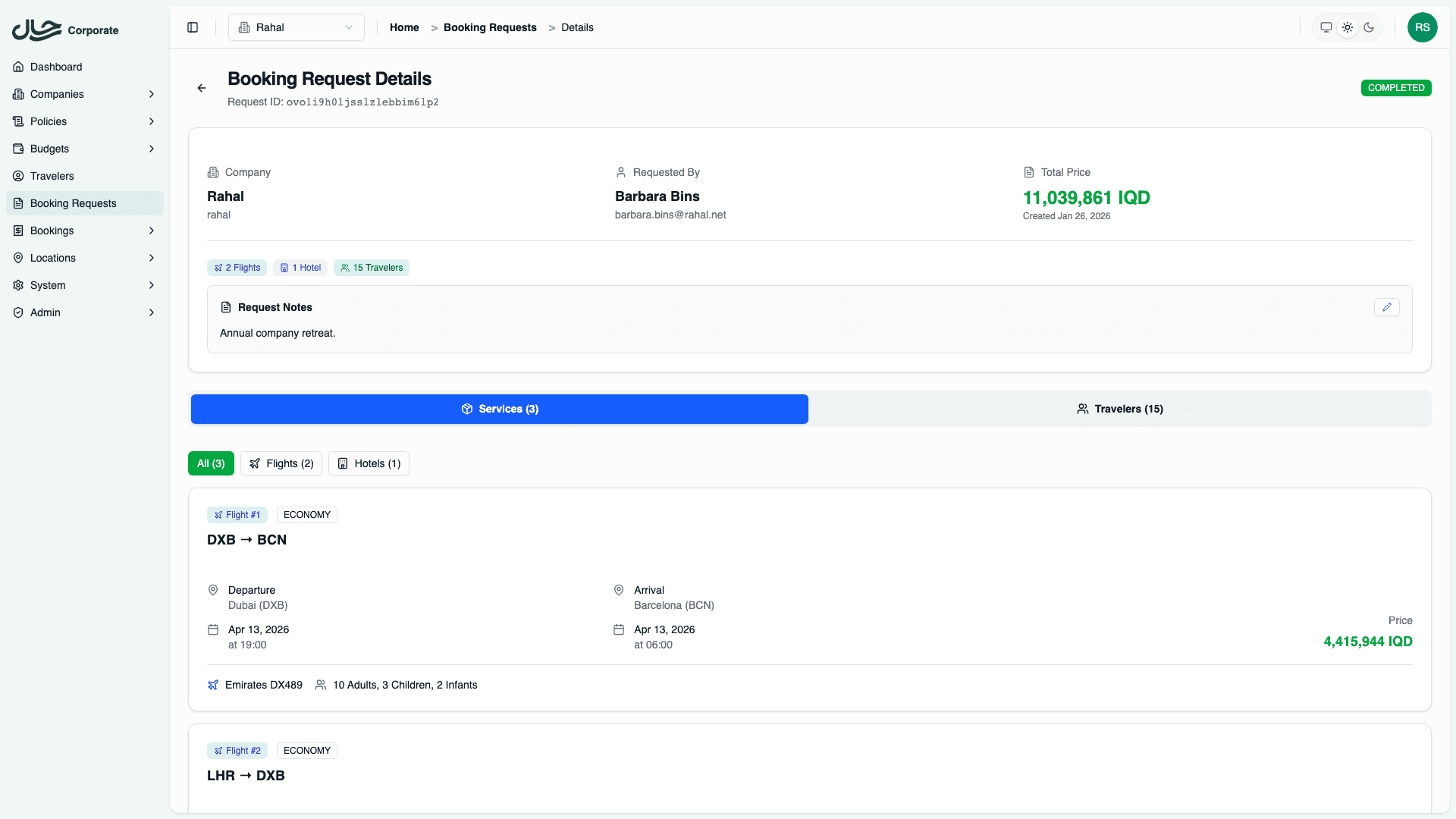
Clicking a request opens the detail page with:
- Overview — Company, requester, price, notes
- Services Tab — Flight and hotel items with full details
- Travelers Tab — Traveler profiles with passport info
Key Workflows
Daily Request Processing
- Open Booking Requests
- Filter by Status: PENDING
- Sort by Created (oldest first)
- Process each request:
- Review items and travelers
- Modify if needed
- Complete or cancel
Investigating a Specific Request
- Use the search bar with user name/email
- Or filter by date range
- Click to open details
- Review full context including notes
Bulk Operations
Currently, requests must be processed individually. Bulk approval/rejection is not yet available.
Permissions Required
To manage booking requests, you need appropriate permissions:
| Permission | Code | Allows |
|---|---|---|
| Read Booking Requests | READ_BOOKING_REQUESTS | View all requests across the company |
| Update Booking Requests | UPDATE_BOOKING_REQUESTS | Modify request details (flights, hotels, travelers) |
| Process Booking Requests | PROCESS_BOOKING_REQUESTS | Complete or cancel requests |
Users without admin permissions can only view and manage their own requests using READ_USER_BOOKING_REQUESTS and WRITE_USER_BOOKING_REQUESTS.
Contact your system administrator if you don't have the necessary access.
Best Practices
Timely Processing
- Process requests promptly (within 24-48 hours)
- Stale requests may have outdated pricing
- Pending requests tie up user budgets
Thorough Review
- Check all flight details (dates, times, routes)
- Verify hotel bookings (dates, rooms, board basis)
- Confirm traveler information and passport validity
Clear Communication
- Use request notes to document decisions
- Update notes when modifying items
- Provide context for rejections
Consistent Decisions
- Apply policy guidelines uniformly
- Document exceptions and reasons
- Coordinate with team on edge cases