

Admin Guide
Using the analytics dashboard to monitor travel operations and make data-driven decisions.
The analytics dashboard is the central hub for monitoring your organization's travel operations. This guide covers how to navigate and use each section of the dashboard.
Accessing Analytics
The analytics dashboard is the default landing page when you log into the admin interface. You can return to it at any time by clicking the dashboard icon in the sidebar.
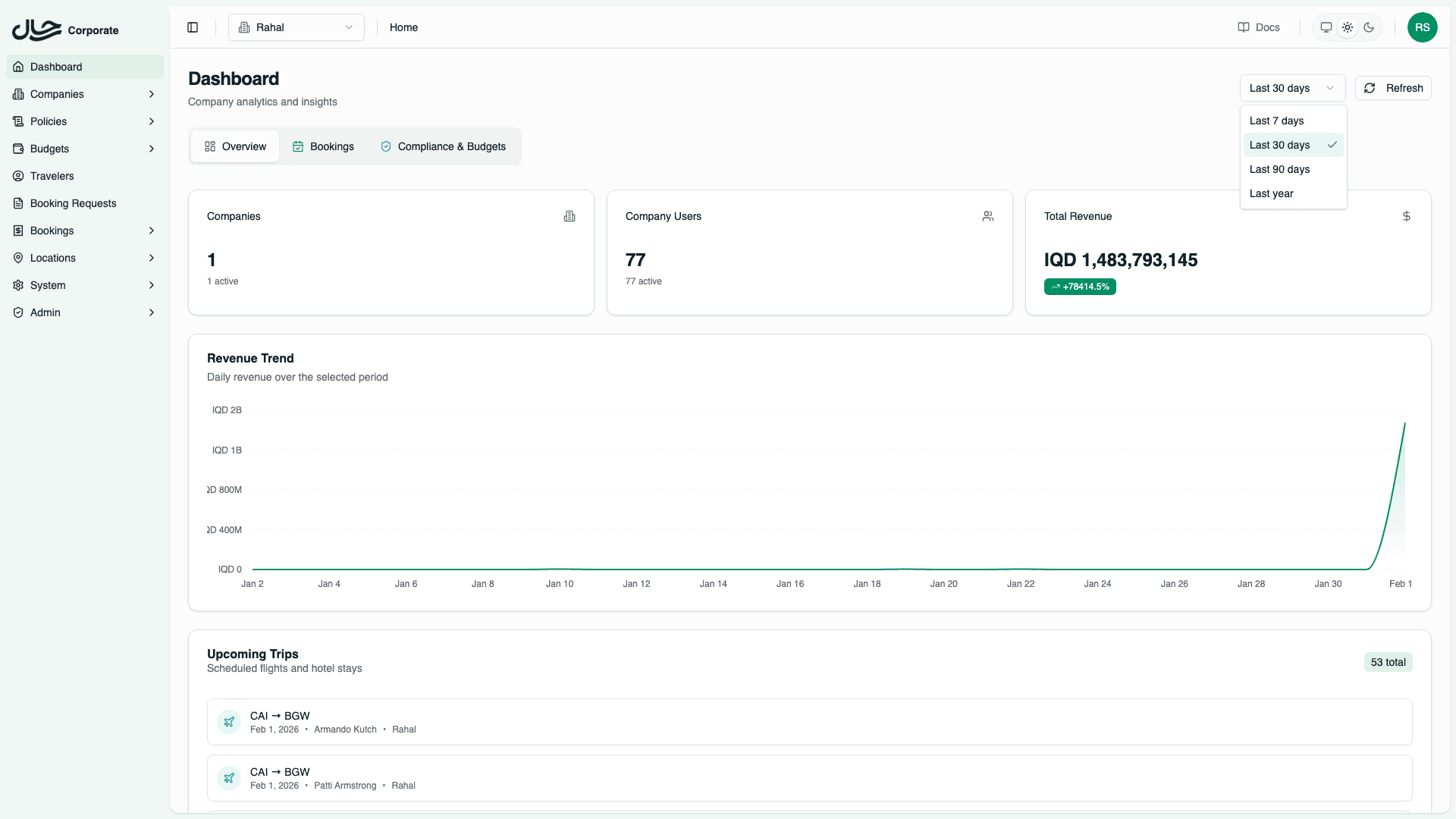
Dashboard Layout
The dashboard consists of:
- Header - Date range selector, company filter (for platform admins), and refresh controls
- Tab Navigation - Switch between Overview, Bookings, and Compliance & Budgets
- Content Area - Statistics cards, charts, and tables for the selected tab
Company Selection
Platform admins can switch between "All Companies" view and individual company views using the company selector in the header.
The company selector affects all analytics:
| View | What You See |
|---|---|
| All Companies | Aggregated platform-wide metrics with company breakdowns |
| Specific Company | Metrics filtered to that company only |
Date Range Controls
The date range selector in the header lets you choose the time period for analysis:
- Click the date range button to open the picker
- Select a preset (7 days, 30 days, 90 days) or custom range
- All charts and statistics update to reflect the selected period
Understanding the Tabs
Overview Tab
The Overview tab provides a high-level summary of platform health:
- Company and user counts
- Revenue trends
- Upcoming trips
- Recent activity feed
See Overview Tab for details.
Bookings Tab
The Bookings tab focuses on travel activity:
- Booking request and order volumes
- Status distributions (pending, completed, cancelled)
- Service breakdowns (flights vs hotels)
- Top routes and destinations
See Bookings Tab for details.
Compliance & Budgets Tab
The Compliance & Budgets tab monitors policy and budget adherence:
- Compliance rate and violation counts
- Policy violation breakdowns by type and service
- Budget utilization and critical alerts
- Top violated rules
See Compliance & Budgets Tab for details.
Next Steps
Explore each tab's detailed documentation: