

UsersAdmin Guide
Viewing Users
Navigate and understand the users list
Viewing Users
This guide explains how to navigate the users list and understand user information.
Accessing the Users List
- Log in to the admin dashboard
- Click Users in the sidebar navigation
- The users list displays all users in your company
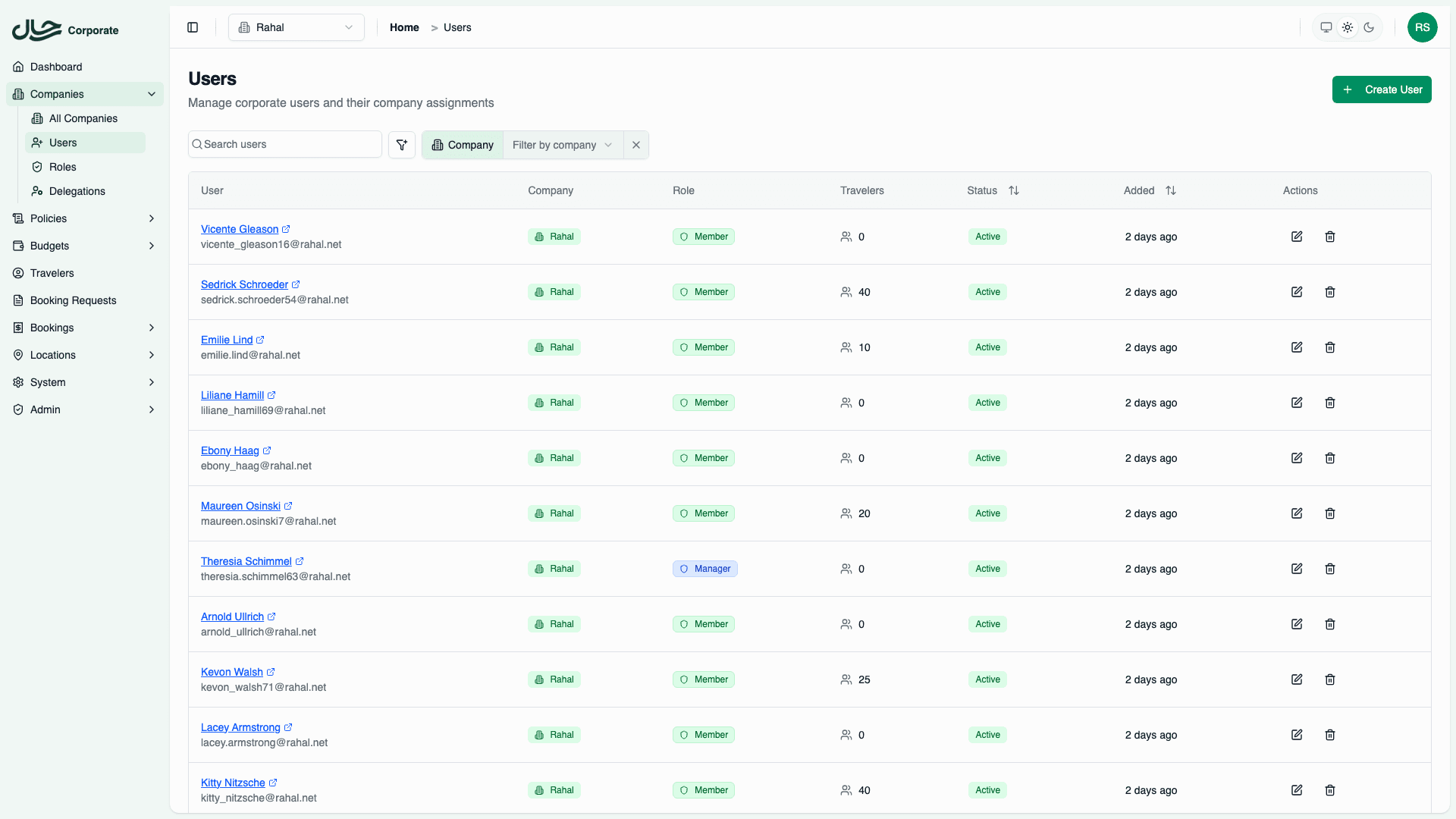
You need READ_USERS permission and ACCESS_COMPANY_DASHBOARD to view the users list.
Users List Columns
| Column | Description | Sortable |
|---|---|---|
| User | Name and email (click to view details) | ❌ |
| Company | Company name badge | ❌ |
| Role | Role badge (color-coded) | ❌ |
| Travelers | Count of travelers owned by this user | ❌ |
| Status | Active (green) or Inactive (red) | ✅ |
| Added | When the user was created (relative date) | ✅ |
| Actions | Edit and Delete buttons | ❌ |
Role Badges
Roles are color-coded for quick identification:
| Role | Color | Meaning |
|---|---|---|
| Admin | Red | Full company access |
| Manager | Blue | Dashboard + approvals |
| Member | Green | Basic booking |
| Custom | Varies | Custom role |
Filtering Users
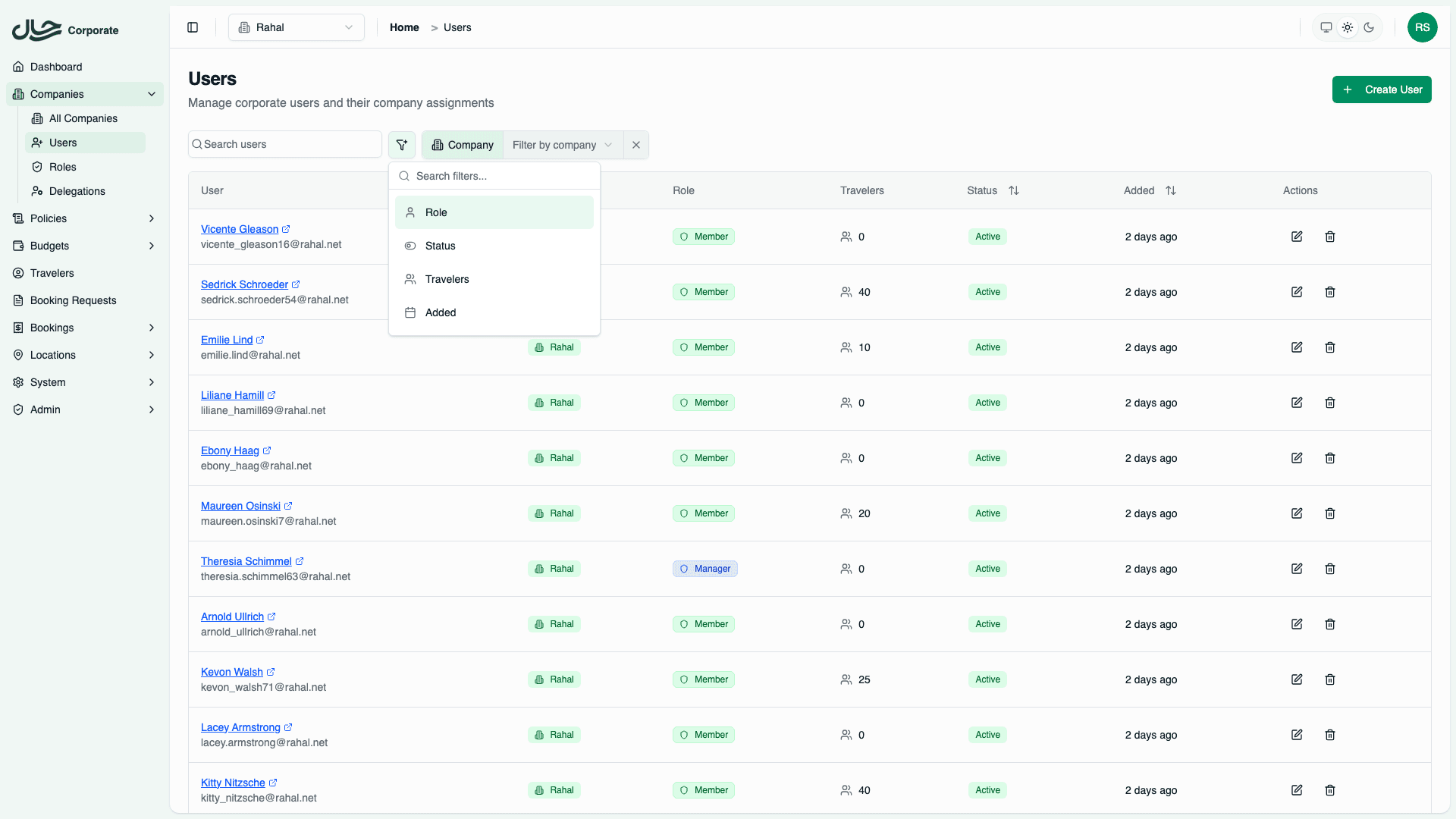
Use the filter controls above the table:
| Filter | Options | Description |
|---|---|---|
| Company | Dropdown | Filter by company (visible to platform admins) |
| Role | Admin, Manager, Member | Filter by role type |
| Status | Active, All, Inactive | Toggle to filter by status |
| Travelers | Number range | Filter by traveler count |
| Added | Date range | Filter by creation date |
Applying Filters
- Click Add filter above the table
- Select your filter criteria
- The list updates automatically
- Active filters appear as badges
- Click the X on a badge to remove that filter
Common Filter Combinations
| Goal | Filters |
|---|---|
| Find admins | Role: Admin |
| Find pending users | Status: Inactive |
| Find users without travelers | Travelers: 0 |
| Find recent signups | Added: Last 7 days |
Searching Users
Use the search box to find users by:
- Name — Partial match
- Email — Partial match
Search is case-insensitive.
Search Examples
| Search | Finds |
|---|---|
john | John Smith, Johnny Doe |
@acme.com | All users with acme.com emails |
manager | Users with "manager" in name |
Sorting
Click column headers to sort:
| Column | Sort Options |
|---|---|
| Status | Active first / Inactive first |
| Added | Newest first / Oldest first |
Click a column header once for ascending, again for descending.
Status Indicators
User Status Badge
| Badge | Meaning | User Can Login |
|---|---|---|
| Active (green) | Full access | ✅ |
| Inactive (red) | Blocked | ❌ |
Traveler Count
| Count | Interpretation |
|---|---|
| 0 | User hasn't created travelers |
| 1 | Typically just themselves |
| 2+ | Has additional travelers (family, etc.) |
User Details
Quick View
Click on a user row to navigate to their detail page:
- Full profile information
- Role and permissions
- Owned travelers
- Booking history
- Activity timeline
Editing
Click the Edit (pencil) button to modify the user.
Deleting
Click the Delete (trash) button to remove the user.
Deletion is soft-delete. The user is hidden but data is preserved. Contact platform admin to restore.
Pagination
The users list uses pagination:
- Default page size: 10 users
- Navigate using Previous/Next buttons
- Jump to specific pages using page numbers
- Change page size if available
Common Views
All Active Users
- Filter by Status: Active
- Sort by Added (newest first)
Pending Approval
- Filter by Status: Inactive
- Review users awaiting activation
Users by Role
- Filter by Role: Select role
- See all users with that role
Recent Signups
- Clear all filters
- Sort by Added (newest first)
- First entries are most recent
Best Practices
Regular Audits
| Frequency | Review |
|---|---|
| Weekly | Pending users (activate or reject) |
| Monthly | Inactive users (delete if needed) |
| Quarterly | Role assignments (still appropriate?) |
Documentation
- Track why users were deactivated
- Document role changes
- Note unusual access patterns