

Creating Users
How to create user accounts from the dashboard
Creating Users
This guide walks you through creating user accounts directly from the dashboard.
When to Create Users Manually
Create users manually when:
- Employees need immediate access before self-registering
- Users have email addresses outside verified domains
- You need to assign a specific role from the start
- Setting up test or demo accounts
Creating a User
Navigate to Users
From the dashboard sidebar, click Users to view the user list.
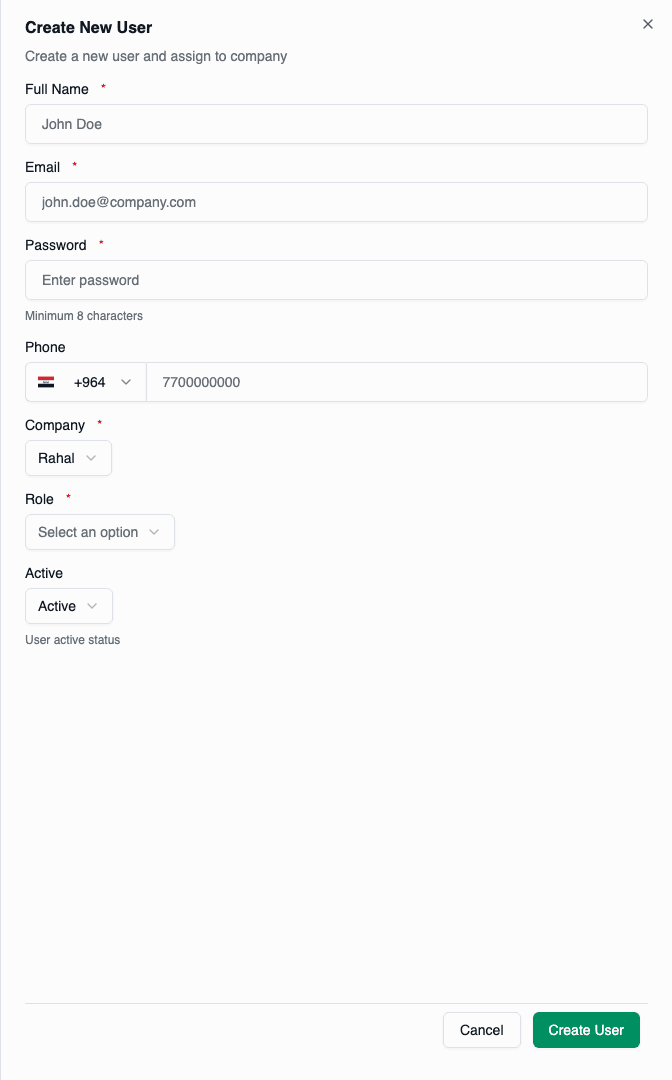
Enter User Details
Fill in the required fields:
| Field | Required | Description |
|---|---|---|
| Full Name | Yes | User's display name |
| Yes | Login email address (unique) | |
| Password | Yes | Initial password (min 8 characters) |
| Phone | No | Contact phone number |
| Company | Yes | Which company to add user to |
| Role | Yes | Role within the company |
| Active | Yes | Whether user can login |
Save the User
Click Create User to save. The user can immediately log in with the provided credentials.
Form Field Details
Full Name
The user's display name:
- Used throughout the platform
- Visible to administrators
- Can contain any characters
Examples:
Jane Smithمحمد أحمدJean-Pierre Dupont
The user's login email:
- Must be unique across all users
- Used for login and notifications
- Does not need to match verified domains (when admin-created)
Unlike self-registration, admin-created users can have any email domain.
Password
The initial password:
- Minimum 8 characters
- User can change it later
- Consider using a secure temporary password
Communicate the password securely to the user. They should change it on first login.
Phone
Optional contact phone number:
- Uses international format
- Default country based on settings
- Useful for emergency contact
Company
Which company the user belongs to:
- Required field
- Determines available roles
- Cannot be changed after creation
For platform admins: Select from all companies For company admins: Automatically set to their company
Role
The role to assign:
- Dropdown shows all active roles for the selected company
- Includes predefined roles (Member, Manager, Admin)
- Includes any custom roles
Roles appear in the dropdown only after selecting a company.
Active Status
Whether the user can login:
| Status | Effect |
|---|---|
| Active | User can login immediately |
| Inactive | User exists but cannot login |
What Happens After Creation
When you create a user:
-
User Record Created
- Email verified automatically
- Password hashed and stored
- Platform set to B2B_WEB
-
Company Membership Created
- User linked to selected company
- Role assigned
- Status set as specified
-
User Ready
- Can login immediately (if active)
- No email verification required
- Has permissions from assigned role
Creating Multiple Users
Currently, users are created one at a time. For bulk creation:
- Create each user individually
- Consider using the API for large batches
- Contact support for migration assistance
Troubleshooting
Email Already Exists
Each email can only be used once. If you see "A user with this email already exists":
- Use a different email address
- Search for the existing user and manage their account
- If it's the same person, update their existing account instead
Company Not Selectable
If you can't select a company:
- You may only have access to your own company
- Platform admins can access all companies
- Check your permissions
Role Not Appearing
If expected role doesn't appear:
- Select a company first
- Check if role is active
- Verify role belongs to selected company
Weak Password
If you see "Password must be at least 8 characters":
- Use at least 8 characters
- Mix of letters and numbers is recommended
- Special characters are optional but add security