

Managing Users
How to view, edit, and manage user accounts
Managing Users
This guide covers day-to-day user management tasks including viewing, editing, activating, and deactivating users.
Viewing Users
Users List
Navigate to Users from the sidebar to see all company users:
| Column | Description |
|---|---|
| User | Name and email (click to view details) |
| Company | Company badge showing membership |
| Role | Role badge (color-coded by role type) |
| Travelers | Number of travelers owned |
| Status | Active (green) or Inactive (red) |
| Added | When user was created |
| Actions | Edit and Delete buttons |
Filtering Users
Use the filter controls above the table:
| Filter | Options | Description |
|---|---|---|
| Company | Dropdown | Filter by specific company |
| Role | Admin/Manager/Member | Filter by role code |
| Status | Active/Inactive | Filter by user status |
| Travelers | Number | Filter by minimum traveler count |
| Added Date | Date range | Filter by creation date |
Searching Users
Use the search box to find users by:
- Name (partial match)
- Email (partial match)
Sorting
Click column headers to sort:
- Status — Active first or inactive first
- Added — Newest or oldest first
Role Badges
Roles are color-coded:
| Role | Color |
|---|---|
| Admin | Red |
| Manager | Blue |
| Member | Green |
| Custom | Varies |
Viewing User Details
Click anywhere on a user row (except action buttons) to navigate to the user detail page.
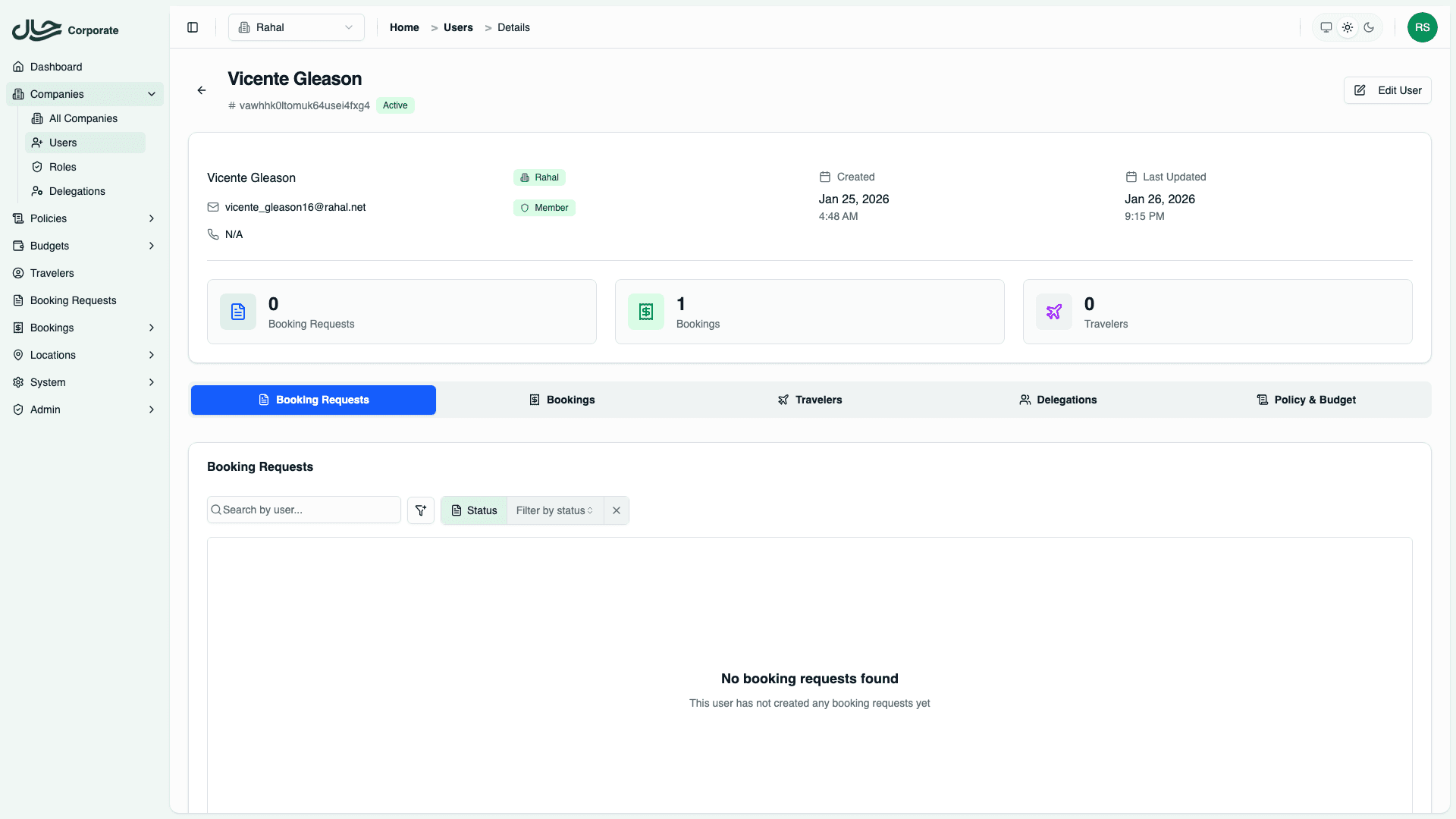
The detail page shows:
- Overview — User profile information with role and status
- Booking Requests — Travel requests submitted by this user
- Bookings — Completed travel bookings
- Travelers — Traveler profiles owned by this user
- Delegations — Who can book on this user's behalf
- Policy & Budget — Policies and budgets that apply to this user
Editing Users
Access Edit Form
- Find the user in the list
- Click the Edit (pencil) button
- The edit drawer slides in
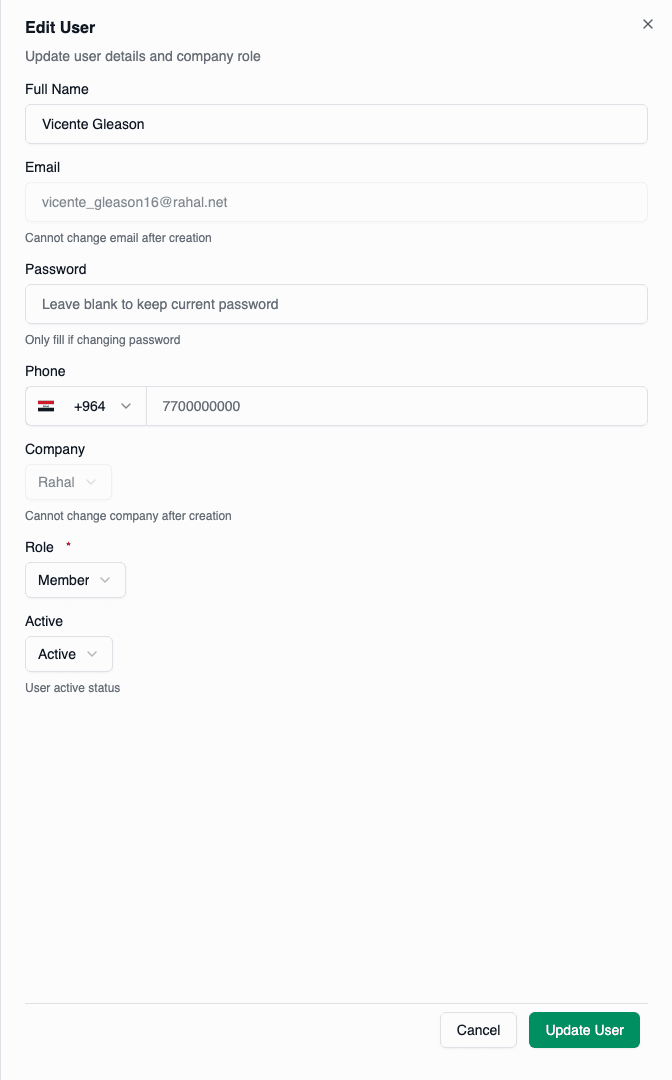
Editable Fields
| Field | Editable | Notes |
|---|---|---|
| Full Name | Yes | Can be updated |
| No | Fixed after creation | |
| Password | Yes | Leave blank to keep current |
| Phone | Yes | Can be updated |
| Company | No | Fixed after creation |
| Role | Yes | Select from active roles |
| Active | Yes | Toggle status |
Changing Password
To reset a user's password:
- Edit the user
- Enter a new password in the Password field
- Save changes
- Communicate new password securely
Leave the password field blank to keep the user's current password.
Changing Role
To change a user's role:
- Edit the user
- Select new role from dropdown
- Save changes
Role changes take effect immediately. The user's permissions update on their next request.
Status Management
Activating Users
To activate an inactive user:
- Edit the user
- Change Status to Active
- Save changes
The user can now log in.
Deactivating Users
To deactivate an active user:
- Edit the user
- Change Status to Inactive
- Save changes
Deactivation takes effect immediately. The user will be blocked on their next request.
When to Deactivate
- Employee leaves the company
- Temporary suspension needed
- Security concerns
- Leave of absence
Deactivation vs Deletion
| Action | Effect | Recoverable |
|---|---|---|
| Deactivate | User blocked, visible in list | Yes, reactivate |
| Delete | User hidden, blocked | Yes, by platform admin |
Deleting Users
Soft Delete
Rahal uses soft deletion:
- User marked as deleted
- Hidden from normal views
- Data preserved
- Can be recovered by platform admin
How to Delete
- Find the user in the list
- Click the Delete (trash) button
- Read the confirmation message
- Confirm deletion
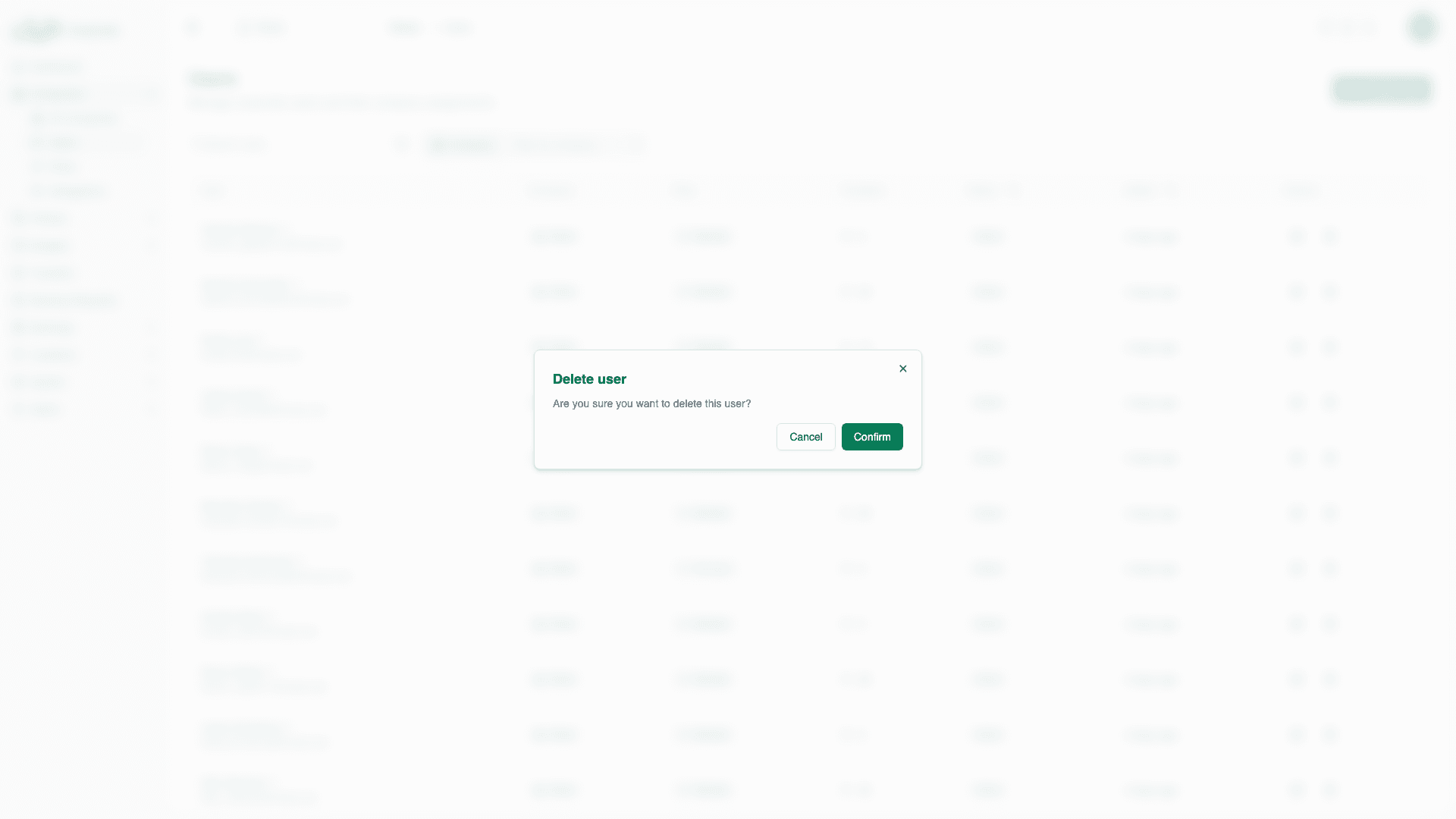
After Deletion
- User cannot log in
- User hidden from lists
- Booking history preserved
- Travelers preserved
Recovery
Contact platform administrators to recover deleted users.
Bulk Operations
Currently, user management is one-at-a-time. For bulk operations:
- Use the API for automation
- Contact support for migration help
- Consider scripting for large changes
User Permissions
Viewing User Permissions
To see what a user can access:
- View the user's role
- Check the role's permission list
- Remember base permissions are always included
Permission Troubleshooting
If a user reports access issues:
- Verify their current role
- Check the role's permissions
- Confirm the required permission is in the role
- Ensure user is active
- Have user refresh their browser
Best Practices
Regular Audits
Periodically review:
- Inactive users (should they be deleted?)
- Role assignments (are they appropriate?)
- Traveler counts (unusual activity?)
Offboarding
When employees leave:
- Deactivate immediately (blocks access)
- Review their booking requests
- Reassign pending items if needed
- Delete after grace period
Security
- Use strong initial passwords
- Require password changes
- Review access logs
- Respond quickly to security concerns