

Managing Your Travelers
How to add, edit, and manage your own traveler profiles and those of delegated users
Managing Your Travelers
The Travelers page allows you to manage your own traveler profiles and profiles for anyone you are authorized to book for (such as family members or colleagues who have delegated access to you).
Accessing Travelers
To view your travelers:
- Click on Travelers in the main navigation menu.
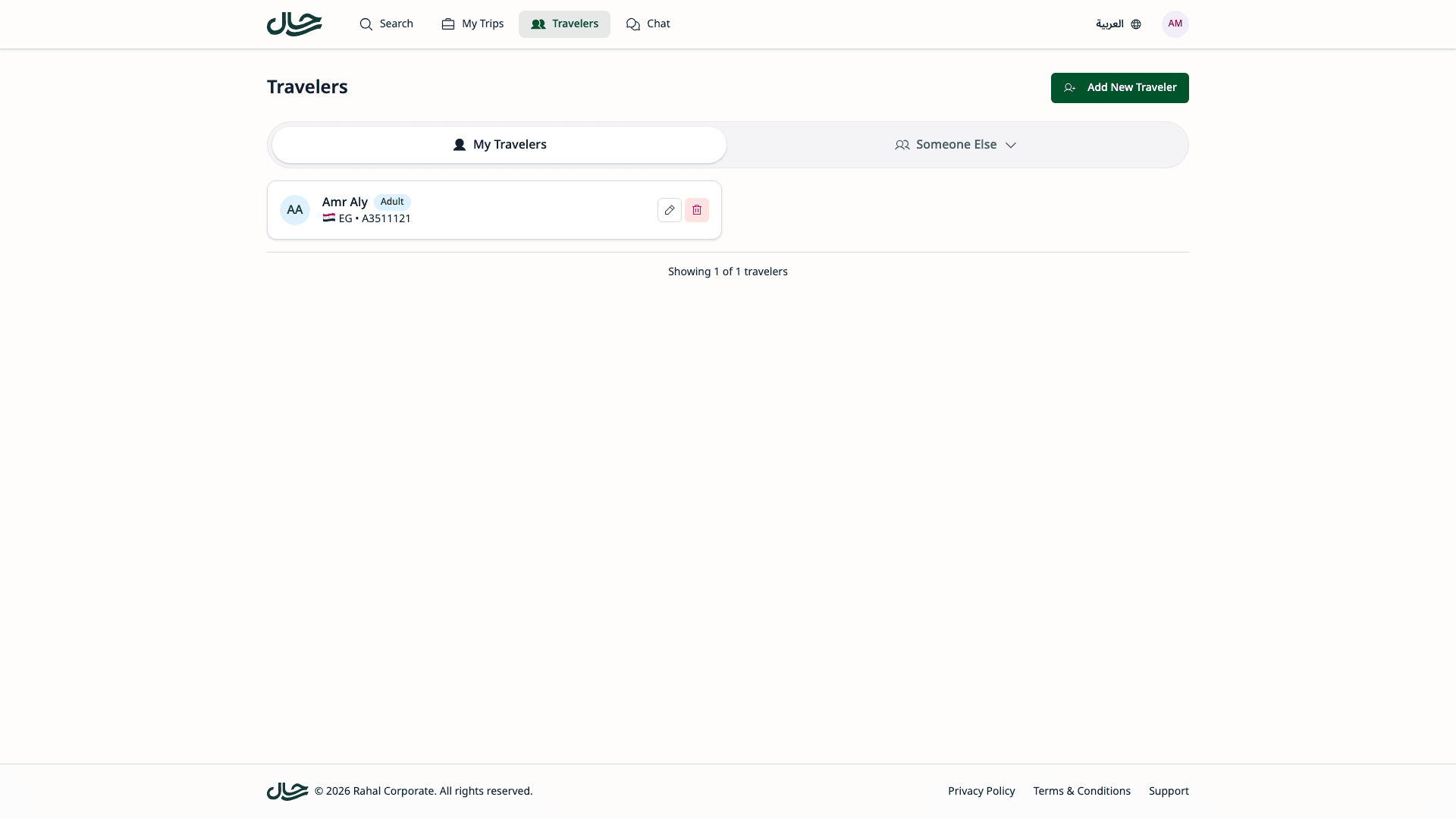
- The page displays a list of your traveler cards.
- If you have delegation access, a context selector appears allowing you to switch between your travelers and delegated travelers.
Traveler Cards
Each traveler card displays:
- Traveler's full name
- Traveler type (Adult, Child, or Infant)
- Primary passport nationality and number (if available)
- Edit and delete action buttons
Viewing Delegated Travelers
If other users have delegated access to you, a context selector appears above the traveler list:
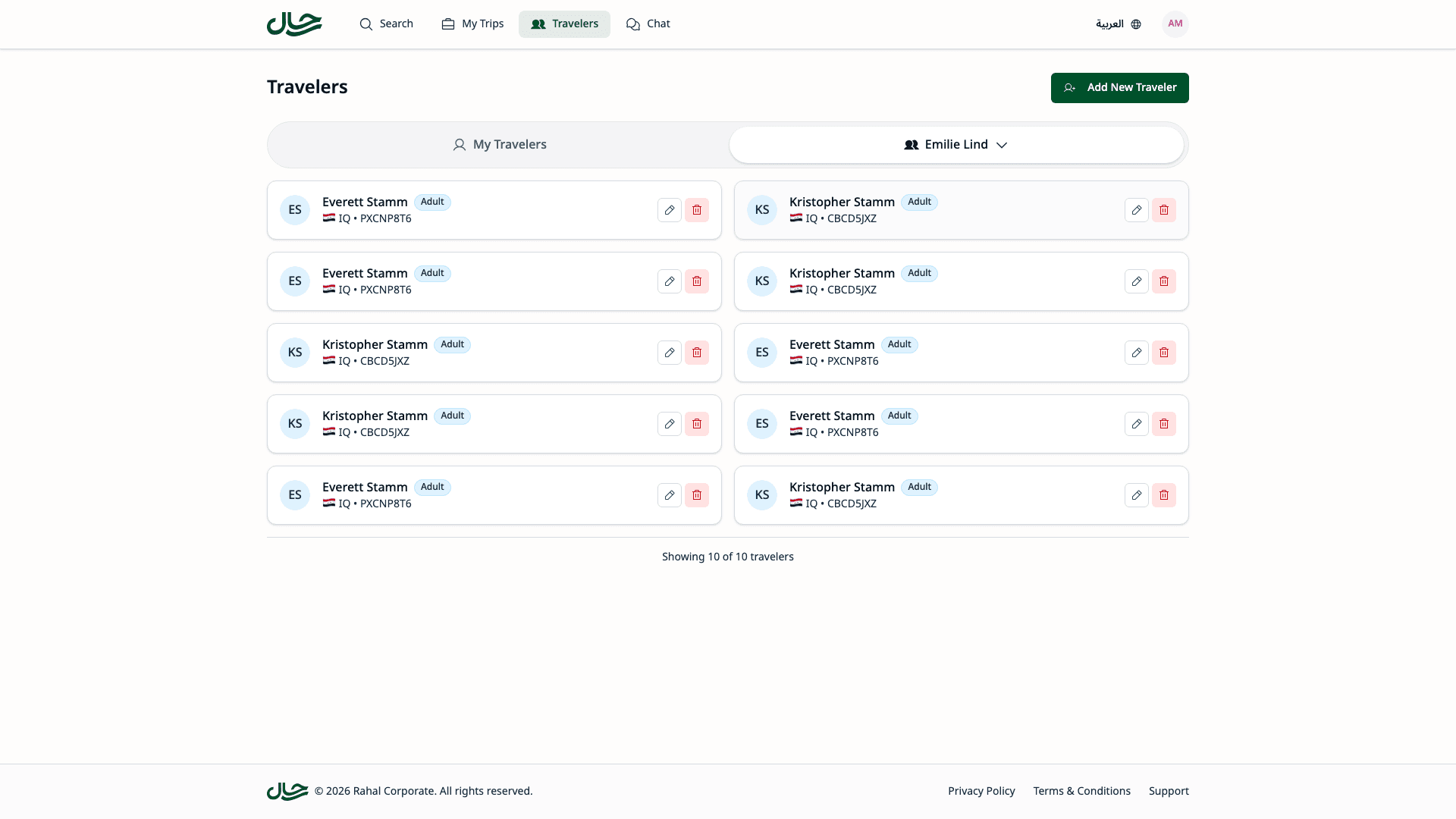
- The selector shows For Myself and Someone Else options
- Click Someone Else to view travelers from users who delegated to you
- If multiple users have delegated to you, a list appears to select from
- The list updates to show that user's travelers
- Your available actions depend on the delegation scope granted
When viewing delegated travelers, a banner confirms whose travelers you are viewing.
Adding a New Traveler
If your company permissions allow it, you can add new travelers.
Open the Creation Form
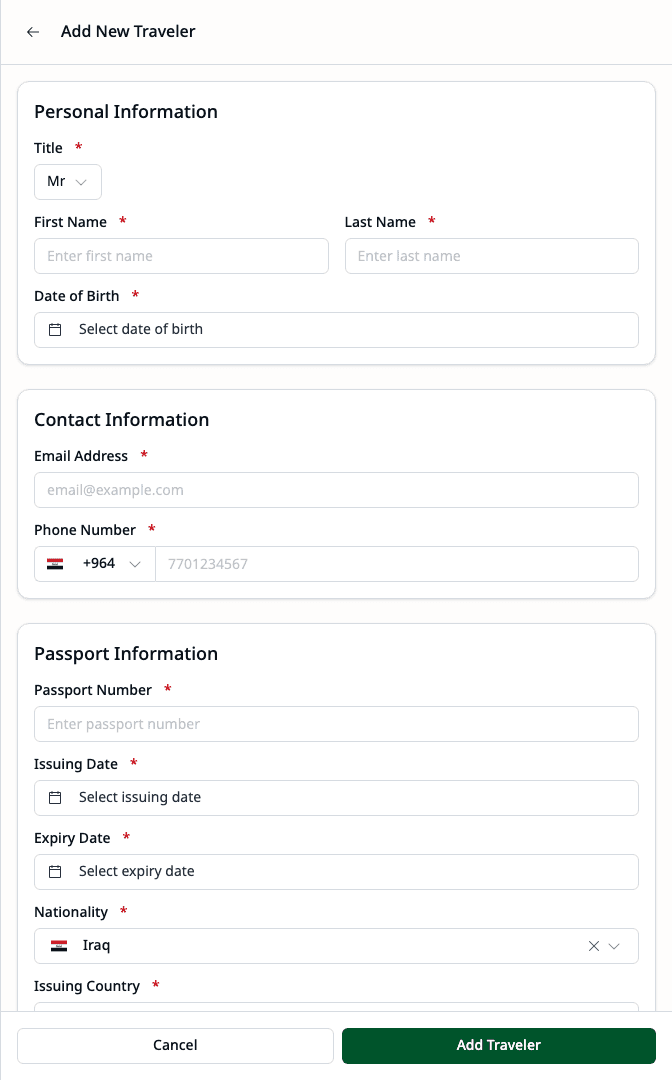
Click the Add Traveler button at the top of the page. This opens a drawer with the traveler creation form.
Enter Personal Information
Fill in the traveler's personal details:
- Title — Mr., Mrs., Miss, Ms., or Master
- First Name — As shown on passport
- Last Name — As shown on passport
- Date of Birth — Used for automatic age classification
Add Contact Information
Provide contact details:
- Email Address — Optional
- Phone Number — With country code
Add Passport Details (Optional)
The form includes passport fields:
- Passport number
- Nationality
- Issuing country
- Issuing and expiry dates
- Document upload for passport scans
You can skip passport details and add them later from the traveler's detail page.
Create the Traveler
Click Create Traveler to save the profile.
Travelers are automatically classified as Adult (12+), Child (2-11), or Infant (under 2) based on their date of birth.
Editing a Traveler
To update an existing traveler:
- Find the traveler card in your list.
- Click the Edit button (pencil icon) on the card.
- Update the personal or contact information.
- Click Save Changes.
When editing, only the personal and contact information can be modified. To manage passports, go to the traveler's detail page.
Viewing Traveler Details
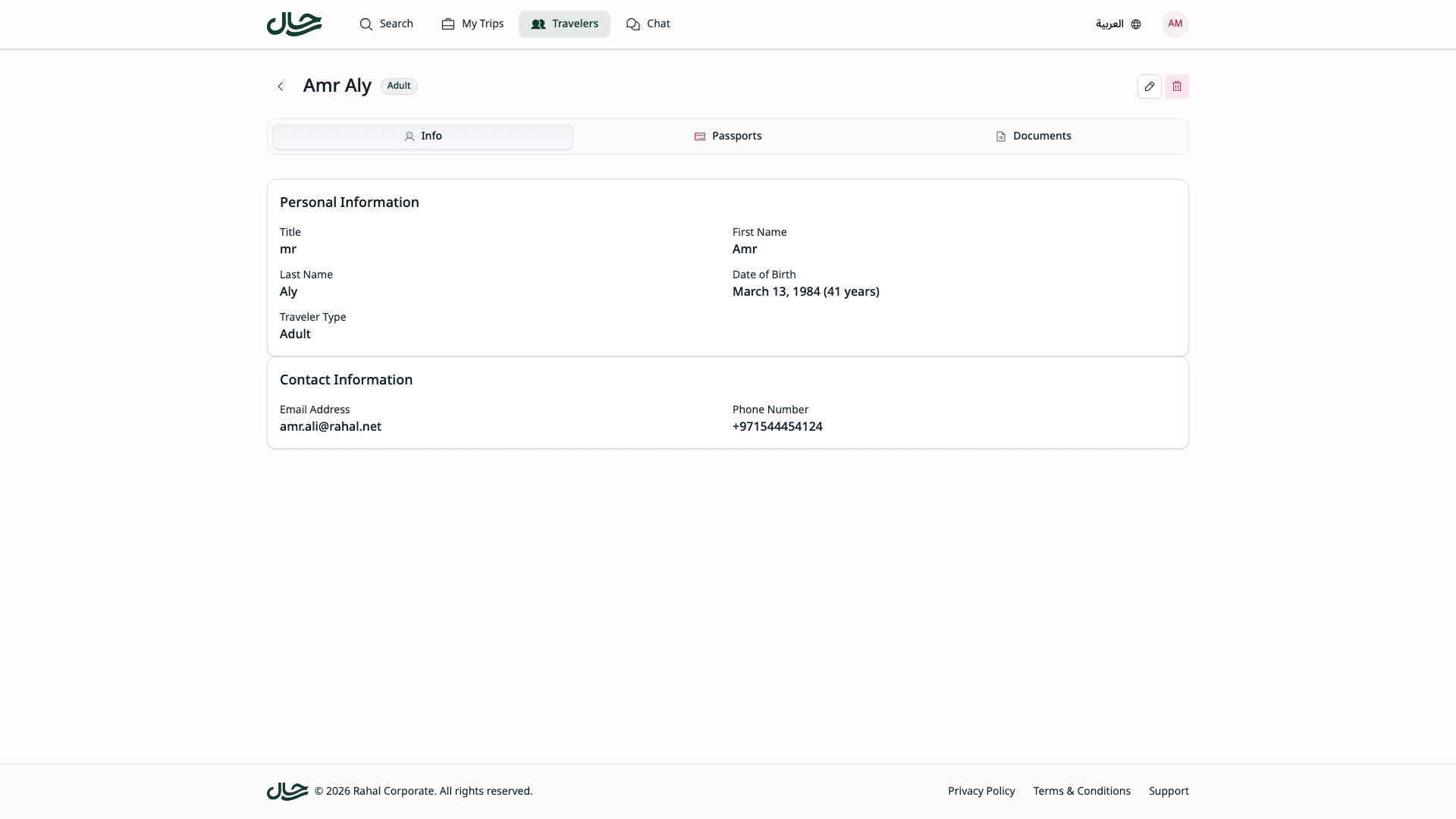
Click anywhere on a traveler card to open their detail page. The detail page has three tabs:
| Tab | What It Shows |
|---|---|
| Overview | Personal information and contact details |
| Passports | All passports with expiry status and document attachments |
| Documents | All uploaded travel documents organized by category |
Managing Passports
From the Passports tab on the traveler detail page, you can manage multiple passports:
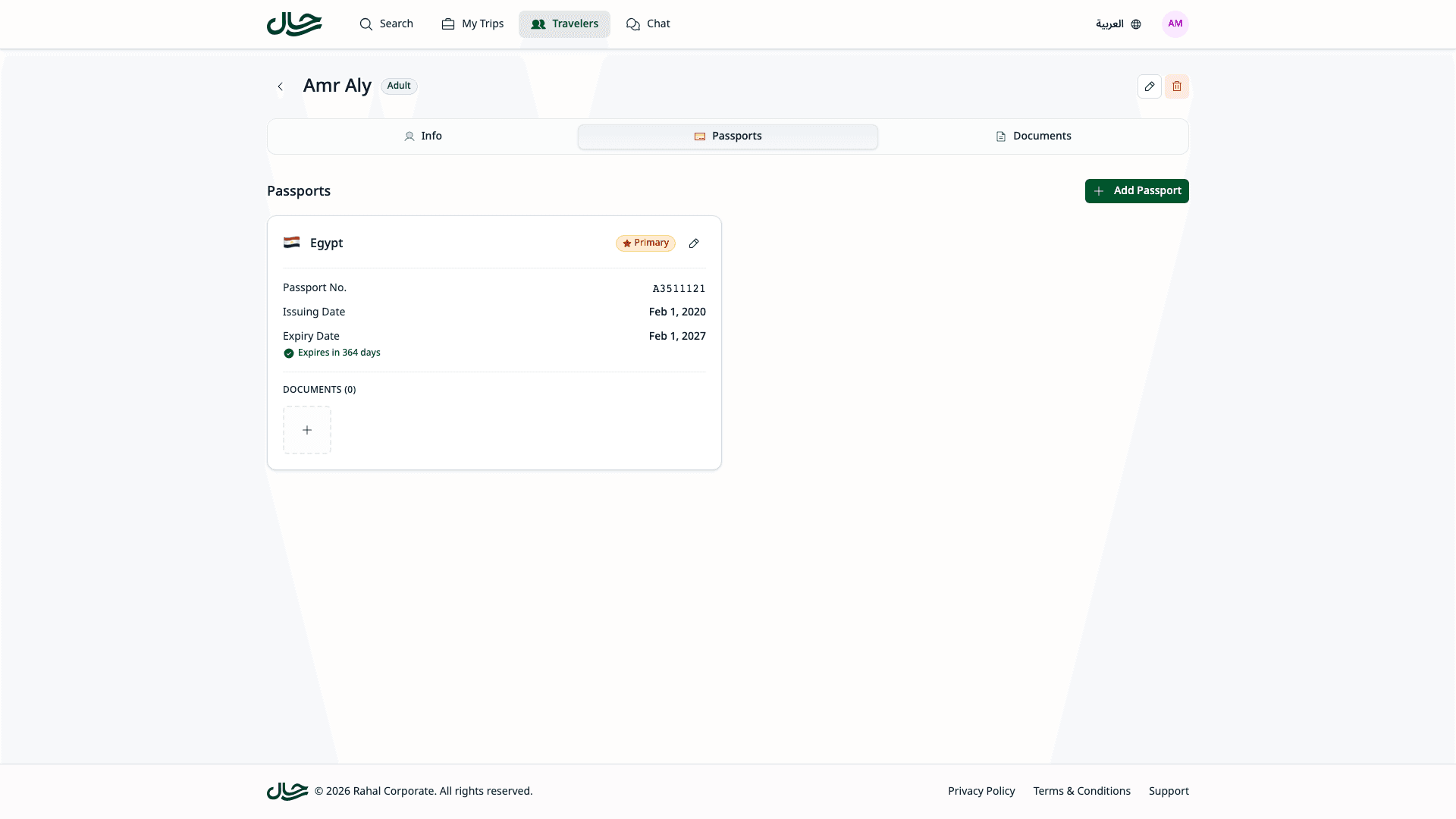
- Add Passport — Click Add Passport to enter passport number, nationality, issuing country, and dates
- Set Primary — Mark one passport as the default for bookings
- Upload Documents — Attach scans of passport pages
- Monitor Expiry — View expiry status for each passport
Ensure passport names exactly match the physical document to avoid issues at airport check-in.
Deleting a Traveler
To remove a traveler:
- Click the Delete button (trash icon) on the traveler card.
- A confirmation dialog appears asking you to confirm.
- Click Delete to confirm, or Cancel to keep the traveler.
Travelers cannot be deleted if they are included in pending booking requests.
Related
- Traveler Selection — How to select travelers during booking
- Booking as Delegate — Complete guide to booking for delegated travelers
- User Delegation — Understanding delegation relationships