

Viewing Roles
How to view and navigate company roles in the dashboard
Viewing Roles
The Company Roles page displays all roles available in your company, including predefined and custom roles.
Accessing the Roles List
Log In to Dashboard
Navigate to the company dashboard and log in with an account that has role management permissions.
Open Roles Page
From the sidebar, click Roles (or Company Roles if you're a platform admin).
Required Permissions
| Permission | Access Level |
|---|---|
| Read Company Roles | View roles list and details |
| Write Company Roles | Create and edit roles |
| Delete Company Roles | Delete custom roles |
Without Read Company Roles, the Roles menu item won't appear in the sidebar.
Understanding the Roles Table
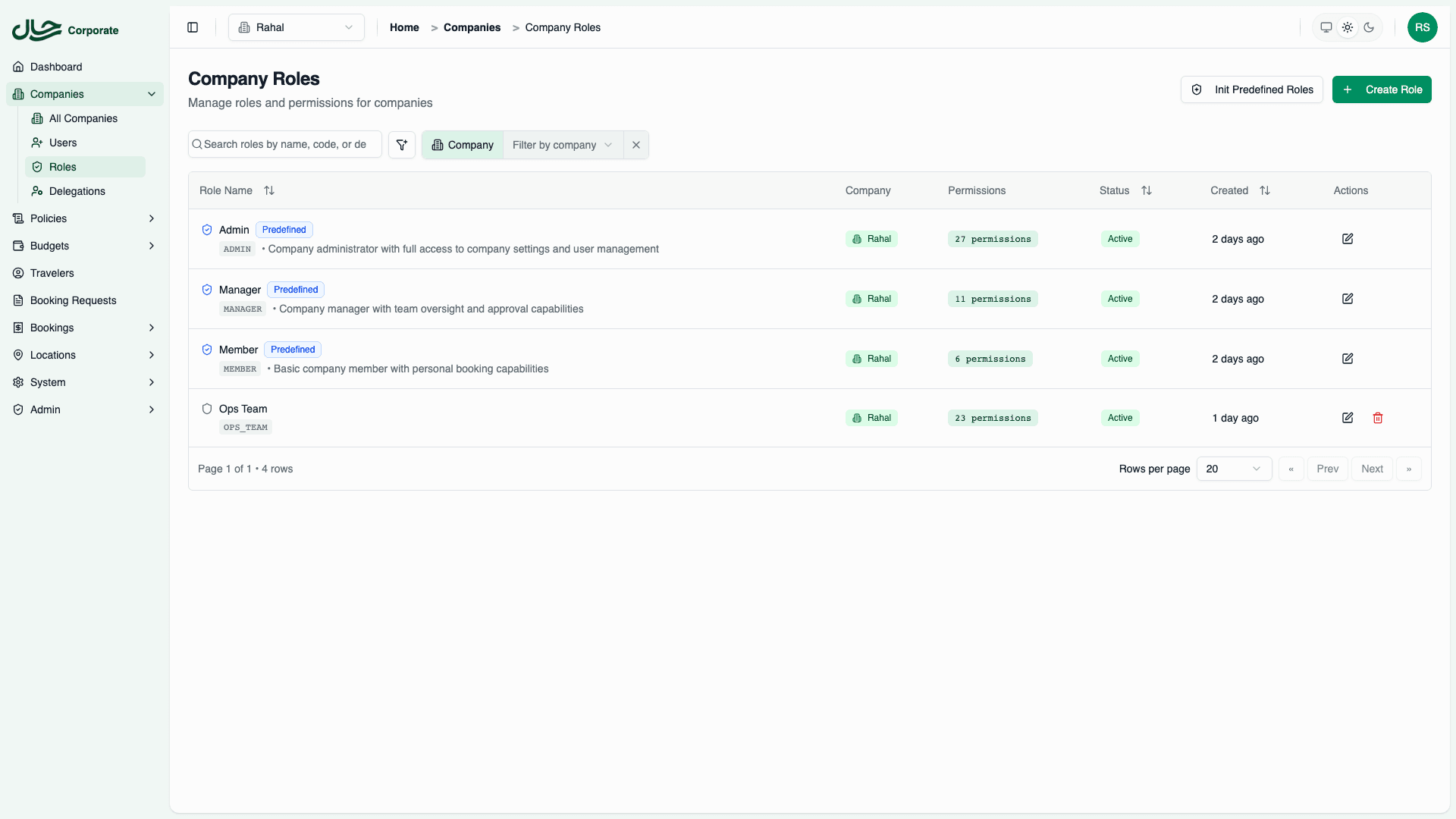
The roles table displays the following information:
Role Name Column
Each role shows:
| Element | Description |
|---|---|
| Icon | Shield with checkmark (predefined) or plain shield (custom) |
| Name | Display name of the role |
| Badge | "Predefined" badge for built-in roles |
| Code | Machine-readable identifier (e.g., MEMBER, TRAVEL_COORDINATOR) |
| Description | Brief description of the role's purpose |
Company Column
Shows which company the role belongs to. This column appears when:
- You're a platform admin viewing roles across all companies
- No company filter is applied
Permissions Column
Displays a badge with the permission count (e.g., "12 permissions"). Click on a role to see the full list of permissions.
Status Column
| Status | Meaning |
|---|---|
| Active | Role can be assigned to users |
| Inactive | Role cannot be newly assigned |
Created Column
Shows when the role was created:
- Custom roles display relative time (e.g., "3 days ago")
- Predefined roles don't show creation dates
Actions Column
| Action | Icon | Availability |
|---|---|---|
| Edit | Pencil | All roles (limited for predefined) |
| Delete | Trash | Custom roles only |
Filtering Roles
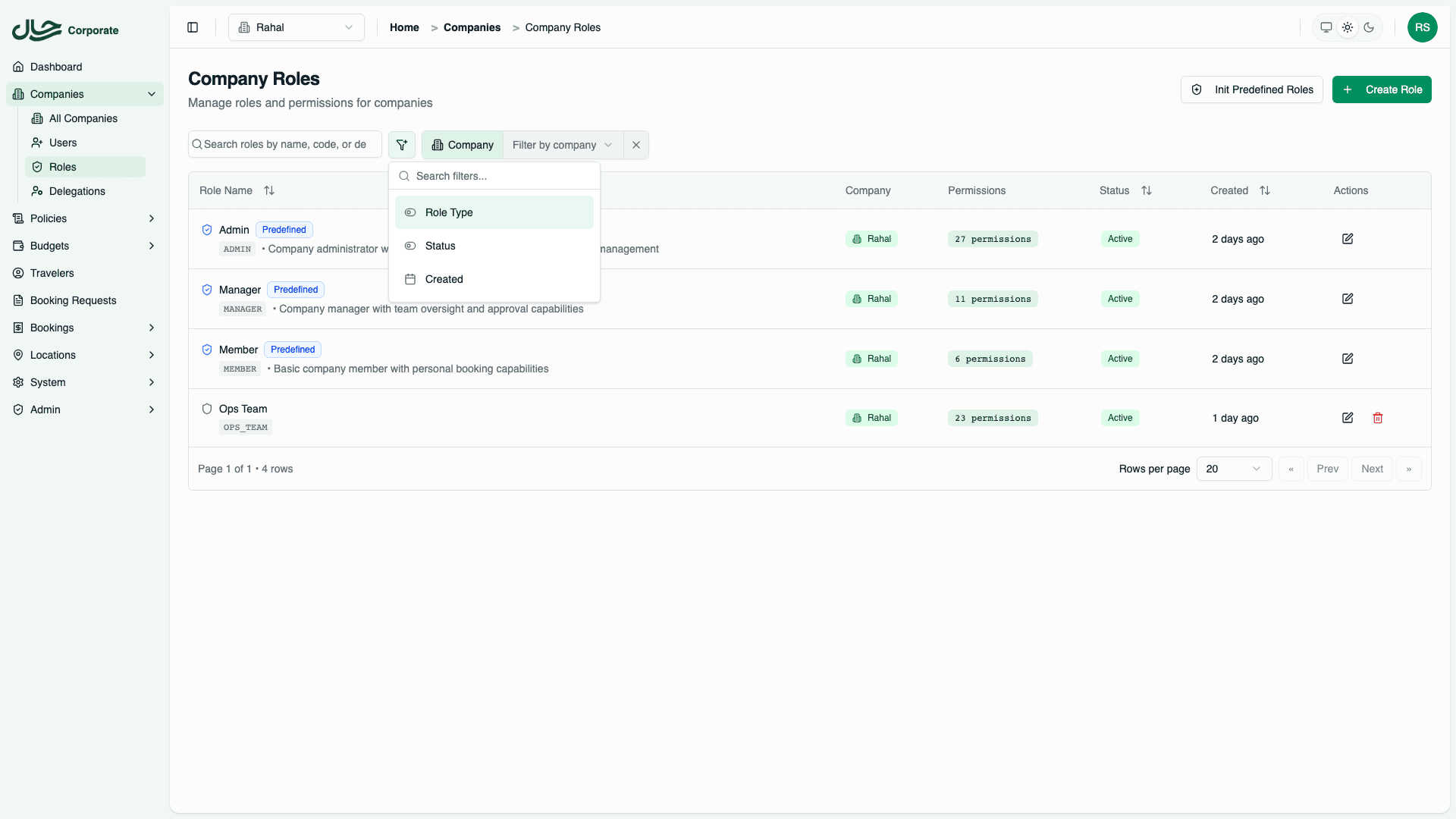
Search
The search bar filters roles by:
- Role name
- Role code
- Description
Type to filter in real-time.
Role Type Filter
| Option | Shows |
|---|---|
| Predefined | Only predefined roles (MEMBER, MANAGER, ADMIN) |
| All | Both predefined and custom roles |
| Custom | Only custom-created roles |
Status Filter
| Option | Shows |
|---|---|
| Active | Only active roles |
| All | Both active and inactive roles |
| Inactive | Only inactive roles |
Company Filter
Available when viewing as platform admin:
- Select a specific company to see only its roles
- Leave empty to see roles from all companies
Date Range Filter
Filter by creation date:
- Select a start date, end date, or both
- Useful for finding recently created roles
Viewing Role Details
Opening a Role
Click the Edit button (pencil icon) on any role to view its full details in a side drawer.
Predefined Role Details
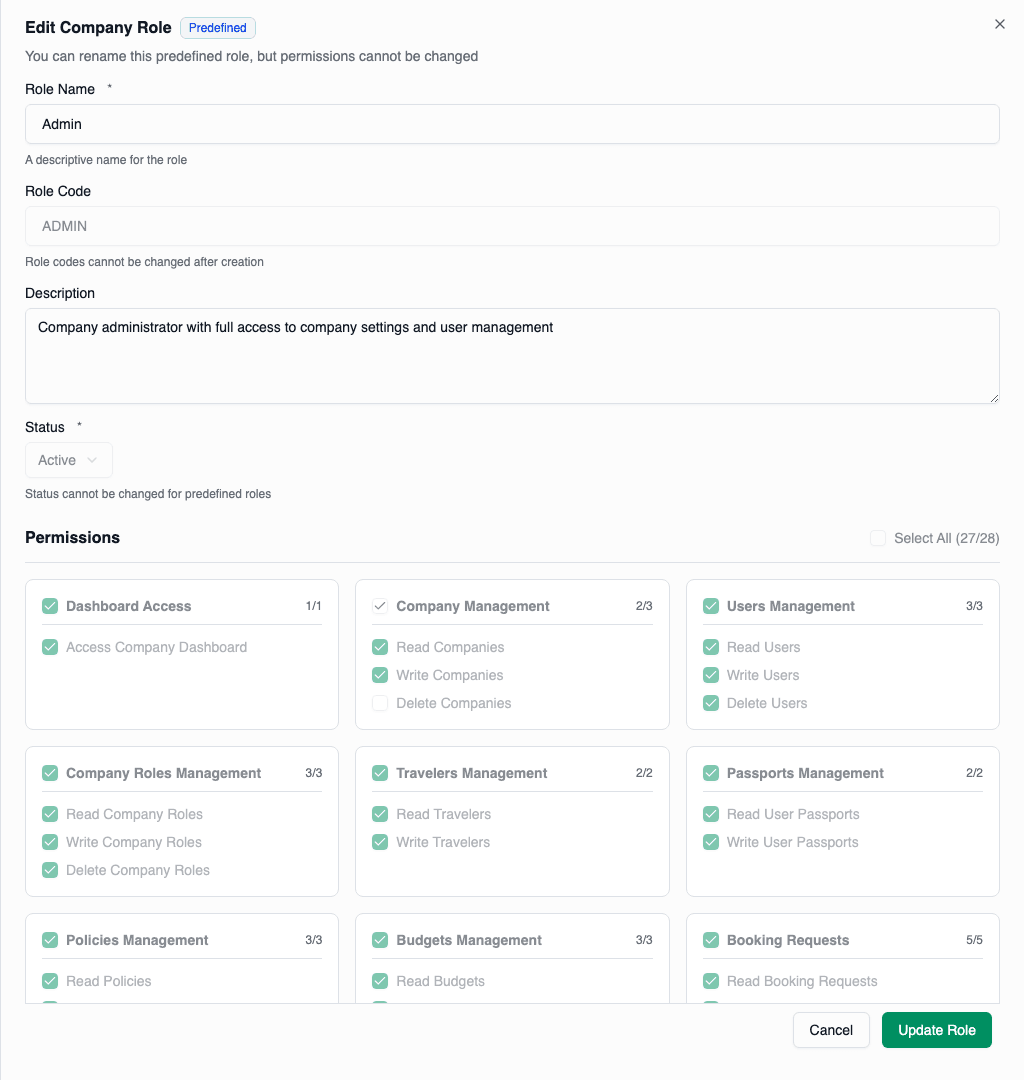
When viewing a predefined role:
| Section | Editable |
|---|---|
| Role Name | ✅ (display name only) |
| Description | ✅ |
| Status | ❌ |
| Permissions | ❌ (read-only view) |
The drawer shows a "Predefined" badge and a "Read-only" indicator for non-editable fields.
Custom Role Details
When viewing a custom role:
| Section | Editable |
|---|---|
| Role Name | ✅ |
| Description | ✅ |
| Status | ✅ |
| Permissions | ✅ |
Permission Matrix View
The permission matrix displays all available permissions organized by category:
| Visual | Meaning |
|---|---|
| ✓ (checked) | Permission selected |
| ☐ (empty) | Permission not selected |
| ▣ (partial) | Some permissions in group selected |
Each category shows a count like "2 of 3" indicating how many permissions are selected.
For predefined roles, checkboxes are disabled but you can still see which permissions are included.
Sorting Roles
Click column headers to sort:
| Column | Sort Options |
|---|---|
| Role Name | A-Z, Z-A |
| Status | Active first, Inactive first |
| Created | Newest first, Oldest first |
Pagination
The table displays 20 roles per page by default:
- Use Previous / Next buttons to navigate
- Page indicator shows current position
- Total count displayed above the table
Platform Admin View
Platform admins see an expanded view:
Additional Features
| Feature | Description |
|---|---|
| All Companies | View roles from all companies in one table |
| Company Filter | Filter to specific company |
| Company Column | See which company each role belongs to |
| Init Predefined | Button to create predefined roles for a company |
Initializing Predefined Roles
If a company doesn't have predefined roles:
- Click Init Predefined Roles button
- Select the target company
- Click Create Roles
- Member, Manager, and Admin roles are created
This action can only be performed once per company. If predefined roles already exist, the action will fail with an error.
Empty States
No Roles Found
If no roles match your filters, you'll see an empty state message suggesting to adjust your filters or create a new role.
This typically means:
- Filters are too restrictive
- Predefined roles haven't been initialized
- You're viewing a company with no custom roles and filtered out predefined ones
No Permission
If you lack Read Company Roles permission:
- The Roles page won't be accessible
- The sidebar link won't appear
- Direct URL access shows 403 Forbidden
Tips
Finding Specific Roles
- Use search for quick name/code lookup
- Use filters to narrow by type, status, or date
- Combine filters for precise results
Understanding Role Usage
To see which users have a specific role:
- Go to Users page
- The role column shows each user's assigned role
- Filter by role if available
Comparing Roles
To compare permissions between roles:
- Open role A in a browser tab
- Open role B in another tab
- Compare the permission matrices side by side