

Initializing Predefined Roles
Creating the default Member, Manager, and Admin roles for a company
Initializing Predefined Roles
Every company should have the three predefined roles (Member, Manager, Admin) to provide standard access levels. This guide explains how to initialize these roles.
When Roles Are Automatically Created
Predefined roles are typically created automatically when:
| Trigger | Result |
|---|---|
| Company creation via API with role initialization | All 3 predefined roles created |
| Company created through standard onboarding | All 3 predefined roles created |
When Manual Initialization Is Needed
Manual initialization may be required when:
- Company was created without role initialization
- Roles were accidentally deleted from the database
- Company was migrated from another system
- Testing or development scenarios
Initializing Predefined Roles
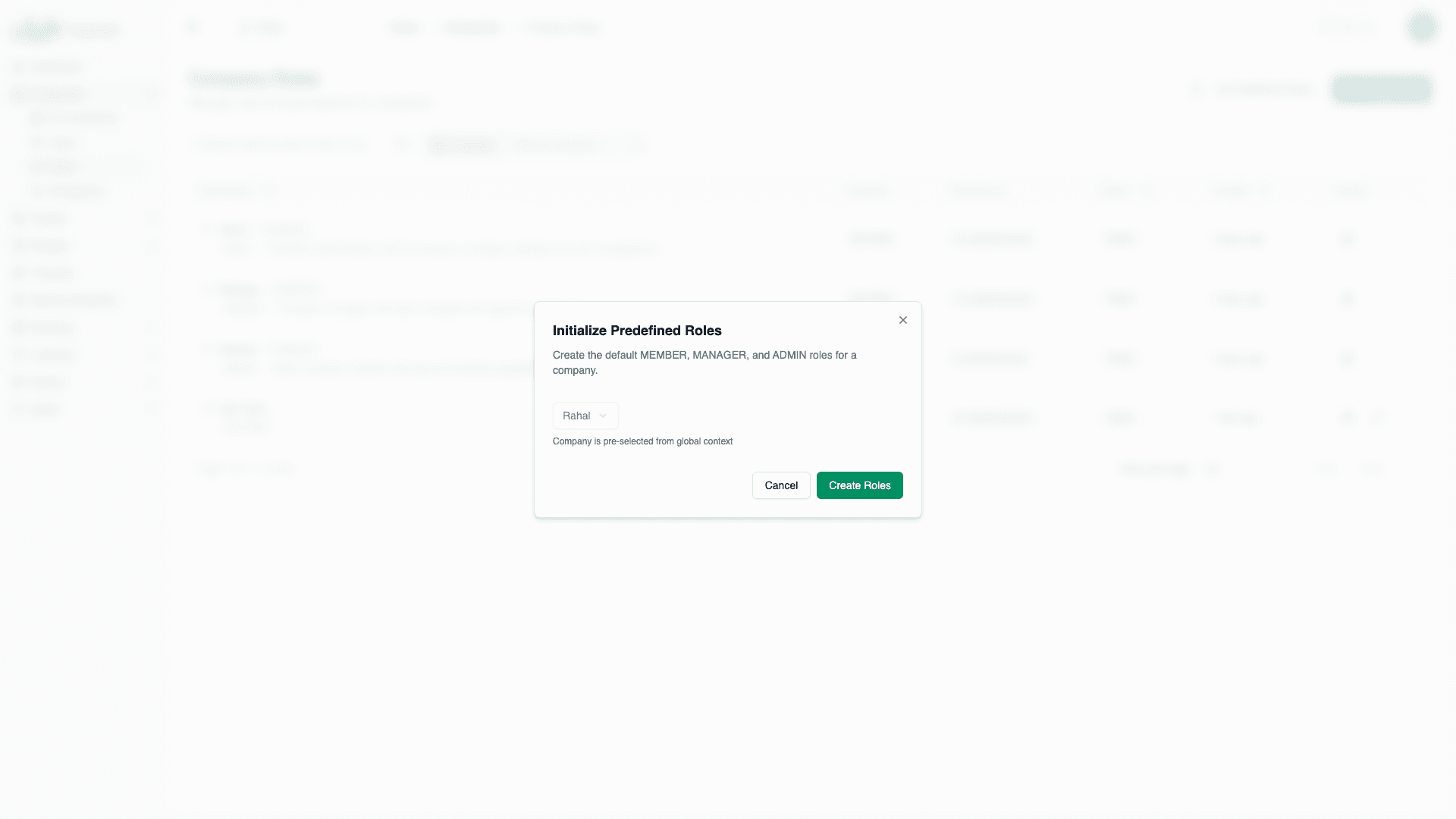
Navigate to Roles
Go to Company Roles from the platform admin dashboard.
Click Init Predefined Roles
Click the Init Predefined Roles button in the top-right corner.
Select Company
In the dialog that appears, select the company that needs predefined roles:
- Use the dropdown to find the company
- If you have a company context set, it will be pre-selected
Create Roles
Click Create Roles to initialize all three predefined roles.
What Gets Created
The initialization creates these three roles:
Member Role
| Property | Value |
|---|---|
| Name | Member |
| Description | Basic company member with personal booking capabilities |
| Permissions (6) | Read/Write User Booking Requests, Read/Write Travelers, Read/Write User Passports |
Manager Role
| Property | Value |
|---|---|
| Name | Manager |
| Description | Company manager with team oversight and approval capabilities |
| Permissions (11) | Access Dashboard, Read Companies, Read/Process Booking Requests, Read Users, Read/Write Travelers, plus all Member permissions |
Admin Role
| Property | Value |
|---|---|
| Name | Admin |
| Description | Company administrator with full access to company settings and user management |
| Permissions (27) | All Manager permissions, plus full User/Role/Policy/Budget/Delegation management |
Verifying Initialization
After initialization, verify the roles were created:
- Stay on the Company Roles page
- Filter by the target company (if needed)
- You should see three new roles with the "Predefined" badge:
- MEMBER
- MANAGER
- ADMIN
Error Handling
"Predefined roles already exist for this company"
This error appears when the company already has predefined roles:
- Cause: Roles were previously initialized
- Solution: No action needed — roles are already present
This is a safety check preventing duplicate role creation. Each company can only have predefined roles initialized once.
"Company with ID not found"
This error appears when the selected company doesn't exist:
- Cause: Company was deleted or ID is invalid
- Solution: Verify the company exists and try again
Permission Denied
If you see a permission error:
- Cause: Your admin role lacks required permissions
- Solution: Ensure you have Write Company Roles permission
After Initialization
Next Steps
- Verify roles: Check that all three roles appear in the list
- Assign users: Assign roles to existing company users
- Create custom roles: If needed, create additional roles for specific needs
Customizing Role Names
You can customize the display names of predefined roles after creation:
- Click Edit on the predefined role
- Change the Name field (e.g., "Member" → "Standard User")
- Update the Description if desired
- Save changes
Only the display name and description can be changed. The code (MEMBER, MANAGER, ADMIN) and permissions are fixed.
Troubleshooting
Roles Not Appearing After Init
- Refresh the page
- Check the company filter — ensure correct company is selected
- Check the role type filter — ensure "Predefined" or "All" is selected
Wrong Company Selected
If you accidentally initialized roles for the wrong company:
- The roles are now permanent (cannot be deleted)
- This is generally harmless — predefined roles are useful for any company
- No corrective action is needed
Missing Init Button
If the Init Predefined Roles button is missing:
- Verify you have Write Company Roles permission
- This feature is only available to platform admins
- Company-scoped admins may not see this option