

Managing Roles
Editing, deactivating, and deleting roles
Managing Roles
This guide covers how to edit existing roles, manage their status, and delete roles when no longer needed.
Editing Roles
Editing Custom Roles
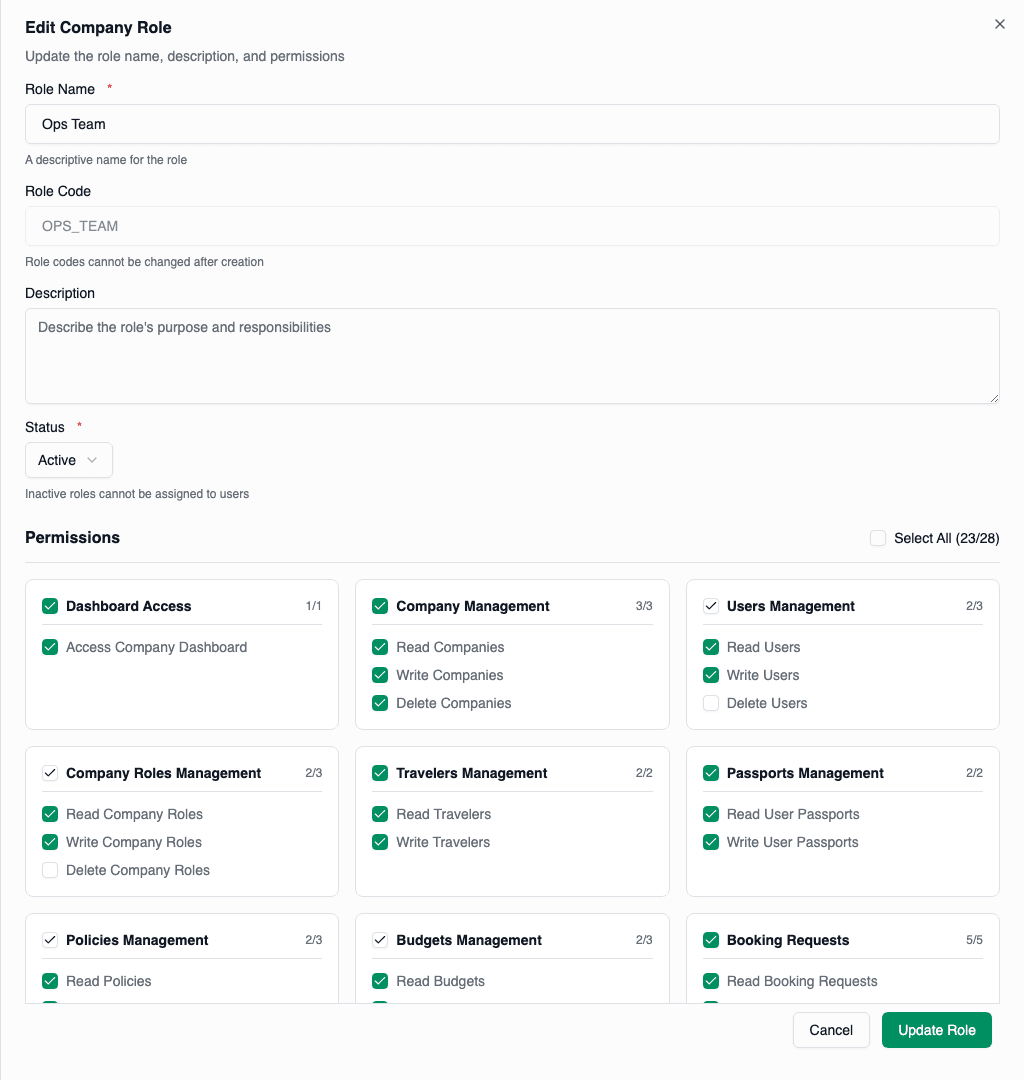
Custom roles can be fully modified.
Open the Role
Navigate to Roles and click the Edit (pencil) button on the custom role you want to modify.
Modify Role Details
Update any of the following:
| Field | Description |
|---|---|
| Role Name | Display name for the role |
| Description | Purpose and intended users |
| Status | Active or Inactive |
| Permissions | Select/deselect from the matrix |
Save Changes
Click Update Role to save your modifications.
Editing Predefined Roles
Predefined roles have limited editing capabilities:
| Field | Editable |
|---|---|
| Role Name | ✅ Yes (display name only) |
| Description | ✅ Yes |
| Status | ❌ No (always active) |
| Permissions | ❌ No (fixed set) |
Editing a predefined role's name only changes the display name. The underlying code (MEMBER, MANAGER, ADMIN) remains unchanged.
Permission Changes
When modifying permissions on a custom role:
Adding Permissions:
- Users with the role immediately gain new access
- No action required from users
Removing Permissions:
- Users with the role immediately lose access
- In-progress actions may fail if permission is revoked mid-operation
Always consider who is assigned to a role before removing permissions. Users may experience errors if their access is unexpectedly revoked.
Managing Role Status
Active vs Inactive
| Status | Effect |
|---|---|
| Active | Role appears in assignment dropdowns; can be assigned to users |
| Inactive | Role hidden from dropdowns; cannot be newly assigned |
Deactivating a Role
Open the Role
Click Edit on the custom role you want to deactivate.
Change Status
Set Status to Inactive.
Save
Click Update Role to apply the change.
What Happens When Deactivated
- Existing assignments preserved: Users already assigned keep their role and permissions
- No new assignments: Role won't appear when assigning roles to new users
- Role still visible: Role appears in the roles list (filterable by status)
Reactivating a Role
To reactivate:
- Open the inactive role
- Set Status to Active
- Save changes
The role becomes available for assignment again.
Deleting Roles
Prerequisites for Deletion
A role can only be deleted if:
| Requirement | Check |
|---|---|
| Custom role | ✅ Predefined roles cannot be deleted |
| No users assigned | ✅ Reassign all users first |
Deleting a Role
Reassign Users (if any)
Before deleting, reassign any users to a different role:
- Go to Users
- Find users with the role you want to delete
- Edit each user and assign a different role
Delete the Role
On the Roles page, click the Delete (trash) button on the custom role.
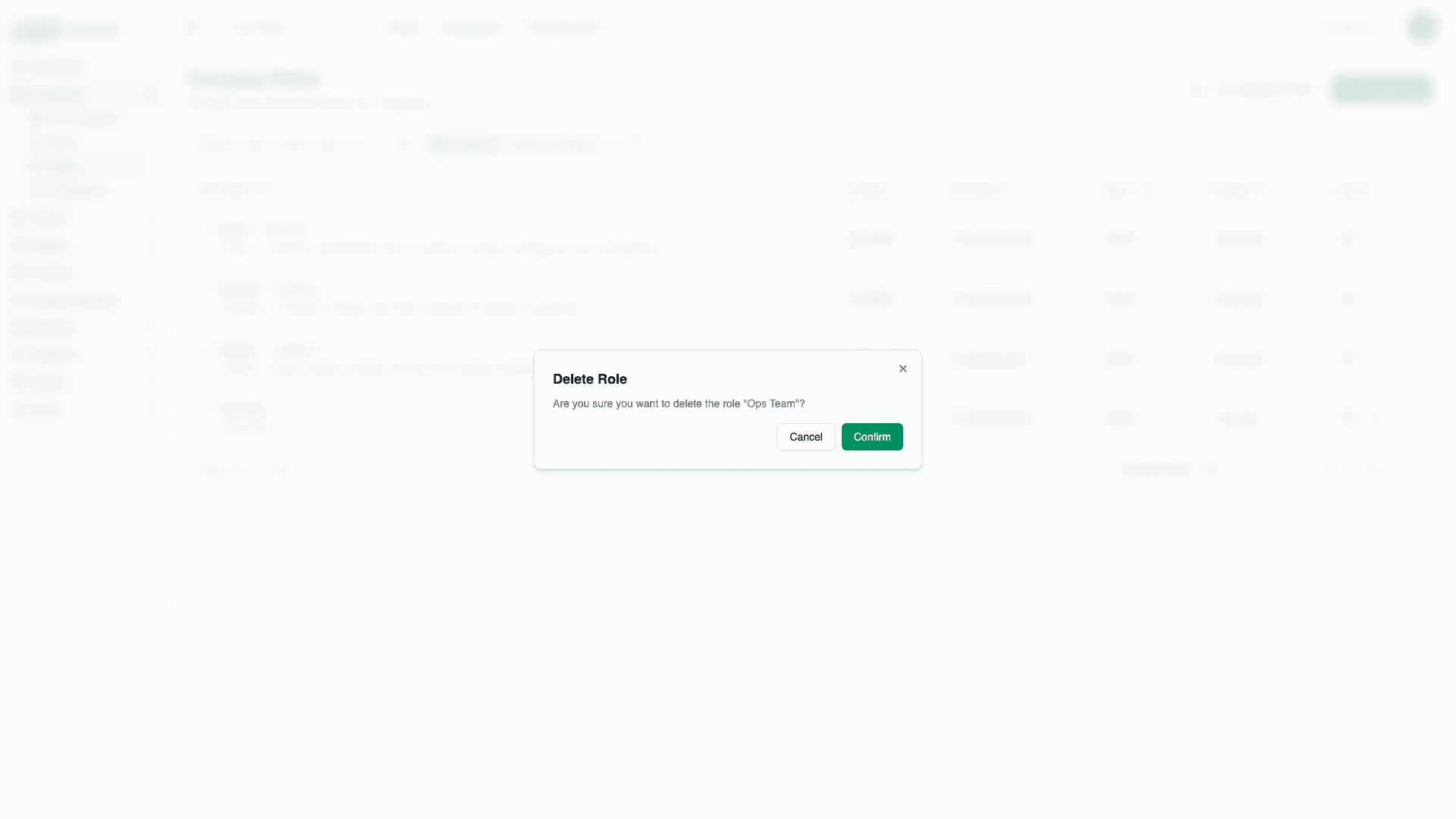
Confirm Deletion
A confirmation dialog appears asking if you're sure you want to delete the role. Click Confirm to proceed.
Deletion Errors
"Cannot delete role: X users are currently assigned"
This error appears when users still have the role:
- Note the number of users mentioned
- Go to Users and find them
- Reassign to different roles
- Retry deletion
"Predefined roles cannot be deleted"
Predefined roles (MEMBER, MANAGER, ADMIN) cannot be deleted:
- They are permanent fixtures of the company
- Consider deactivating if you want to hide them (not possible for predefined)
Soft Delete Behavior
Deleted roles are soft-deleted:
- Data is not permanently removed immediately
- Role code becomes available for reuse
- If you create a new role with the same code, it restores the old role with new settings
Bulk Operations
Deactivating Multiple Roles
Currently, role status changes must be done individually:
- Open each role
- Change status
- Save
Reassigning Users in Bulk
To efficiently reassign users before deleting a role:
- Go to Users
- Filter or search for users with the target role
- Use bulk selection if available
- Apply role change to all selected users
Audit and History
Tracking Changes
Role modifications are logged in the system:
| Event | Details Captured |
|---|---|
| Role created | Creator, timestamp, initial settings |
| Role updated | Modifier, timestamp, changed fields |
| Role deleted | Deleter, timestamp |
| Permissions changed | Added/removed permissions list |
Viewing History
Access audit logs through:
- Platform admin audit section (if available)
- Backend database event records
Best Practices
Before Editing
- Review current assignments: Know who has the role
- Plan changes: Document what you're changing and why
- Communicate: Inform users if their access is changing
Before Deleting
- Verify no users assigned: Check the Users page
- Consider alternatives: Would deactivating suffice?
- Document: Record why the role was deleted
Version Control
Maintain a changelog of role modifications:
| Date | Role | Change | Reason | By |
|---|---|---|---|---|
| 2024-01-15 | Travel Coordinator | Added READ_BUDGETS | Finance visibility needed | Admin |
| 2024-01-20 | Regional Manager | Removed DELETE_USERS | Security concern | Admin |
Regular Audits
Monthly or quarterly:
- Review all custom roles
- Verify permissions are still appropriate
- Remove roles no longer in use
- Update descriptions to reflect current purpose
Troubleshooting
Changes Not Taking Effect
If permission changes don't seem to work:
- Have the user refresh their browser
- Check if the role was actually saved (reopen and verify)
- Ensure the user has the correct role assigned
Cannot Find Role
If a role disappeared:
- Check the Inactive filter — it might be deactivated
- Check the Company filter — you might be viewing wrong company
- It may have been deleted by another admin
Role Code Conflicts
When creating a role with a previously used code:
- System may restore the old role instead of creating new
- Use a different, unique code for genuinely new roles