

Self-Service Delegation
How to grant, edit, and revoke delegations as a user
Self-Service Delegation
Rahal allows users to manage their own delegations without administrator involvement. This guide covers how to grant access to others, modify existing delegations, and revoke access when needed.
Accessing the Delegation Page
- Log in to the Rahal travel booking app
- Navigate to the Delegation page from the navigation menu
The page shows two sections:
- Users Who Delegated to Me - People who have granted you access
- My Delegations - People you have granted access to
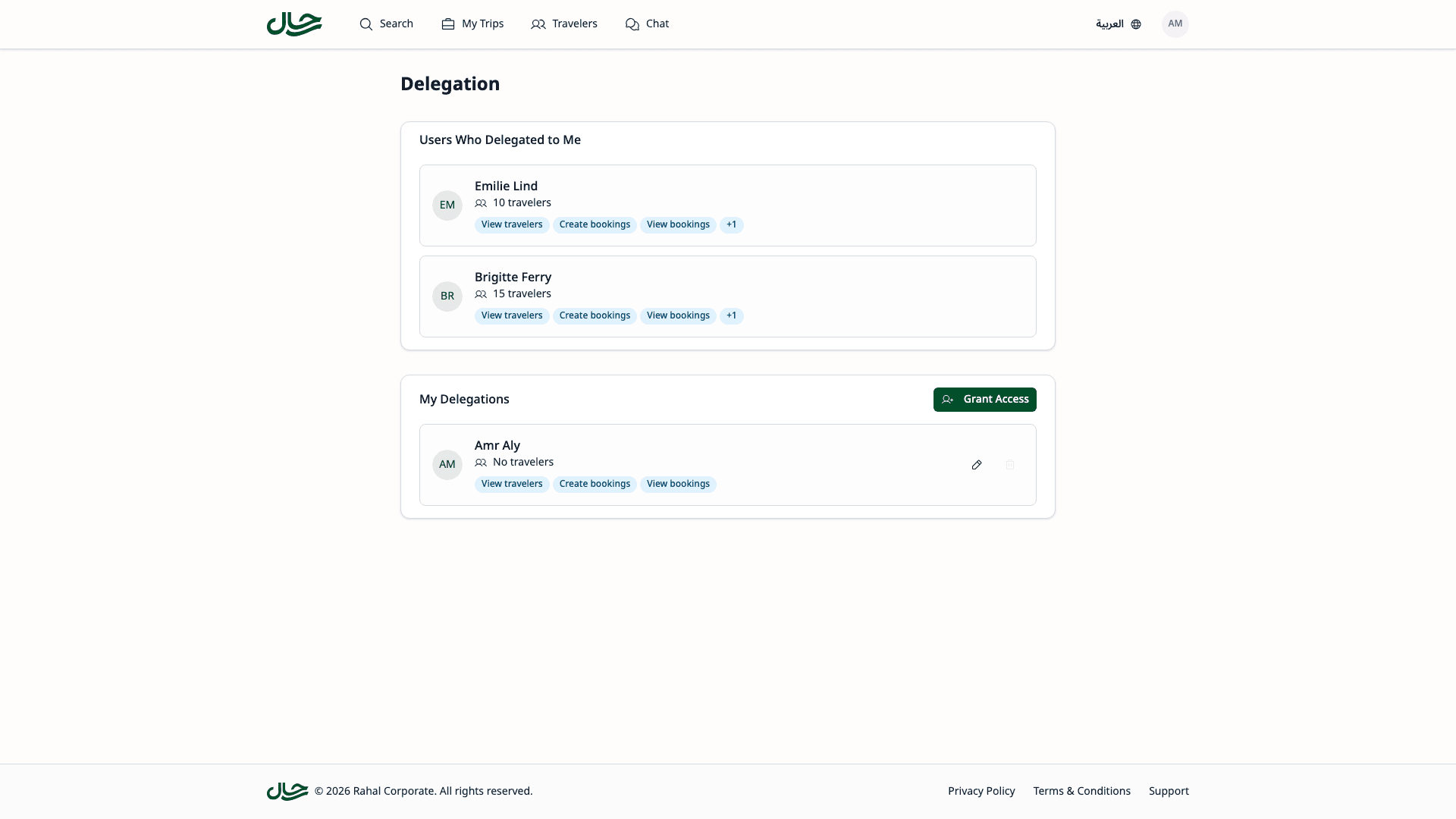
Viewing Who Delegated to You
The "Users Who Delegated to Me" section shows everyone who has granted you access to their travelers.
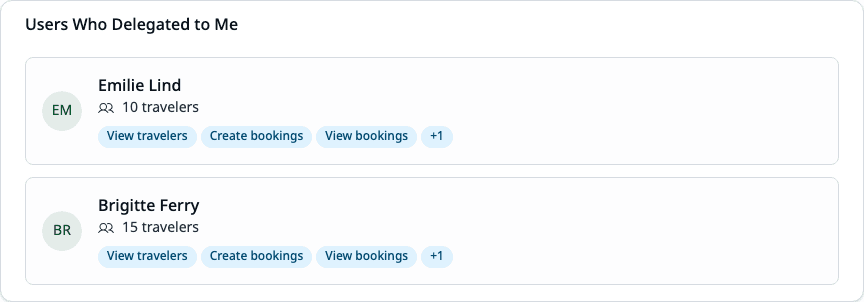
Each delegation card displays:
- User's name and email
- Number of travelers they have
- Permission badges showing what you can do (e.g., View travelers, Create bookings)
You cannot edit or revoke delegations granted TO you. Only the delegator (or an administrator) can modify these.
If no one has delegated to you, you'll see an empty state explaining that delegators will appear here once they grant you access.
Granting Access to Others
Grant another user access to your travelers:
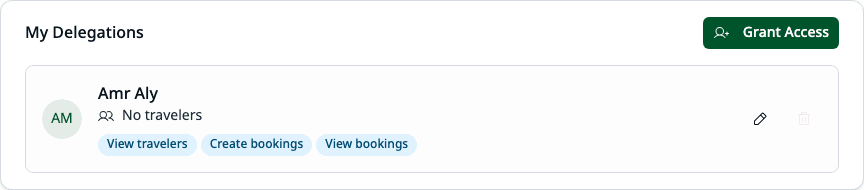
Open the Grant Dialog
In the "My Delegations" section, click the Grant Access button.
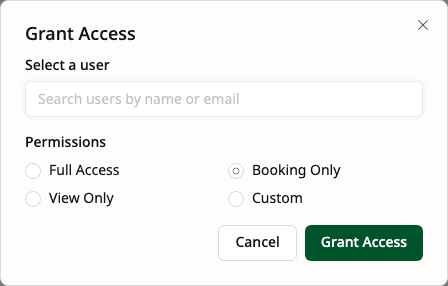
Select the User
Enter the user's ID or email in the user field. The user must be a member of your company.
Choose Permissions
Select a permission preset that matches your needs:
| Preset | Permissions | Use Case |
|---|---|---|
| Full Access | All 5 scopes | Complete trust - they can do everything |
| Booking Only | View Travelers, Create Bookings, View Bookings | Standard assistant access |
| View Only | View Travelers, View Bookings | Visibility without modification |
| Custom | You choose | Specific permission needs |
Customize Permissions (Optional)
If you selected "Custom", check the specific scopes:
- View travelers - See your traveler profiles
- Manage travelers - Edit your traveler profiles (automatically includes View Travelers)
- Create bookings - Make bookings for your travelers (automatically includes View Travelers and Manage Travelers)
- View bookings - See your booking history
- Cancel bookings - Cancel your bookings (automatically includes View Bookings)
Required scopes appear checked and disabled in the form.
Grant Access
Click Grant Access to create the delegation.
The default preset is "Booking Only", which allows the delegate to book travel for your travelers and view the bookings they create.
Viewing Your Delegations
The "My Delegations" section shows everyone you've granted access to.
Each delegation card displays:
- User's name and email
- Number of travelers they own (not yours)
- Permission badges showing granted scopes
- Edit button (pencil icon) and Revoke button (trash icon)
Empty State
If you haven't granted access to anyone:
No delegations yet
Grant access to colleagues who can manage your travelers or create bookings on your behalf.
Editing Delegation Permissions
Modify the scopes for an existing delegation:
Open the Edit Dialog
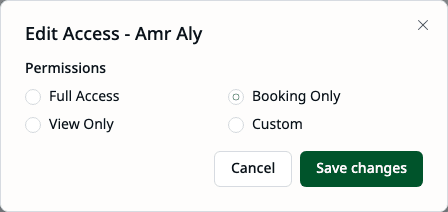
Click Edit Access on the delegation card you want to modify.
Modify Permissions
The dialog shows all five scopes with checkboxes:
- Check scopes to add permissions
- Uncheck scopes to remove permissions
- At least one scope must remain selected
Save Changes
Click Save to apply the changes.
Changes take effect immediately. If you remove a scope while the delegate is using it, their next action requiring that scope will fail.
Revoking Access
Permanently remove someone's access to your travelers:
Initiate Revocation
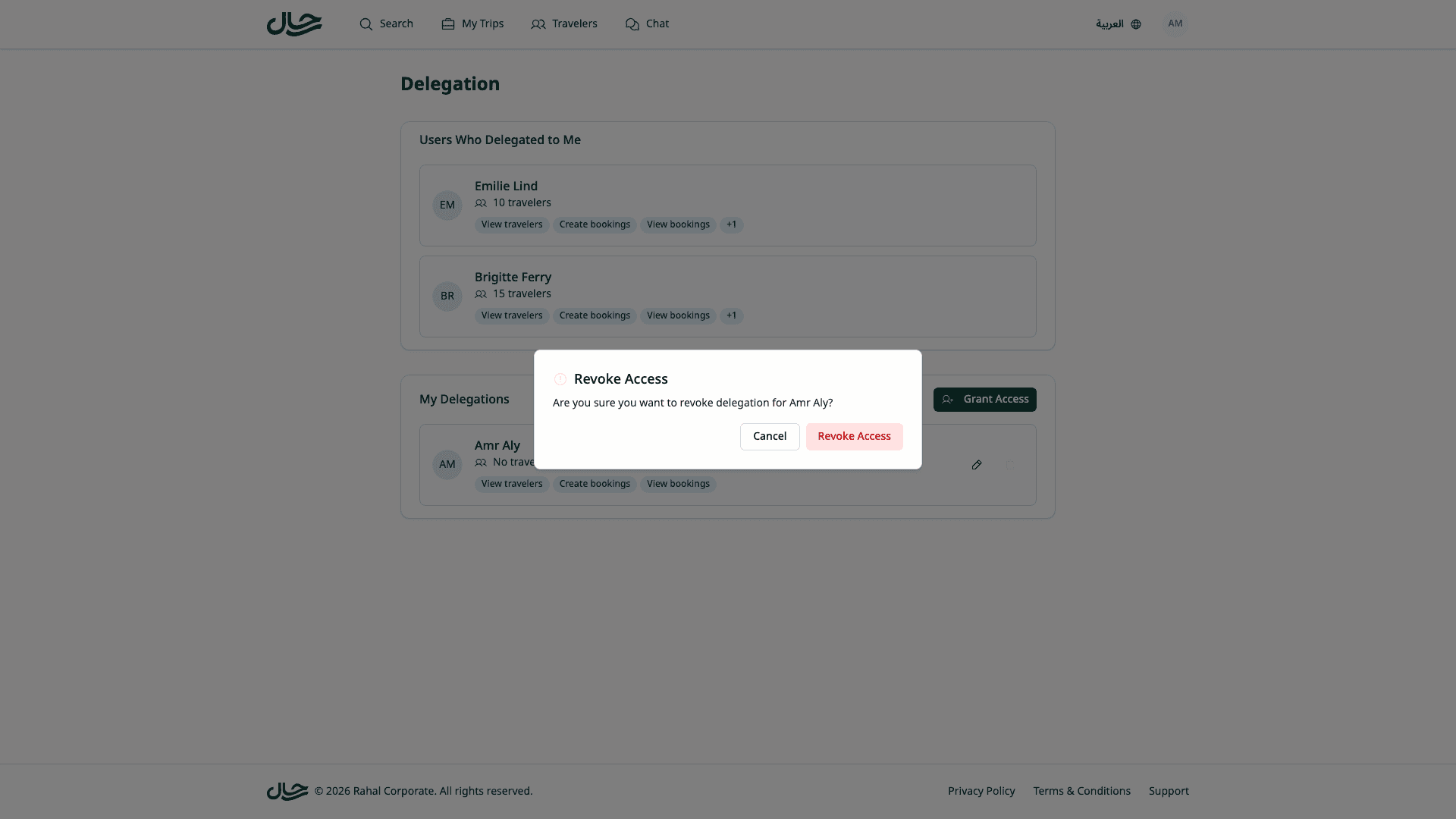
Click Revoke Access on the delegation card.
Confirm Revocation
A confirmation dialog appears asking if you want to revoke access for this user.
Confirm
Click Revoke to remove access.
Revocation is permanent. If you need to restore access, you'll have to create a new delegation.
Best Practices
Start with Booking Only
Unless there's a specific need, start with the "Booking Only" preset:
- Allows booking travel on your behalf
- Doesn't allow changing traveler profiles
- Doesn't allow cancelling bookings
You can always add more permissions later.
Review Periodically
Check your delegations occasionally:
- Do these people still need access?
- Are the scopes still appropriate?
- Has anyone left the company?
Communicate Changes
When you modify or revoke a delegation:
- Let the affected person know
- Explain why if appropriate
- Give notice before critical revocations
Be Selective with Manage Travelers
The "Manage travelers" scope allows editing your traveler profiles:
- Passport updates
- Contact changes
- Adding/removing travelers
Only grant this to people you trust with your personal information.
Be Careful with Cancel Bookings
The "Cancel bookings" scope can have financial implications:
- Cancellation fees may apply
- Refunds may be partial
- Some bookings may be non-refundable
Only grant this to people with authority to change your travel plans.
Common Scenarios
Setting Up Your Assistant
Goal: Your executive assistant should book travel for you.
Configuration:
- Grant Access to your assistant
- Select "Booking Only" preset
- Optionally add "Cancel bookings" if they manage changes too
Temporary Project Coverage
Goal: A colleague will book for you while you're unavailable.
Configuration:
- Grant Access to your colleague
- Select "Booking Only" preset
- Set a reminder to revoke after the project
After the project:
- Open the Delegation page
- Revoke the temporary delegation
Sharing with a Travel Coordinator
Goal: Your company's travel coordinator should manage all travel.
Configuration:
- Grant Access to the coordinator
- Select "Full Access" preset (they likely need everything)
Troubleshooting
I Can't Find the User
The user must be an active member of your company. If you can't find them:
- Verify they have a Rahal account
- Verify they're in your company
- Check the spelling of their name/email
My Delegate Can't See My Travelers
Verify the delegation:
- Check that the delegation exists in your "My Delegations" section
- Ensure it includes the "View travelers" scope
- Ask them to refresh their app
Changes Aren't Taking Effect
Scope changes are immediate, but the delegate may need to:
- Refresh their browser/app
- Log out and log back in
- Wait a few seconds for cache to clear
Related Topics
- Booking with Delegation - Using delegated access
- Scopes Reference - Detailed scope information
- Troubleshooting - More help with issues