

Booking with Delegation
How to book travel on behalf of someone who delegated to you
Booking with Delegated Travelers
When someone delegates to you, you can book travel for their travelers. This guide covers the basics of using delegated access when booking.
For a complete step-by-step guide, see Booking as Delegate.
Prerequisites
Before you can book for someone:
- They must have delegated to you (check your Delegation page)
- The delegation must include Create Bookings scope (this automatically includes View Travelers and Manage Travelers)
The Booking Context Selector
When you have active delegations, a context selector appears on the home page and travelers page. This selector lets you choose who you're booking for.
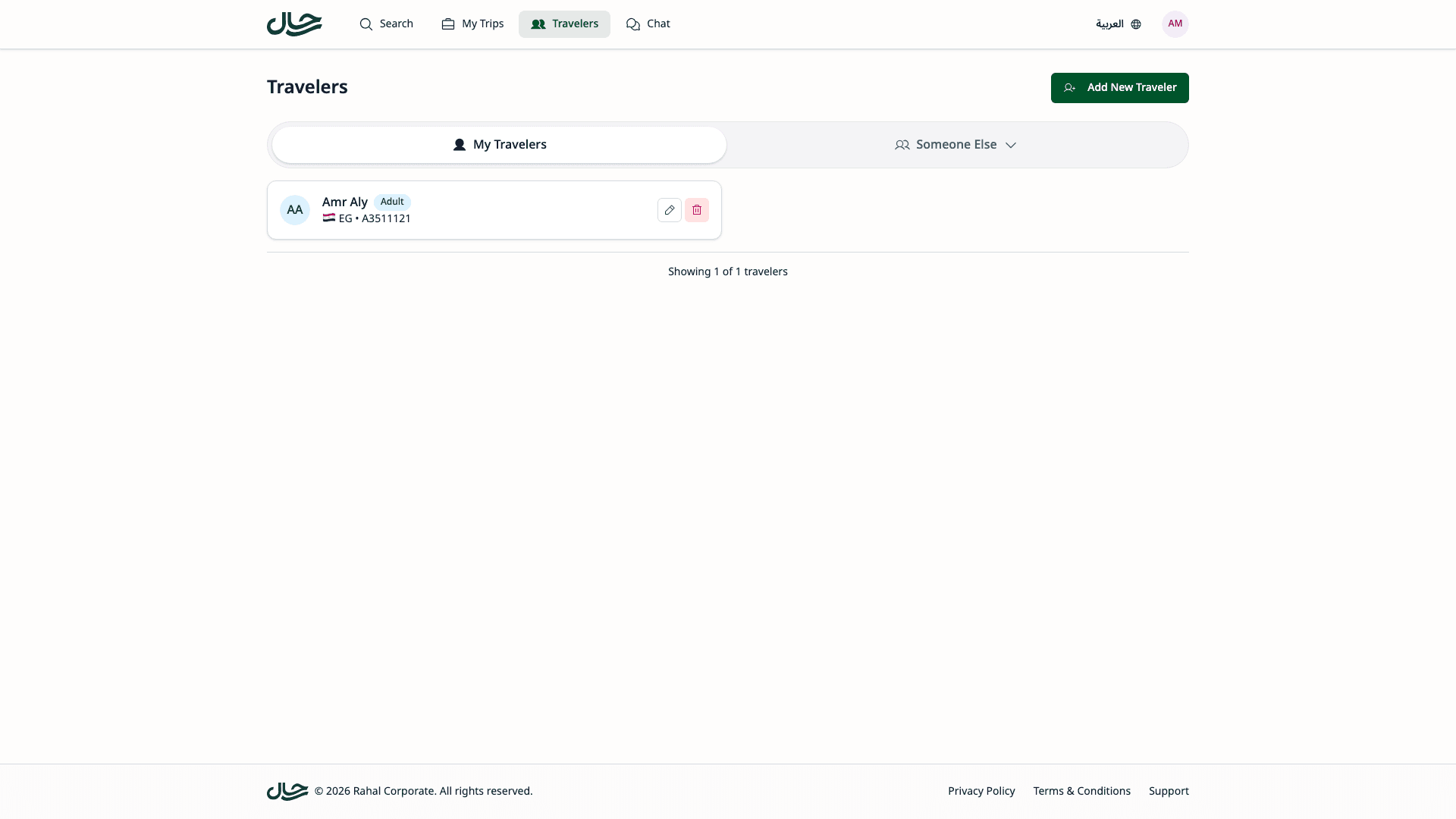
Two Modes
| Mode | Description | Uses |
|---|---|---|
| For Myself | Book for your own travelers | Your travelers, your policy, your budget |
| For [Name] | Book for a delegator's travelers | Their travelers, their policy, their budget |
Single Delegator
If only one person has delegated to you, their name appears directly on the toggle button. Tap to switch between "For Myself" and "For [Name]".
Multiple Delegators
If multiple people have delegated to you, the toggle shows "Someone Else" and opens a user list when clicked:
- Search by name or email
- Select the person you want to book for
- The list shows everyone who has delegated to you
Company-Wide Delegations
If you have a company-wide delegation, you can search for any user in that company rather than selecting from a fixed list. Type a user's name or email to find them, then select them to book on their behalf.
Booking Flow
Select Booking Context
Use the context selector to choose who you're booking for. This determines whose travelers, policy, and budget will be used.
Search for Travel
Search for flights or hotels as you normally would. If booking for someone else, policy badges and budget indicators will reflect their settings.
Select Travelers
The traveler list shows travelers for the selected context:
- If "For Myself" is selected, you see your travelers
- If booking for a delegator, you see their travelers
Select the travelers for this booking.
You cannot mix travelers from different owners. The context selector locks after you select travelers.
Review Delegation Banner
When booking for someone else, a banner appears throughout the booking flow:
"Booking on behalf of [Name]"
This confirms:
- You're booking for someone else
- Their policy will be used for evaluation
- Their budget will be consumed
Complete Booking
Continue through the booking flow:
- Review the itinerary details
- Check policy compliance (uses their policy)
- Submit booking or request (depending on their policy action)
Policy and Budget Impact
Whose Policy Applies?
The delegator's policy is always used. The booking is evaluated against their assigned policy, not yours.
This means:
- Flight rules from their policy
- Cabin class restrictions from their policy
- Approval requirements from their policy
What you see:
- Policy compliance badges reflect their policy
- Warnings or blocks are based on their rules
- Required approval follows their approval chain
Whose Budget is Used?
The delegator's budget is consumed. If they have an assigned budget:
- The booking cost is checked against their budget
- Their remaining balance is reduced
- You'll see budget warnings based on their limits
Budget notifications go to the delegator, not to you.
Booking Requests
If the delegator's policy requires approval, the booking becomes a booking request.
| Attribute | Value |
|---|---|
| Booking For | Delegator |
| Created By | You (the delegate) |
| Approvers | Delegator's approval chain |
| Budget | Delegator's budget |
Whether you can see the request afterward depends on whether you have the View Bookings scope.
Context Locking
Once you select travelers, the booking context locks to prevent accidentally mixing travelers from different owners.
Why Locking?
- Only one policy can apply per booking
- Only one budget can be consumed
- Approval can only go to one chain
Switching After Selection
If you need to switch context after selecting travelers:
- Tap the locked option
- A confirmation dialog appears
- Confirm to clear your selection and switch
The lock icon indicates you have travelers selected. Switching will clear your selection.
Error Handling
Delegation Revoked
Error: "Your access to book for [Name] has been revoked"
The delegator (or admin) removed your access. You cannot complete this booking. Contact the delegator or administrator.
Scope Removed
Error: "You no longer have permission to perform this action for [Name]"
Your delegation was modified to remove booking permission. Contact the delegator to restore the Create Bookings scope.
Traveler Inaccessible
Error: "One or more selected travelers are no longer accessible"
A traveler was removed or the delegation was revoked. Remove the inaccessible traveler and continue, or start a new booking.
Best Practices
Verify Before Booking
Before completing a booking:
- Confirm the delegation banner shows the correct person
- Verify you've selected the right travelers
- Check that policy status is acceptable
Communicate with Delegators
Keep delegators informed:
- Let them know when you've made a booking
- Share confirmation details
- Alert them to any policy warnings or approval requirements
Check Your Access First
Before starting a booking:
- Verify you have an active delegation on the Delegation page
- Confirm you have the Create Bookings scope
- Know whose policy and budget will apply
Learn More
For a detailed walkthrough of the complete booking flow as a delegate, including:
- Selecting a delegator
- Switching context during search
- The delegation banner
- Traveler selection with locked context
- Policy and budget attribution
See Booking as Delegate.
Related Topics
- Self-Service Delegation - Managing your delegations
- Booking Flow Concepts - How delegation affects bookings
- Troubleshooting - Common issues