

Dashboard Access
How company users can access the admin dashboard
Dashboard Access
Company users with the appropriate permissions can access the Rahal Corporate Dashboard to manage their organization's travel settings, users, policies, and more.
Who Can Access the Dashboard
The dashboard is available to:
- Platform administrators — Rahal staff with admin accounts
- Company users with dashboard permission — Users whose role includes the Access Company Dashboard permission
The predefined Manager and Admin roles include dashboard access by default. The Member role does not.
Required Permission
To access the dashboard, your role must include:
| Permission | Description |
|---|---|
| Access Company Dashboard | Allows login to the dashboard and viewing company data |
This permission is the gateway to the dashboard. Once inside, what you can see and do depends on your other permissions (e.g., Read Users, Write Policies).
Logging In to the Dashboard
The dashboard uses the same login methods as the booking app.
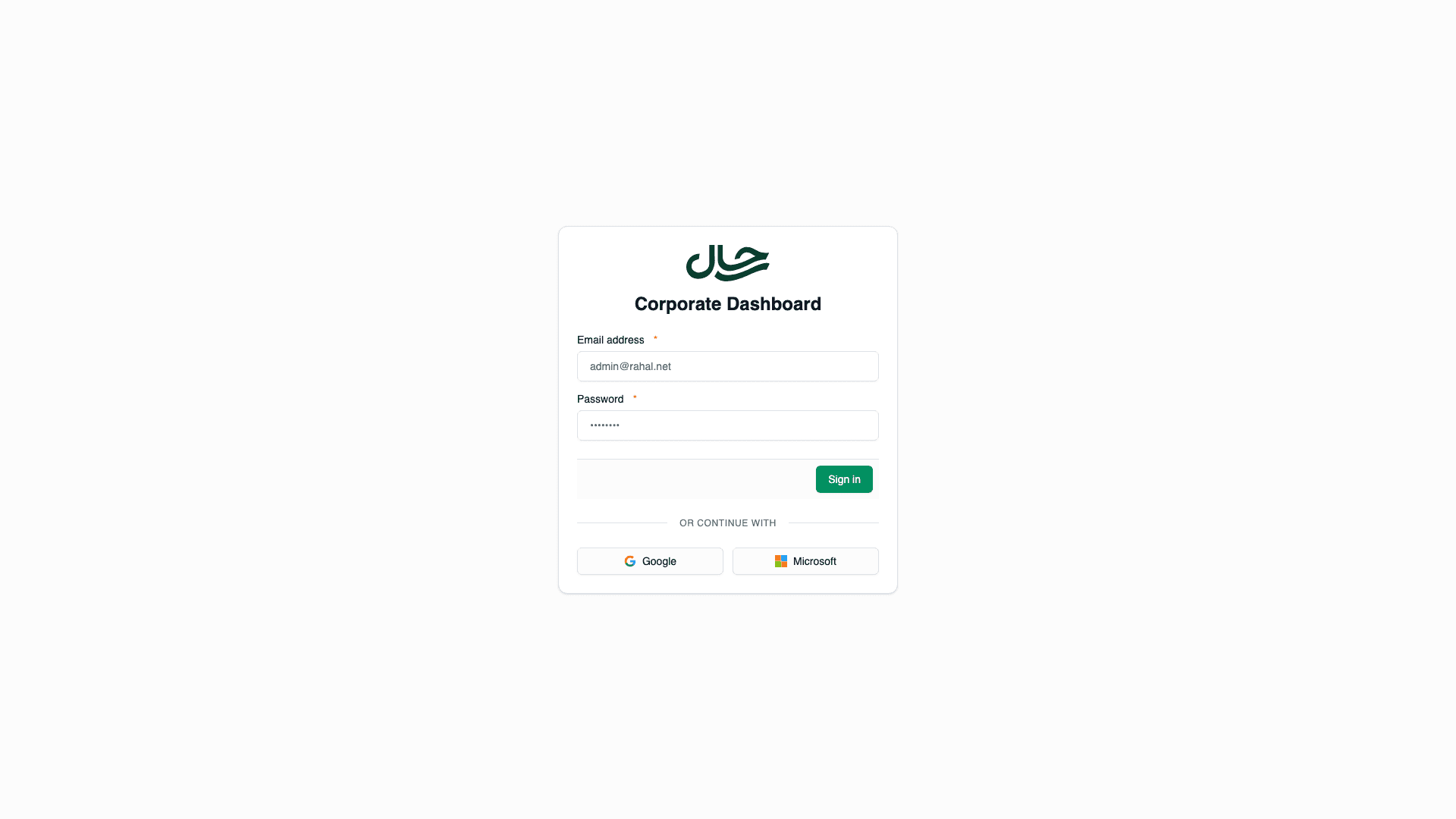
Email and Password
Go to the Dashboard Login
Open the Corporate Dashboard login page.
Enter Your Credentials
Use the same email and password as your booking app account.
Sign In
Click Sign in to access the dashboard.
Social Login (Google or Microsoft)
Go to the Dashboard Login
Open the Corporate Dashboard login page.
Click Google or Microsoft
Choose your preferred social login provider.
Authenticate
Sign in with your Google or Microsoft account. Use the account associated with your company email.
Access Granted
You'll be redirected to the dashboard home page.
How Dashboard Login Works
When you log in to the dashboard, Rahal checks:
- Credential validation — Email/password or social login verified
- Admin check — If you're a platform admin, you get admin access
- Permission check — If you're a company user, your role must include Access Company Dashboard
- Access granted — You see only your company's data
Dashboard vs Booking App Access
| Aspect | Booking App | Dashboard |
|---|---|---|
| Default access | All active users | Only users with permission |
| Purpose | Book travel, manage travelers | Administer company settings |
| Same credentials | ✅ Yes | ✅ Yes |
| Social login | ✅ Google, Microsoft | ✅ Google, Microsoft |
| Data visible | Own bookings, travelers | Company-wide data |
What You Can Do
Once logged in, your capabilities depend on your permissions:
| Permission | Capability |
|---|---|
| Read Users | View user list and details |
| Write Users | Create and edit users |
| Read Policies | View travel policies |
| Write Policies | Create and modify policies |
| Read Budgets | View budget configurations |
| Write Budgets | Create and modify budgets |
| Read Booking Requests | View pending and completed requests |
| Write Booking Requests | Process and edit requests |
Even with dashboard access, you only see data for your own company. You cannot access other companies' data.
Troubleshooting
"Access denied" or "Insufficient permissions"
Your role doesn't include the Access Company Dashboard permission. Contact your administrator to:
- Upgrade your role to Manager or Admin
- Create a custom role with dashboard access
- Add the permission to your current role
"Invalid credentials"
Check that:
- You're using the correct email address
- Your password is correct (or use social login)
- Your account is active
"Account is inactive"
Your account has been deactivated. Contact your administrator to reactivate it.
Login works but dashboard is empty
You have dashboard access but may not have other read permissions. Your role needs additional permissions like Read Users, Read Policies, etc. to see data.
Security Considerations
Session Management
- Dashboard sessions expire after a period of inactivity
- Logging out from one device doesn't log you out from others
- Always log out when using shared computers
Permission Scope
- Dashboard access is company-scoped
- You cannot view or modify other companies' data
- All actions are logged for audit purposes
Related Topics
- Roles & Permissions — Understanding role-based access control
- Creating Custom Roles — How to create roles with dashboard access
- Predefined Roles — Which roles include dashboard access