

Login Methods
How to sign in to the Rahal booking app
Login Methods
Rahal supports multiple ways to sign in to the booking app. You can use your email and password, or sign in with Google or Microsoft.
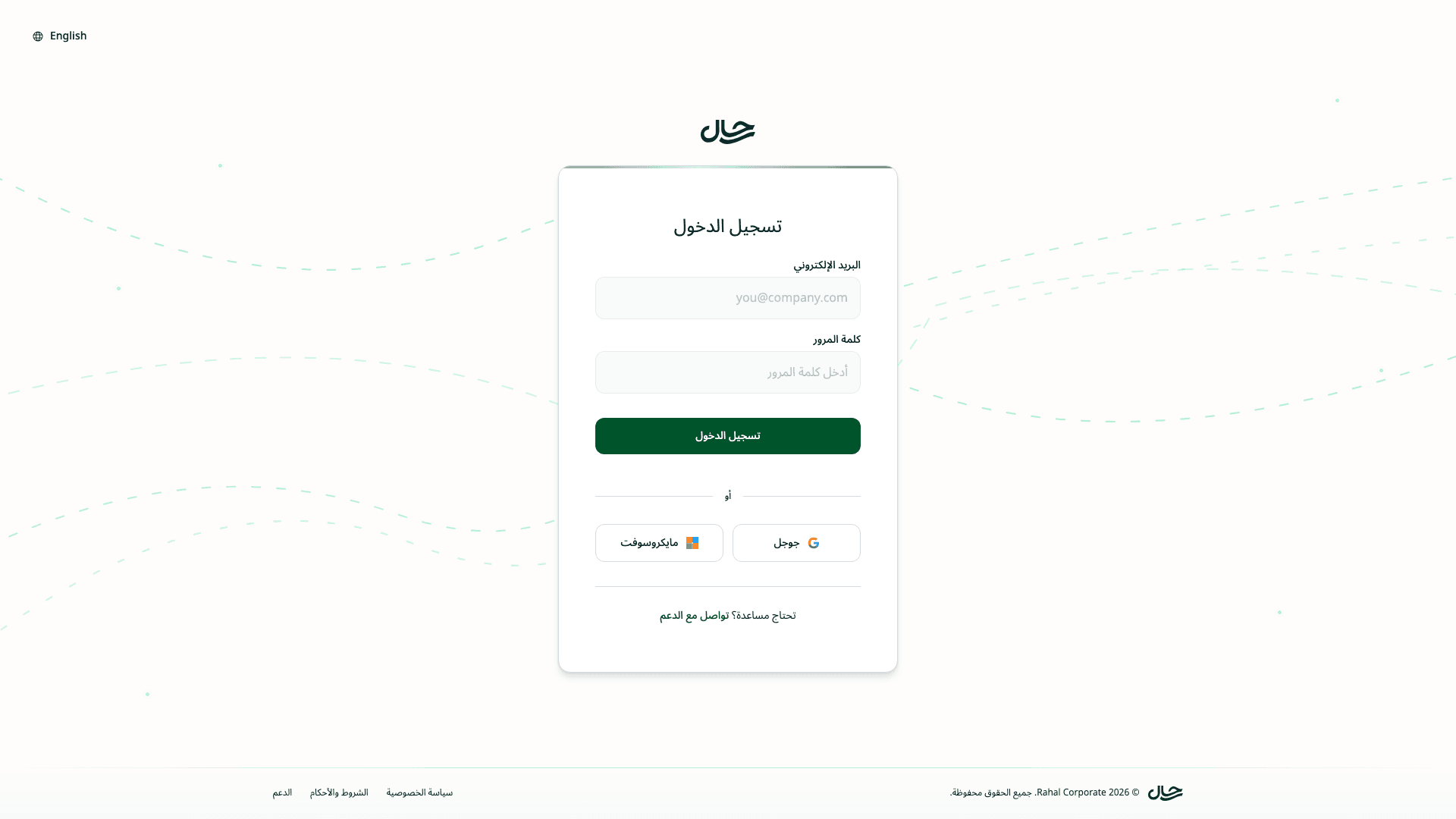
Email and Password
The traditional login method using your company email and a password.
Go to the Login Page
Open the Rahal app and you'll see the login page.
Enter Your Email
Type your company email address (e.g., jane@acme.com).
Enter Your Password
Type the password you created during registration or that was provided by your administrator.
Click Sign In
You'll be redirected to the home page where you can start booking travel.
If you forgot your password, contact your company administrator to reset it.
Social Login
Social login lets you sign in using your existing Google or Microsoft account. This is often faster and means one less password to remember.
Sign In with Google
Click the Google Button
On the login page, click the Google button below the sign-in form.
Choose Your Google Account
If you have multiple Google accounts, select the one that matches your company email.
Grant Permission
Google will ask you to allow Rahal to access your basic profile information. Click Continue or Allow.
You're In
You'll be redirected back to Rahal and signed in automatically.
Sign In with Microsoft
Click the Microsoft Button
On the login page, click the Microsoft button below the sign-in form.
Sign In to Microsoft
Enter your Microsoft account credentials if prompted. Use the account associated with your company email.
Grant Permission
Microsoft will ask you to allow Rahal to access your profile. Click Accept.
You're In
You'll be redirected back to Rahal and signed in automatically.
First-Time Social Login
If you haven't used social login before, Rahal will create your account automatically when you first sign in with Google or Microsoft.
How It Works
- Email matching — Rahal extracts your email from the social provider (e.g.,
jane@acme.com) - Company lookup — Rahal finds your company by matching the email domain (
acme.com) - Account creation — If you don't have an account, one is created for you
- Role assignment — You're assigned the Member role by default
Your email domain must match one of your company's verified domains. If it doesn't, you won't be able to sign in.
Auto-Signup Behavior
The experience depends on your company's settings:
| Setting | What Happens |
|---|---|
| Auto-signup enabled | You can sign in immediately after account creation |
| Auto-signup disabled | Your account is created as inactive and requires admin approval |
If your account is pending approval, you'll see a message indicating you need to wait for your administrator to activate your account.
Account Linking
If you registered with email/password and later want to use social login, you can do so as long as:
- The email on your social account matches your Rahal account email
- Your account is active
Simply click the social login button and Rahal will recognize your email and sign you in.
Switching Between Methods
You can use any login method at any time:
- Sign in with Google today
- Sign in with email/password tomorrow
- Sign in with Microsoft next week
All methods access the same account as long as the email addresses match.
Troubleshooting
"No company found for this email"
Your email domain isn't associated with any company in Rahal. Contact your IT administrator to:
- Add your email domain to the company's verified domains
- Create an account for you manually
"Account is inactive"
Your company has auto-signup disabled and your account is pending approval. Contact your administrator to activate your account.
"Authentication failed"
Common causes:
- You declined the permissions request from Google/Microsoft
- The authentication session timed out — try again
- There's a network issue — check your internet connection
Can't find the social login buttons
If you only see the email/password form:
- Your company may have disabled social login
- The page may not have fully loaded — refresh and try again
Security Notes
Social Login Benefits
- Stronger security — Uses Google's or Microsoft's authentication
- No password to remember — One less credential to manage
- Automatic updates — If you change your Google/Microsoft password, Rahal access updates automatically
Best Practices
- Use the social account that matches your company email
- Log out when using shared computers
- Review connected apps periodically in your Google/Microsoft account settings