

Viewing Companies
Navigate and understand the companies list
Viewing Companies
This guide explains how to navigate the companies list and understand company information.
Accessing the Companies List
- Log in to the admin dashboard
- Click Companies in the sidebar navigation
- The companies list displays all companies you have access to
Platform administrators see all companies. Company administrators only see their own company.
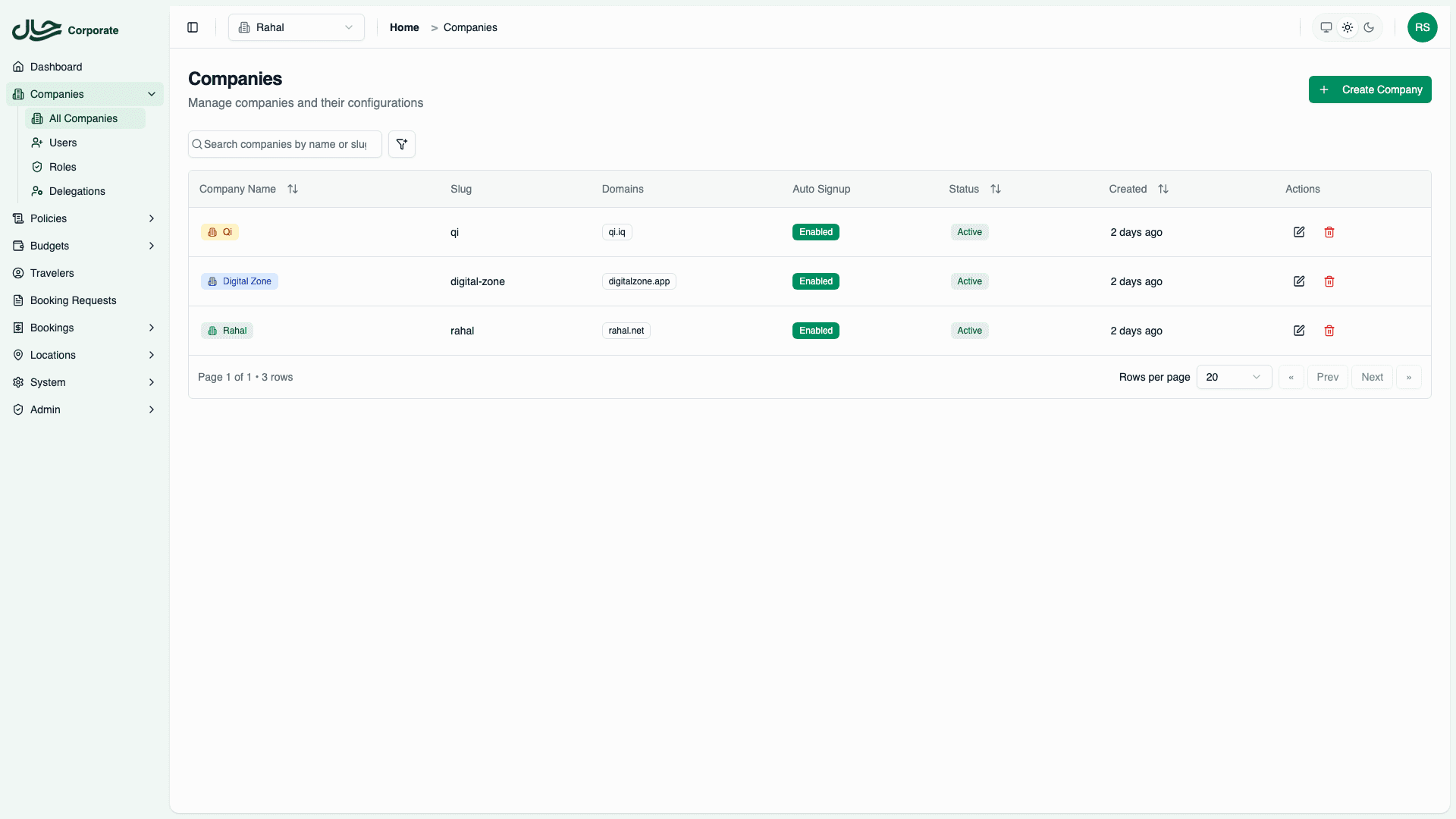
Companies List Columns
| Column | Description | Sortable |
|---|---|---|
| Company Name | Display name with company badge | ✅ |
| Slug | URL-friendly identifier | ❌ |
| Domains | Verified email domains as badges | ❌ |
| Auto Signup | Enabled/Disabled status | ❌ |
| Status | Active (green) or Inactive (red) | ✅ |
| Created | Creation date (relative) | ✅ |
| Actions | Edit and Delete buttons | ❌ |
Filtering Companies
Use the filter controls above the table:
| Filter | Options | Description |
|---|---|---|
| Status | Active / Inactive / All | Filter by company status |
| Auto Signup | Enabled / Disabled / All | Filter by auto-signup setting |
| Created Date | Date range picker | Filter by creation date |
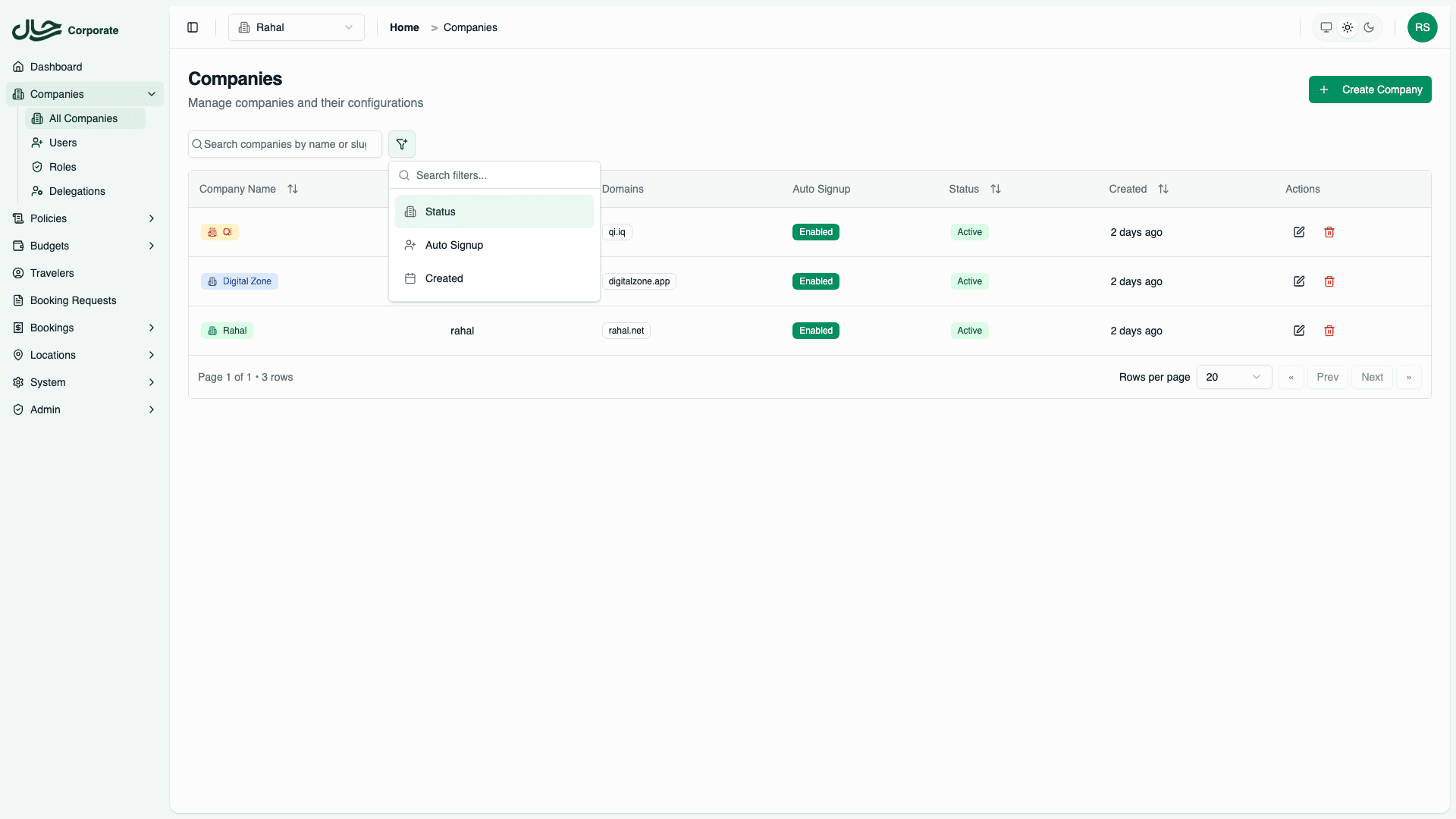
Applying Filters
- Click the filter dropdown
- Select your filter criteria
- The list updates automatically
- Active filters appear as badges
- Click the X on a badge to remove that filter
Searching Companies
Use the search box to find companies by:
- Company name — Partial match
- Slug — Partial match
Search is case-insensitive.
Sorting
Click column headers to sort:
| Column | Sort Options |
|---|---|
| Company Name | A-Z / Z-A |
| Status | Active first / Inactive first |
| Created | Newest first / Oldest first |
Click a column header once for ascending, again for descending.
Status Indicators
Company Status Badge
| Badge | Meaning |
|---|---|
| Active (green) | Company is operational |
| Inactive (red) | Company is suspended |
Auto-Signup Badge
| Badge | Meaning |
|---|---|
| Enabled (default) | Users auto-activate on registration |
| Disabled (secondary) | Users require admin approval |
Domain Badges
Each verified domain appears as a badge:
[acme.com] [acme.net]Multiple domains indicate the company accepts users from several email domains.
Company Details
Quick View
Click on a company row to view its details:
- Full company information
- Verified domains list
- Booking engine configuration status
- Creation and update timestamps
Editing
Click the Edit (pencil) button to modify the company.
Deleting
Click the Delete (trash) button to remove the company.
Deletion is irreversible through the UI. Contact platform admin to restore deleted companies.
Pagination
The companies list uses pagination:
- Default page size: 10 companies
- Navigate using Previous/Next buttons
- Jump to specific pages using page numbers
- Change page size if available
My Company
Company administrators can access their own company directly:
- Click Settings in the sidebar
- Select Company Settings
- View and edit your company configuration
This bypasses the companies list for single-company administrators.
Common Views
All Active Companies
- Filter by Status: Active
- Sort by Created (newest first)
Companies Needing Attention
- Filter by Status: Inactive
- Review why companies are suspended
Recently Created
- Clear all filters
- Sort by Created (newest first)
- First entries are most recent
Best Practices
Regular Reviews
- Audit inactive companies monthly
- Remove test companies no longer needed
- Verify domain ownership periodically
Documentation
- Note why companies are created
- Document domain ownership
- Track company administrators