

Creating Companies
How to create a new company in Rahal
Creating Companies
This guide walks you through creating a new company in Rahal.
Access Requirements
You need Platform Administrator access to create new companies. Company administrators can only manage their own company.
Creating a Company
Navigate to Companies
From the dashboard sidebar, click Companies to view the companies list.
Open Create Form
Click the Create Company button in the top right corner. A drawer will slide in from the right.
Enter Basic Information
Fill in the required fields in the Basic Info tab:
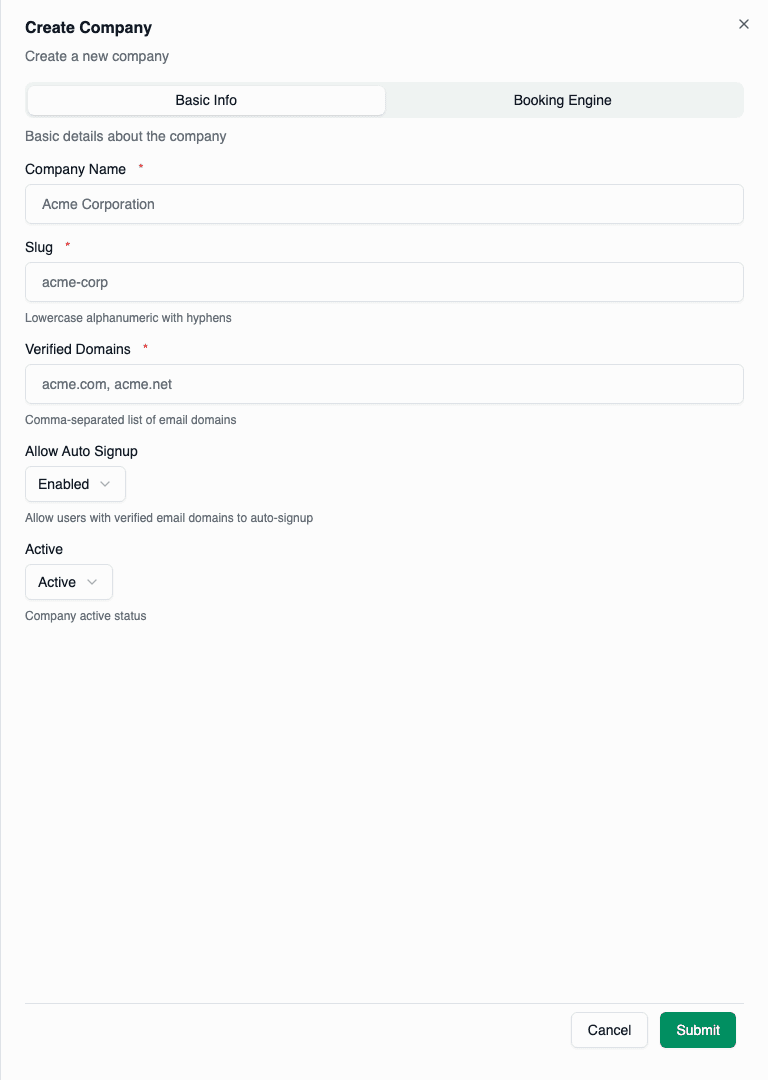
| Field | Required | Description |
|---|---|---|
| Company Name | Yes | Display name for the company |
| Slug | Yes | URL-friendly identifier (auto-generated) |
| Verified Domains | Yes | Comma-separated email domains |
| Allow Auto Signup | Yes | Enable/disable automatic user activation |
| Active | Yes | Company active status |
Configure Booking Engine (Optional)
Switch to the Booking Engine tab if you need custom travel supplier integration:
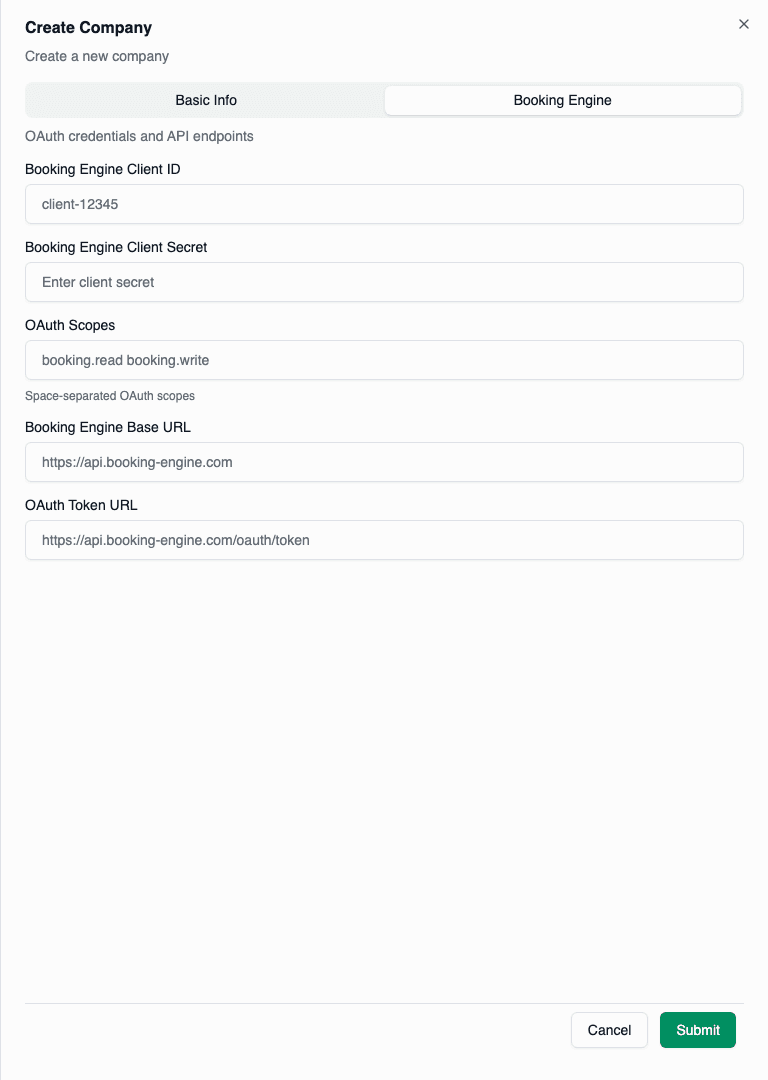
| Field | Description |
|---|---|
| Client ID | OAuth client identifier |
| Client Secret | OAuth client secret |
| OAuth Scopes | Space-separated scope list |
| Base URL | Booking engine API URL |
| Token URL | OAuth token endpoint |
Save the Company
Click Create Company to save. The company is now active and ready for users.
Form Field Details
Company Name
The display name shown throughout the platform:
- Maximum 200 characters
- Can contain any characters
- Should be the official company name
Examples:
Acme CorporationGlobal Travel Inc.أكمي للسفر
Slug
A URL-friendly identifier used in URLs and API references:
- Maximum 100 characters
- Lowercase letters, numbers, and hyphens only
- Must be unique across all companies
- Auto-generated from company name, but customizable
Examples:
acme-corporationglobal-travelacme-travel
The slug is auto-generated when you type the company name. You can override it if needed.
Verified Domains
Email domains that belong to this company:
- Enter as comma-separated list
- No
@symbol needed - Case-insensitive matching
Examples:
acme.comacme.com, acme.net, acme.co.uk
Allow Auto Signup
Controls whether new users are immediately activated:
| Setting | Behavior |
|---|---|
| Enabled | Users with verified domain emails are immediately active |
| Disabled | Users are created but require admin activation |
Active Status
Controls whether the company is operational:
| Status | Effect |
|---|---|
| Active | Company is fully operational |
| Inactive | All users blocked from access |
What Happens After Creation
When you create a company:
-
Predefined Roles Created — Three roles are automatically created:
- Member (basic booking)
- Manager (team oversight)
- Admin (full access)
-
Company Ready for Users — Users can now:
- Self-register with verified domain emails
- Be created manually by administrators
-
Policies and Budgets — The company has no policies or budgets yet. Create these separately.
Troubleshooting
Slug Already Exists
If you see a "slug already exists" error:
- Choose a different slug value
- Add a suffix (e.g.,
acme-corpinstead ofacme) - Check if the company already exists under a different name
Invalid Domain Format
If domain validation fails:
- Remove the
@symbol (useacme.comnot@acme.com) - Separate multiple domains with commas
- Ensure there are no spaces in domain names
Missing Required Fields
All fields marked with a red asterisk (*) are required:
- Company Name
- Slug
- Verified Domains