

Managing Companies
How to view, edit, and manage existing companies
Managing Companies
This guide covers viewing, editing, and deactivating companies.
Viewing Companies
Companies List
Navigate to Companies from the sidebar to see all companies:
| Column | Description |
|---|---|
| Company Name | Displays name with company badge |
| Slug | URL-friendly identifier |
| Domains | Verified email domains as badges |
| Auto Signup | Enabled/Disabled badge |
| Status | Active (green) or Inactive (red) |
| Created | Creation date |
| Actions | Edit and Delete buttons |
Filtering Companies
Use the filter controls above the table:
| Filter | Options | Description |
|---|---|---|
| Status | Active / Inactive / All | Filter by company status |
| Auto Signup | Enabled / Disabled / All | Filter by auto-signup setting |
| Created Date | Date range | Filter by creation date |
Searching Companies
Use the search box to find companies by:
- Company name (partial match)
- Slug (partial match)
Sorting
Click column headers to sort:
- Company Name — Alphabetical
- Status — Active first or Inactive first
- Created — Newest or oldest first
Editing Companies
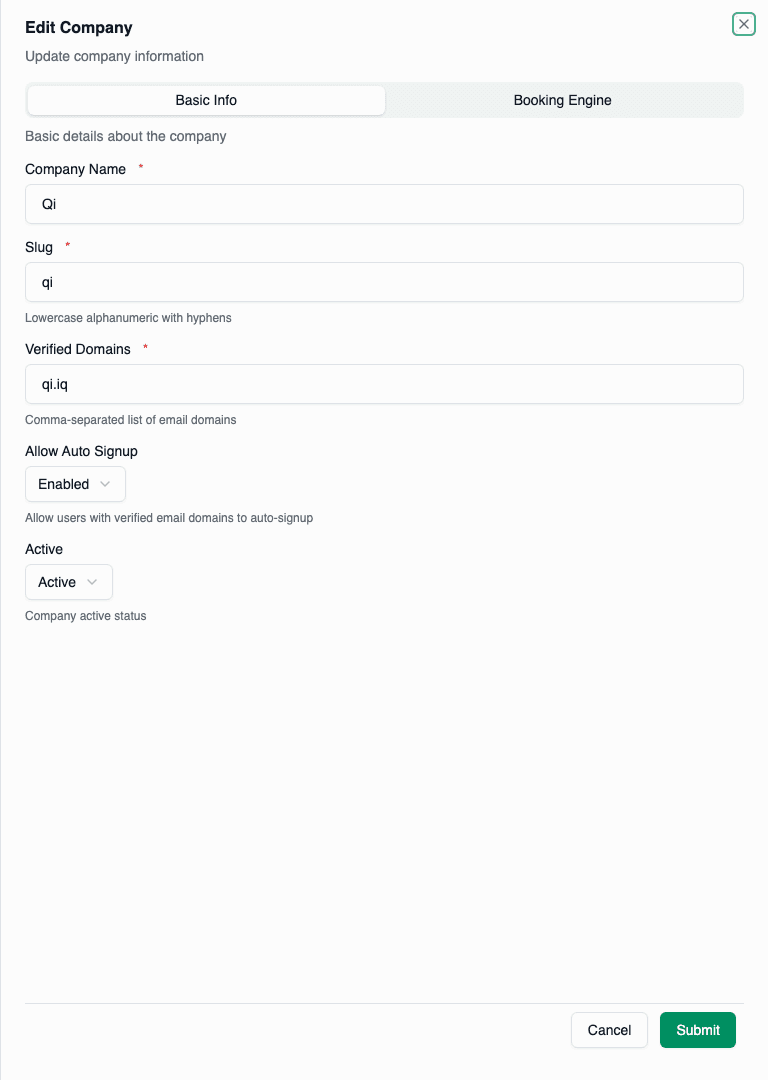
Access Edit Form
- Find the company in the list
- Click the Edit (pencil) button in the Actions column
- The edit drawer slides in from the right
Editable Fields
All fields can be modified:
Basic Info Tab:
- Company Name
- Slug (must remain unique)
- Verified Domains
- Allow Auto Signup
- Active Status
Booking Engine Tab:
- Client ID
- Client Secret (leave blank to keep existing)
- OAuth Scopes
- Base URL
- Token URL
Saving Changes
Click Save Changes to apply your updates. A success notification confirms the save.
Changing the slug may break existing bookmarks or API integrations that use the old slug.
Deactivating Companies
Deactivation temporarily suspends a company without deleting it.
When to Deactivate
- Temporary suspension — Company needs to pause operations
- Billing issues — Non-payment or contract disputes
- Security concerns — Suspected unauthorized access
- Compliance hold — Pending compliance review
How to Deactivate
- Edit the company
- Change Active to Inactive
- Save changes
Effects of Deactivation
When a company is inactive:
| Area | Effect |
|---|---|
| User Login | All users blocked from logging in |
| API Access | All API requests rejected |
| Scheduled Jobs | Paused until reactivation |
| Data | Preserved, not deleted |
Deactivation takes effect immediately. All currently logged-in users will lose access on their next request.
Reactivating Companies
To reactivate:
- Edit the company
- Change Active to Active
- Save changes
Users can immediately log in again.
Deleting Companies
Company deletion is a significant action. Ensure you understand the implications before proceeding.
Soft Delete
Rahal uses soft deletion for companies:
- Company record marked as deleted
- All users lose access
- Data is preserved (not physically deleted)
- Can be restored by platform administrators
How to Delete
- Find the company in the list
- Click the Delete (trash) button
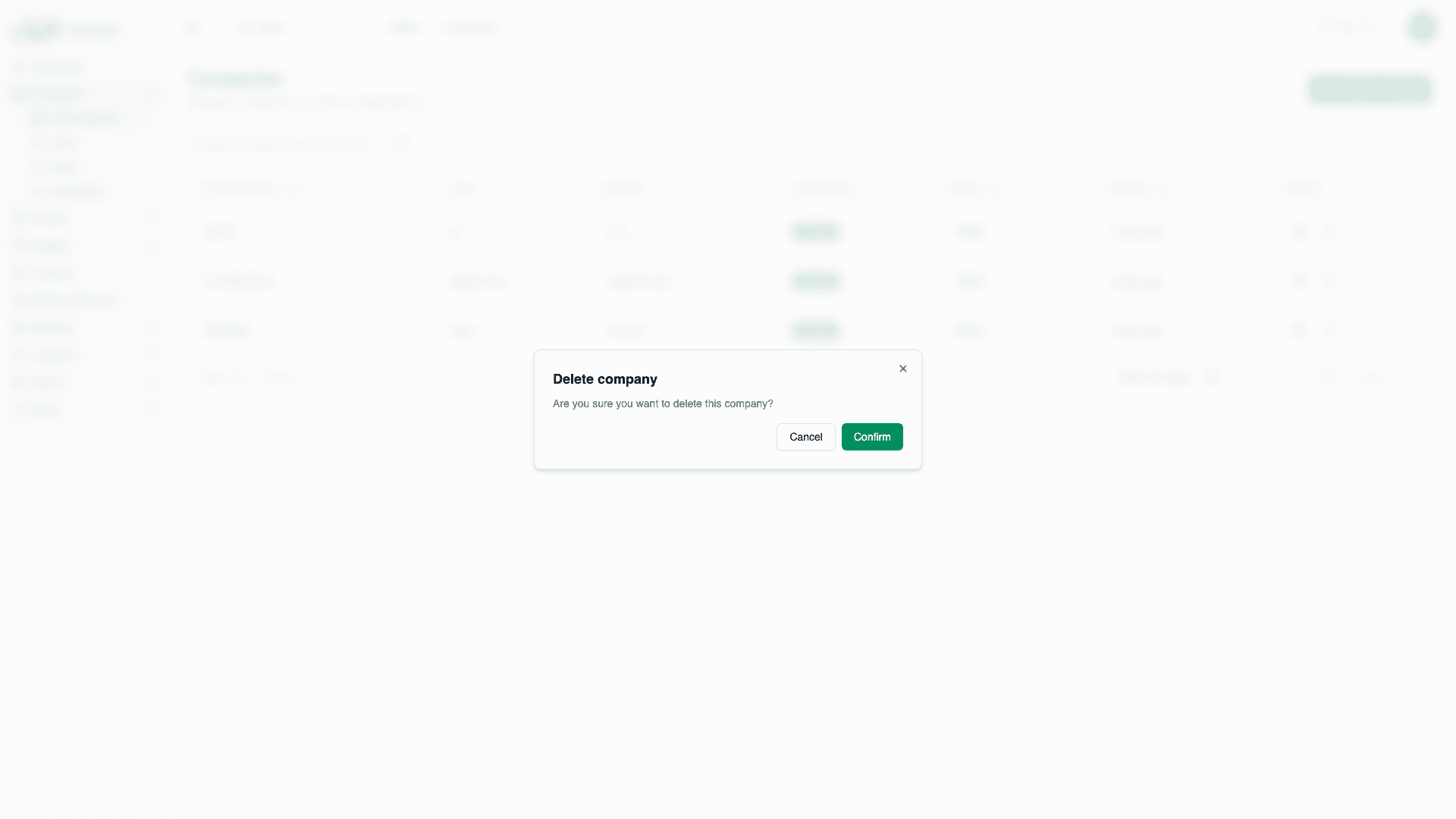
- Confirm the deletion in the dialog
- Company is removed from the list
What Gets Deleted
When a company is deleted:
- Company becomes invisible in listings
- All company users lose access
- Policies, budgets, and configurations preserved
- Historical booking data preserved
Recovery
Deleted companies can be restored by platform administrators via database operations. Contact support if recovery is needed.
Viewing Company Details
From the List
Click anywhere on a company row (except action buttons) to view details.
My Company (Dashboard Users)
Company administrators see their own company via:
- Settings → Company Settings
- Automatic context based on login
Audit Trail
Company changes are logged:
| Event | Logged Information |
|---|---|
| Creation | Creator, timestamp, initial settings |
| Updates | Editor, timestamp, changed fields |
| Deletion | Deleter, timestamp |
| Status Changes | Actor, old status, new status |
Best Practices
Before Making Changes
- Communicate — Notify affected users of significant changes
- Backup — Document current settings before major changes
- Test — For booking engine changes, test in staging first
Managing Multiple Companies
If you manage multiple companies:
- Use consistent naming conventions
- Document domain ownership
- Create a company setup checklist
- Assign dedicated administrators per company