

Viewing Orders
How to search, filter, and view order details in the dashboard
Viewing Orders
The dashboard provides tools for finding and viewing order information.
Order List
Navigate to Bookings in the main menu to access the order list.
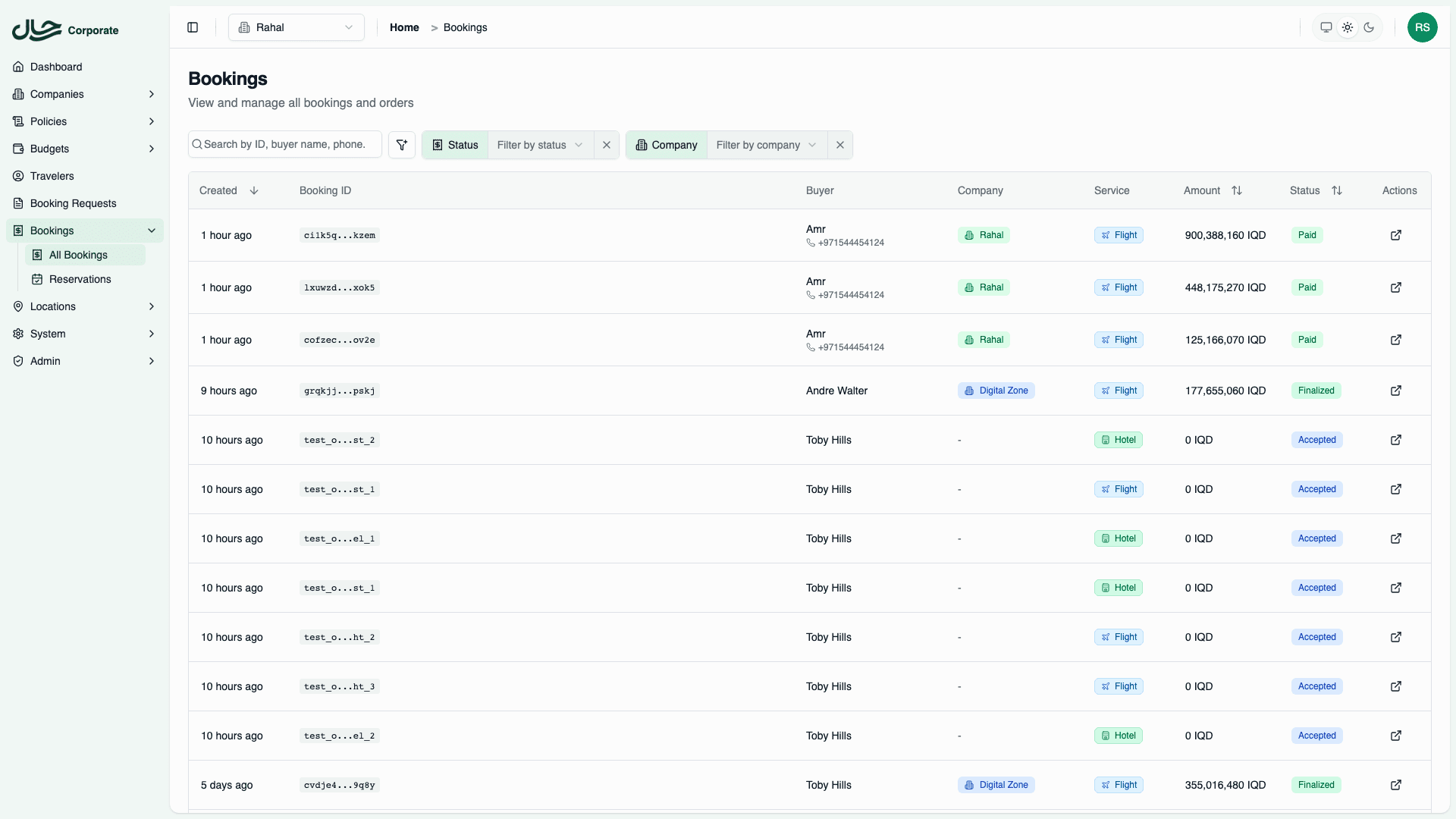
List Columns
| Column | Description |
|---|---|
| Created | When the order was created (relative time) |
| Booking ID | Unique order identifier (clickable to copy) |
| Buyer | Buyer's name and phone number |
| Company | Company name (for corporate bookings) |
| Service | Booking type (air, hotel, package) |
| Amount | Total amount (including BNPL fees) |
| Status | Current order status |
| Actions | Open order in new tab |
Filtering Orders
Use the filter bar to narrow results:
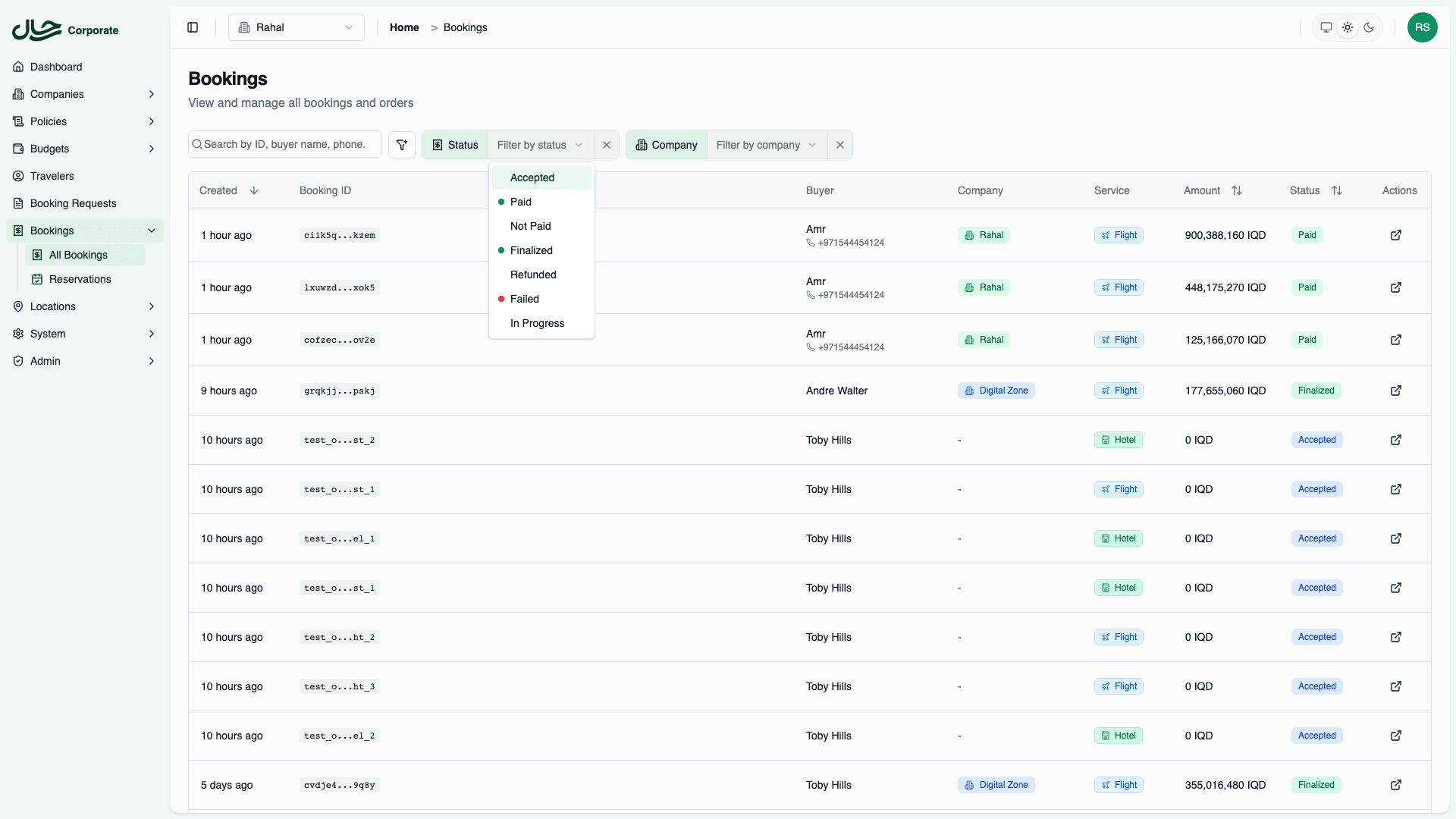
Global Search
Search by booking ID, buyer name, or phone number.
By Status
Filter by order status:
- Accepted — Awaiting payment
- Paid — Payment verified
- In Progress — Processing
- Finalized — Complete
- Not Paid — Payment timeout
- Failed — Error occurred
- Refunded — Refunded
By Service
Filter by service type:
- Air — Flight bookings
- Hotel — Hotel bookings
- Package — Travel packages
By Company
Filter by company (for corporate bookings).
By Created Date
Filter by date range when orders were created.
Pagination
Use pagination controls to navigate through results. Default is 20 items per page.
Order Details
Click on any row in the list to view the order detail page.
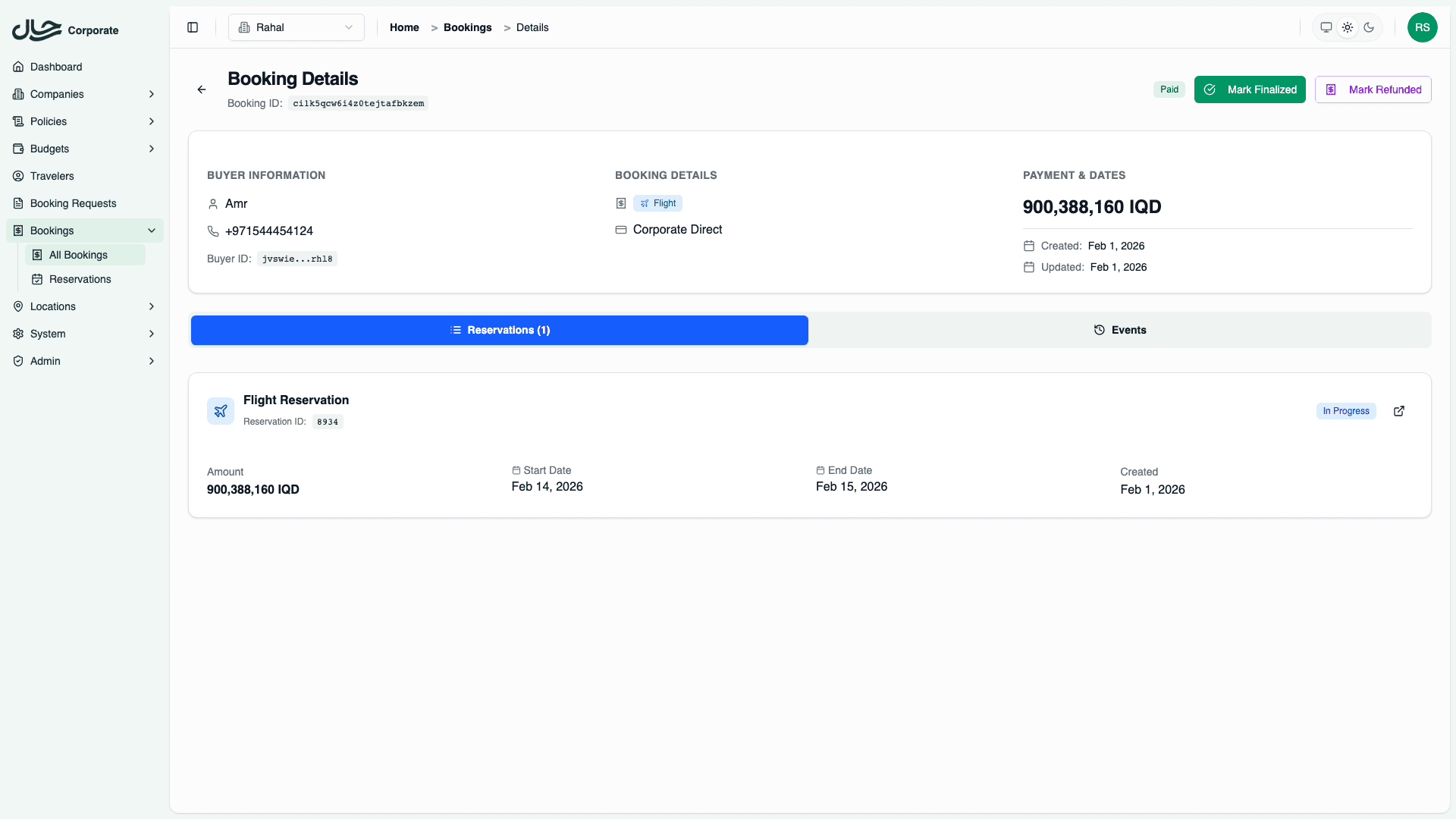
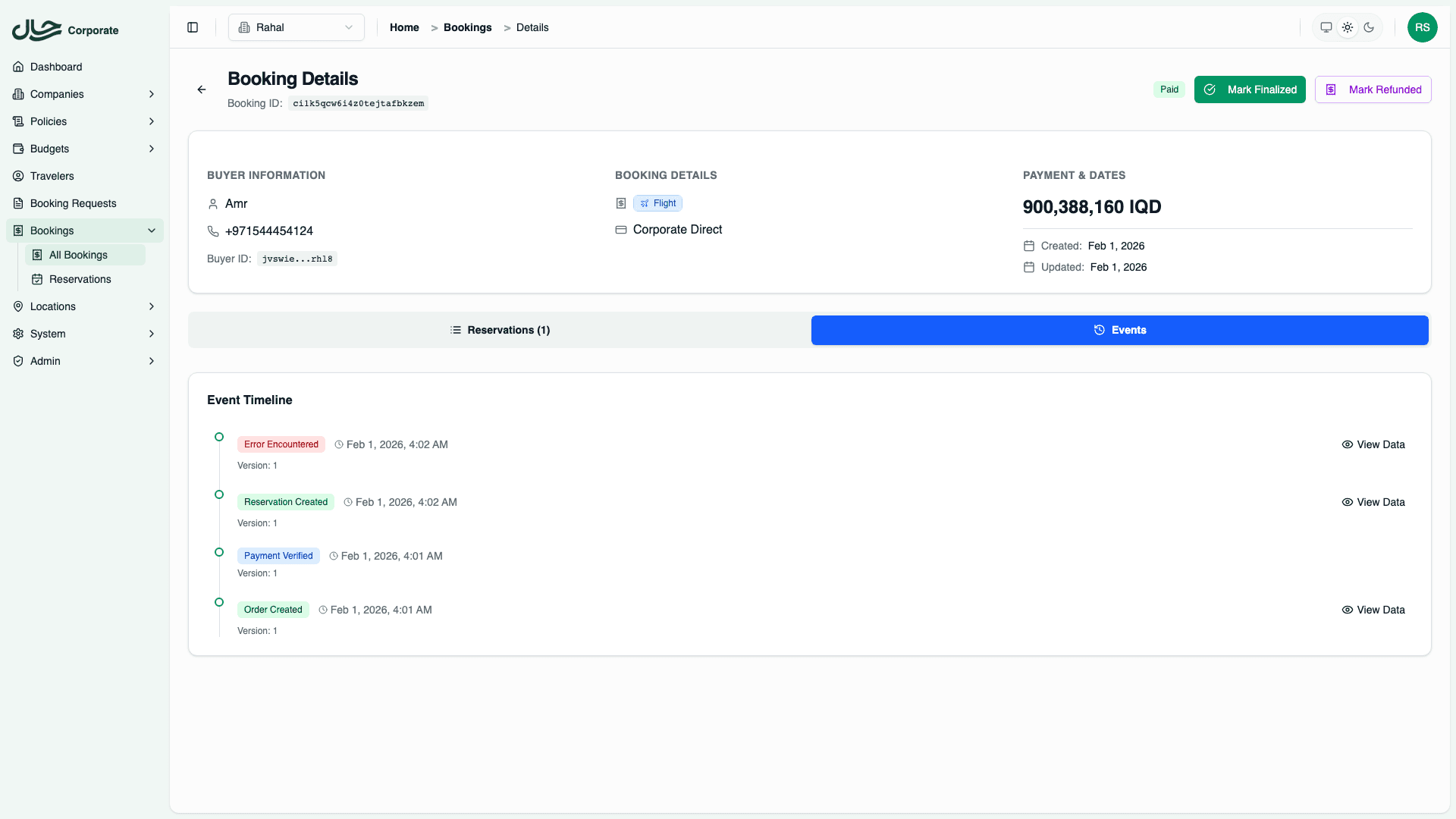
Overview Card
The overview card shows key booking information in three sections:
Buyer Information:
- Buyer name
- Phone number
- Buyer ID (copyable)
Booking Details:
- Service type (Air, Hotel, Package)
- Company (for corporate bookings)
- Payment provider
Payment & Dates:
- Total amount (including any BNPL fees)
- Created date
- Updated date (if modified)
Quick Actions
Available actions appear in the header based on order status:
| Action | Availability | Effect |
|---|---|---|
| Mark Finalized | When status is Accepted or Paid | Changes status to Finalized |
| Mark Refunded | When status is Accepted, Paid, or Finalized | Changes status to Refunded |
Status changes are logged as events. Use these actions only when manually resolving orders.
Tabs
The order detail view has two tabs:
Reservations Tab
Lists all reservations linked to this order with details including reservation ID, service type, price, and status. Each reservation can be viewed in detail.
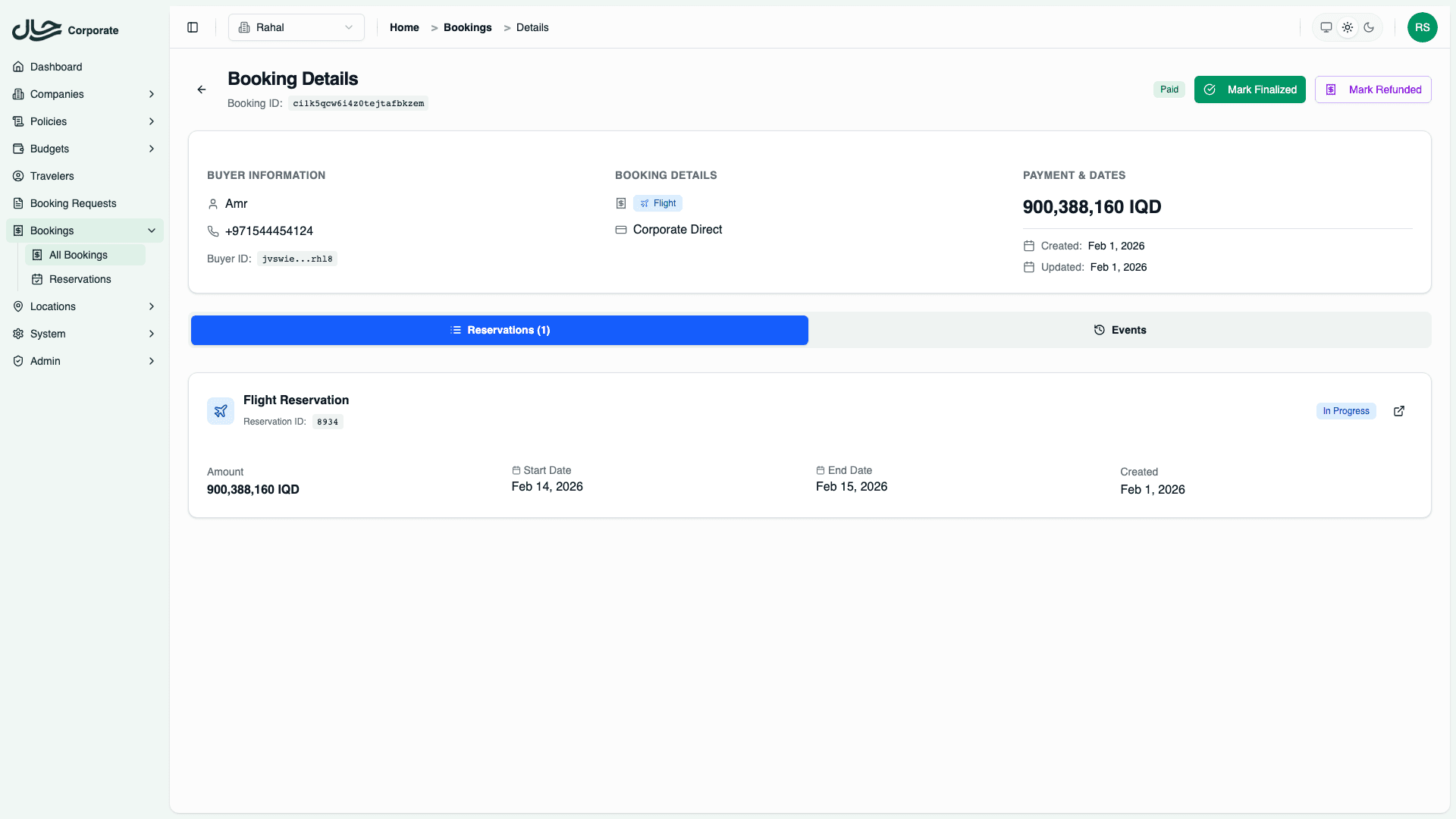
Events Tab
Shows the complete event audit trail with timestamps and event types. Click on any event to view its full data payload.
Finding Specific Orders
By Search
- Navigate to Bookings
- Enter your search term in the search box
- The system searches by booking ID, buyer name, or phone number
By Status
- Navigate to Bookings
- Click on the Status filter
- Select the desired status
- List updates automatically
Combining Filters
Filters can be combined for precise searches:
- Status + Company = Find a company's failed bookings
- Service + Date range = Find flight bookings from a specific period
Copying IDs
Booking IDs can be copied with one click:
- Click the copy icon next to the booking ID
- ID is copied to clipboard
This is useful for sharing references with team members or recording in support tickets.